UX PIN
UXPin Head to Head Comparison of Features, Alternatives and Pricing
No credit card needed
At a glance: UX Pilot vs UXPin feature comparisons
| Compare Features |  |  |
|---|---|---|
| AI design approach | AI-native | AI-assisted |
| Prompt adherence | Full | Partial |
| Output quality | Production-ready | Prototype-level |
| Screen generation speed | Seconds | >1 minute |
| Multi-screen flow generation | Advanced | Limited |
| Design from references | High-fidelity interpretation | Inconsistent results |
| Interactive prototypes | Clickable out of the box | Requires manual wiring |
| Predictive heatmaps | ||
| Design variations | Limited | |
| Natural language editing | Advanced | Basic |
| Learning curve | Minimal | Steep |
| Best suited for | Ideation to production | Design system refinement |
| Pricing (paid plans) | $14/month (Standard) | $29/month (Core) |
| AI credits included | 420 | 200 |
| Custom integration | Teams plan | Enterprise only |
| Seats and roles management | Teams plan | Enterprise only |
Immersive websites, made in UX Pilot
Websites with motion and depth
UX Pilot designs immersive marketing sites too, with bold type, depth and motion.
Real estate
Made in UX PilotProduct launch
Made in UX PilotE-commerce
Made in UX PilotDesign studio
Made in UX PilotTravel
Made in UX PilotFintech
Made in UX PilotFashion lookbook
Made in UX PilotMusic festival
Made in UX PilotArchitecture studio
Made in UX PilotFashion drop
Made in UX PilotAudio hardware
Made in UX Pilot
UX Pilot vs UXPin: Design Output Comparison
Comparing the same prompt in both tools.
PROMPT 1: Desktop Wireframe for a SaaS Analytics dashboard for product managers“Create a desktop wireframe for a SaaS analytics dashboard used by product managers. Include top navigation, sidebar, KPI cards, charts, filters, and a data table. Layout should be component-based, scalable, and suitable for a shared design system and developer handoff.“ | 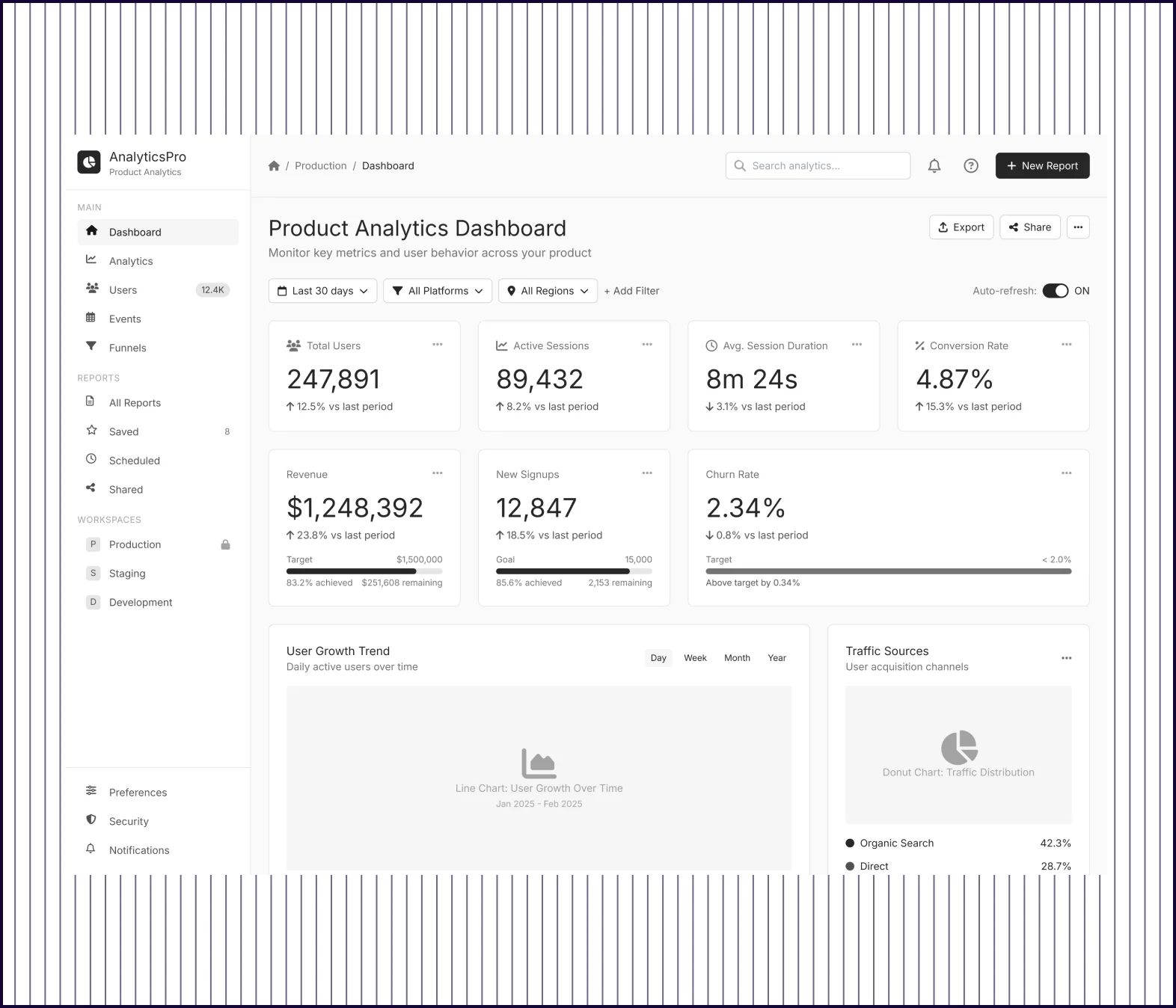 | 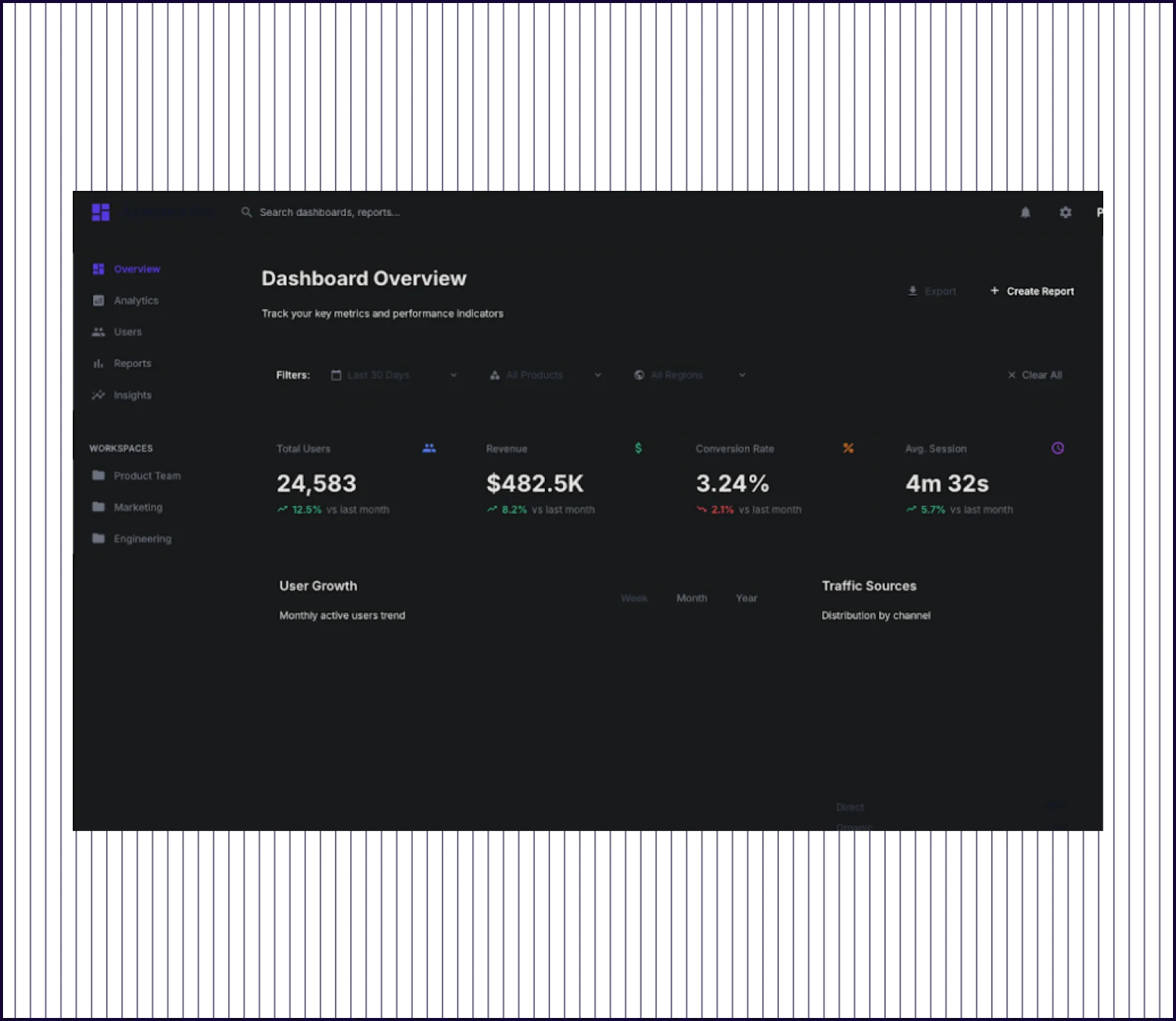 |
|---|---|---|
| Design quality | Polished high-fidelity interface with sidebar nav, modern components, and visual depth | Basic wireframe-style layout with simple cards and minimal styling |
| Data Visualization | Multiple chart types, funnel visualization, geographic map, and cohort retention tables | Two basic charts (line and pie) with simple percentage breakdowns |
| Feature Complexity | Includes advanced filters, export options, activity log with search, and AI recommendations | Shows metrics but offers no filters, actions, or drill-down paths |
| Launch Readiness | Production-ready and polished enough to present to stakeholders or use as a functional spec | Wireframe-level and useful for planning, needs significant design work |
PROMPT 2: Enterprise mobile app task approval flow“Design a mobile approval flow for a B2B productivity app used by managers. Include task request list, task detail screen, approve/reject actions, confirmation state, and notification feedback. Focus on clarity, component reuse, and smooth transitions.” | 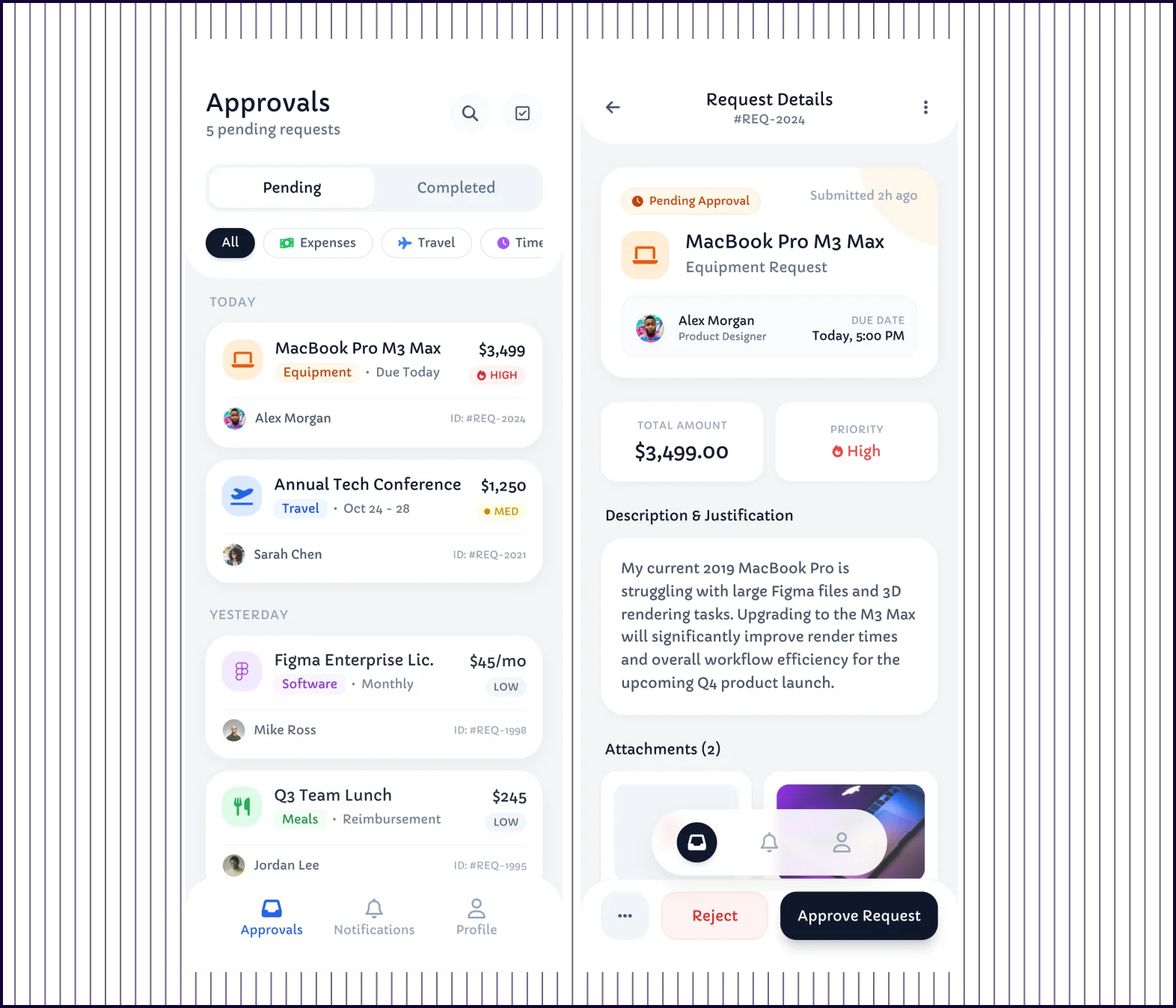 | 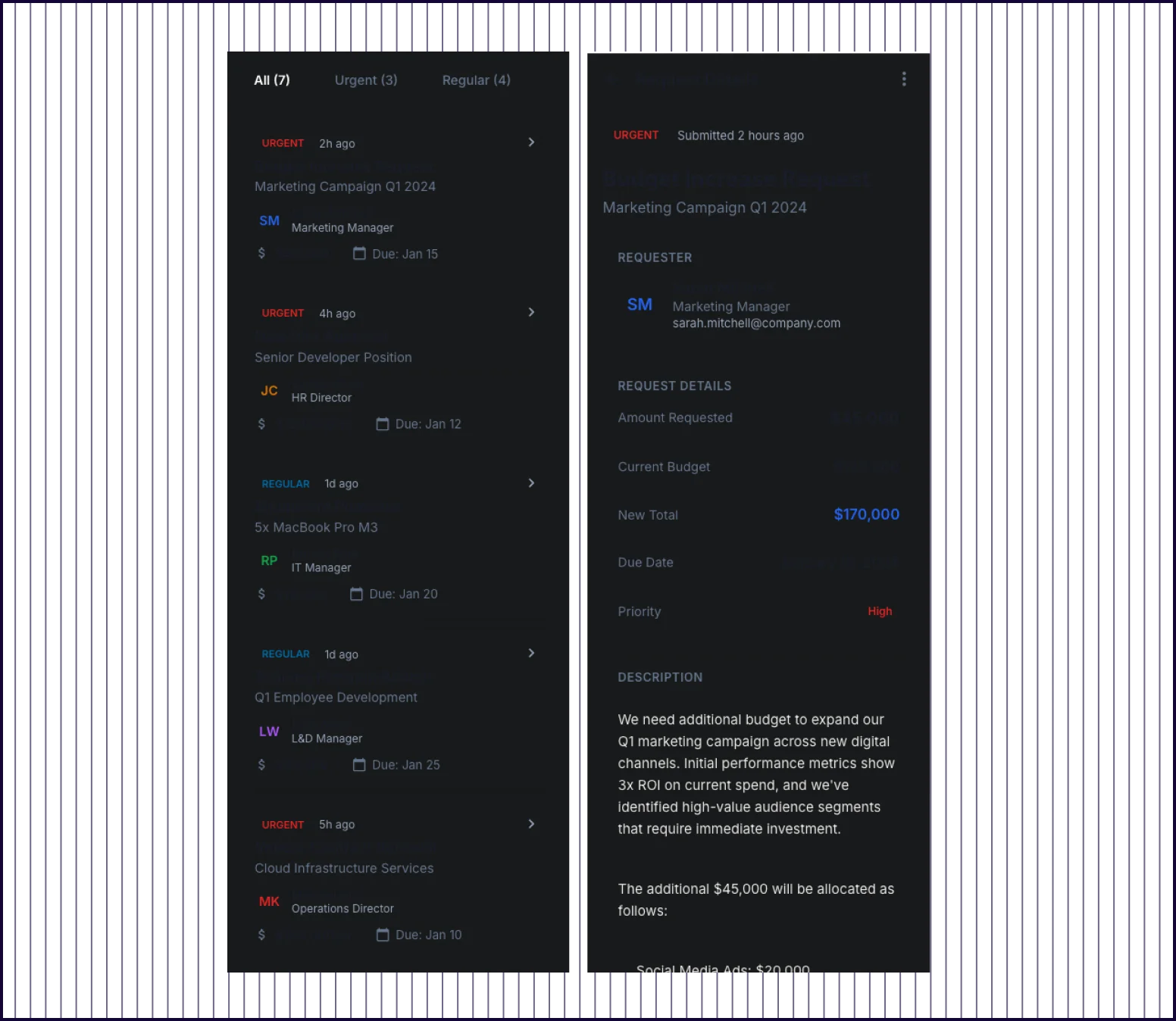 |
|---|---|---|
| Visual Hierarchy | Clear progression of list view, detail screens, action modals, and confirmations each have distinct visual treatment | Functional layout but list items, details, and modals feel similarly weighted |
| Flow Completeness | Comprehensive 10+ screen flow including onboarding, preferences, multiple request types, notifications, and settings | Covers core flow: task list, detail view, approve/reject modals, and confirmation states |
| Component Reuse | Systematic reuse of cards, buttons, status indicators, and list patterns across all screens | Consistent modal patterns for approve, reject, and confirmation screens |
| Prompt Adherence | Exceeds prompt and adds onboarding, customization, analytics, and profile settings beyond the core flow | Addresses all requested elements: list, detail, actions, confirmation, and notification feedback |
| Launch Readiness | Production-ready and complete enough to hand off to development or use as a functional specification | Basic prototype and usable for stakeholder review with polish needed |
PROMPT 3: Enterprise design system documentation UI“Create a desktop interface for internal design system documentation. Include sidebar navigation, component previews, usage guidelines, code snippets, and version notes. The layout should support scalable documentation and collaboration between design and engineering teams.” | 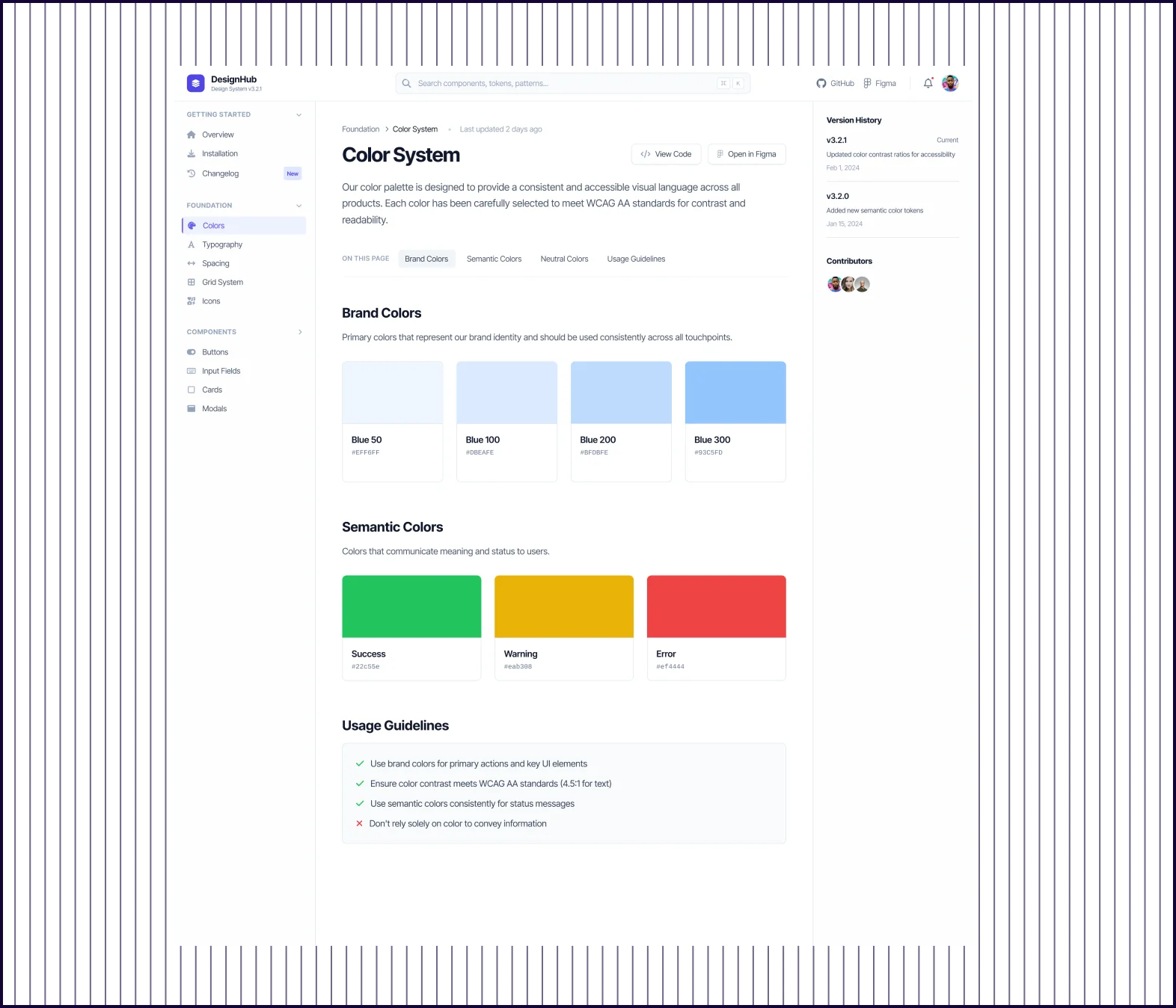 | 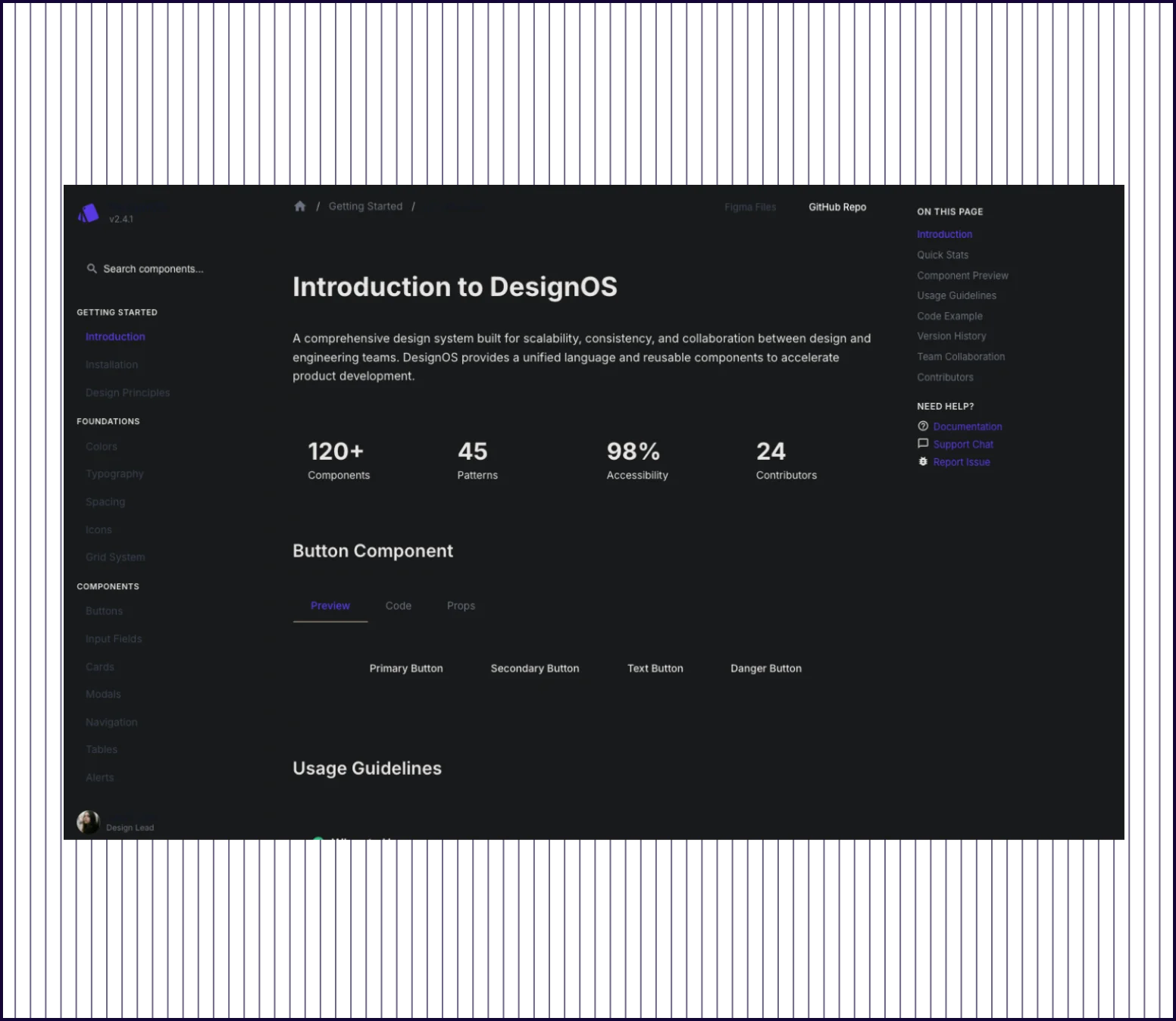 |
|---|---|---|
| Design quality | Polished light interface with color-coded sections, visual hierarchy, and modern component styling | Clean dark-themed layout with clear typography and functional sidebar navigation |
| Visual Hierarchy | Clear page organization—brand colors, semantic colors, guidelines, code, and collaboration each get dedicated treatment | Well-structured with distinct sections, but component preview area feels sparse |
| Collaboration Features | Includes contributors list, comment threads, feedback submission, and recent discussions with engagement metrics | Shows Design Lead profile at bottom with minimal team visibility |
| Prompt Adherence | Fully addresses all elements: navigation, previews, guidelines, code snippets, version history, and collaboration tools | Covers sidebar, component preview, and usage guidelines—version notes partially visible |
| Launch Readiness | Production-ready and comprehensive enough to serve as actual working documentation | Basic foundation and usable structure that needs content populated |
PROMPT 4: Component-based product onboarding“Design a desktop in-app onboarding flow for an AI fintech product. Include welcome state, feature highlights, tooltips, progress steps, and completion state. The flow should reuse components and integrate smoothly into an existing application layout.” | 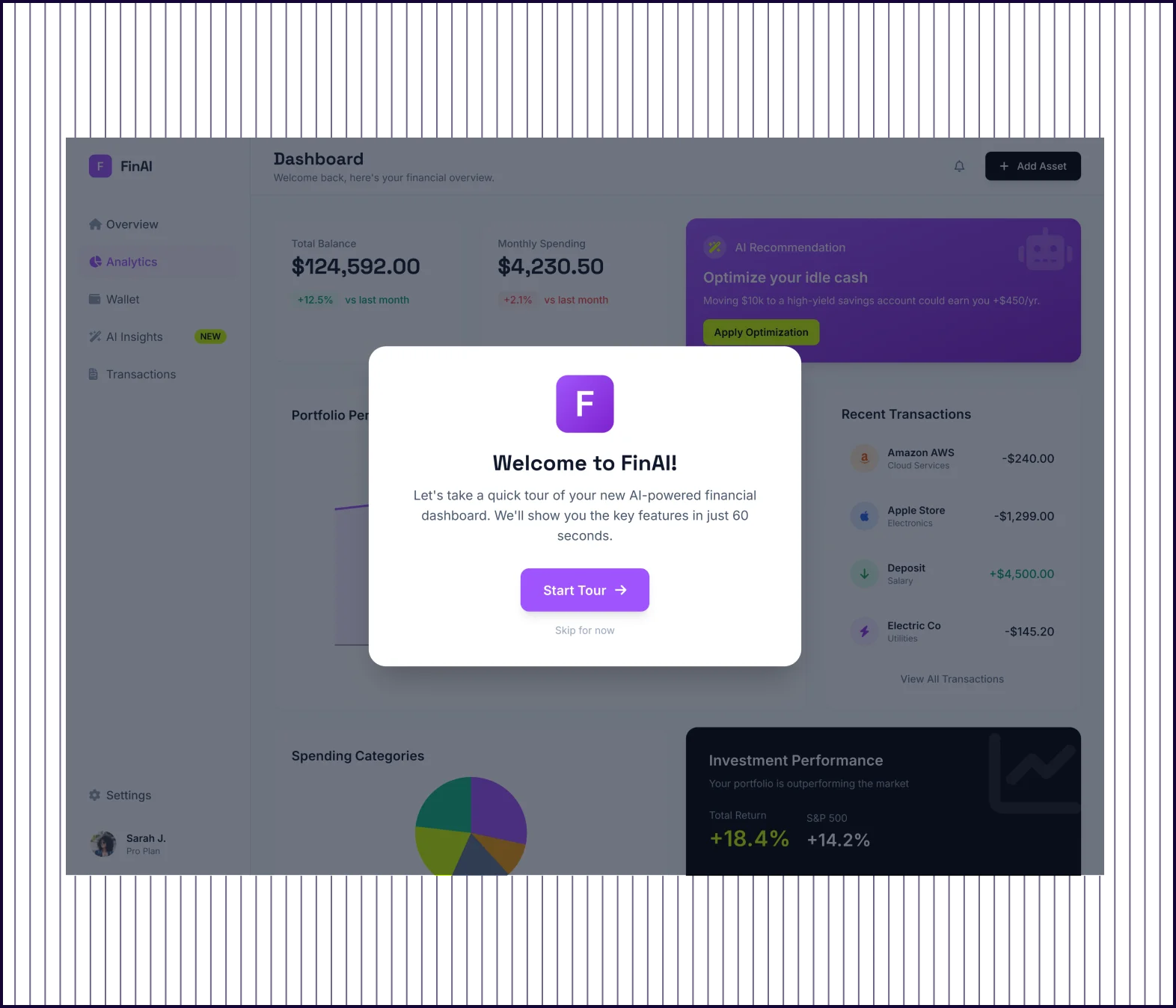 | 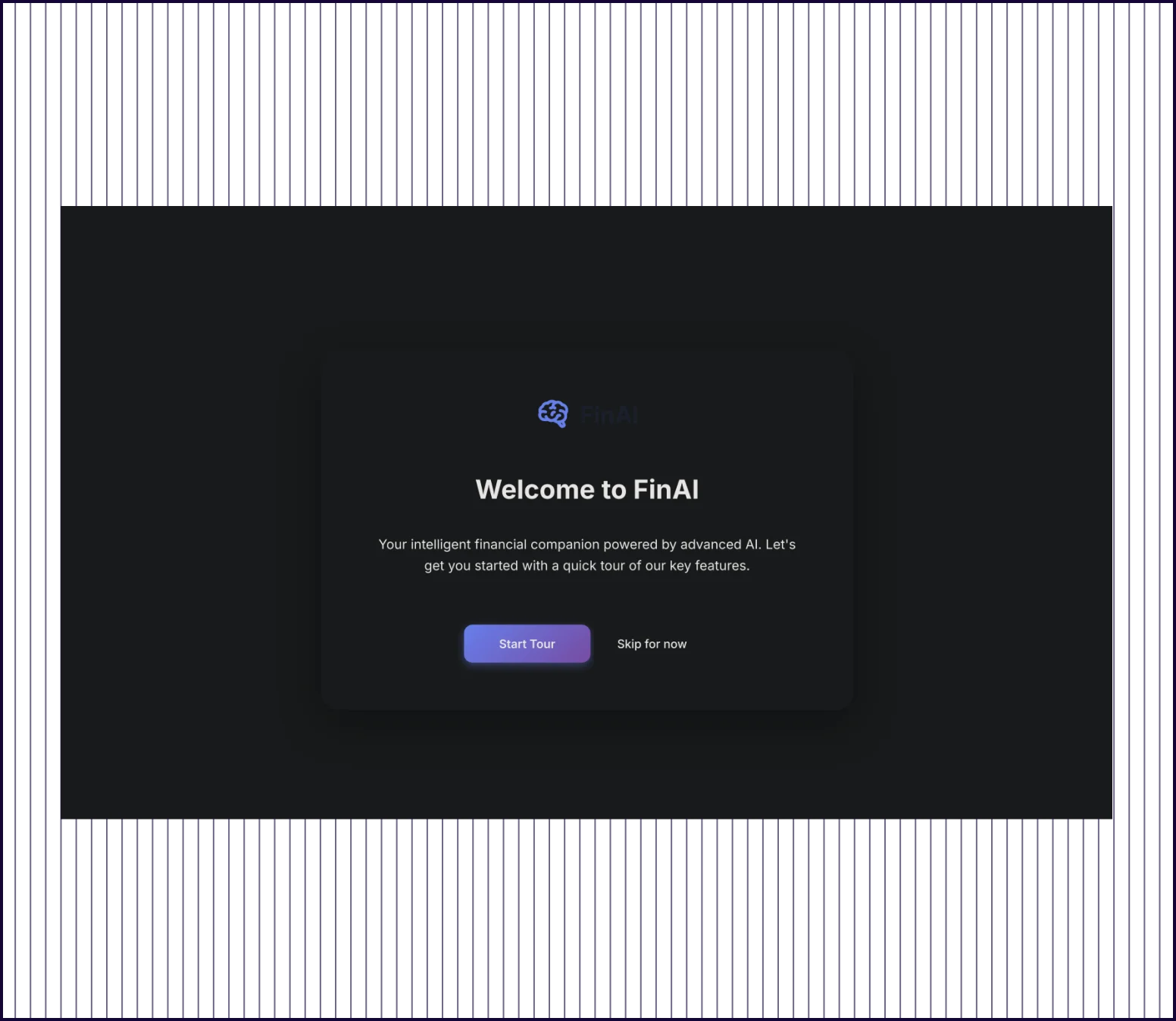 |
|---|---|---|
| Flow Completeness | Complete flow plus extras: welcome, feature highlights, full dashboard with activity feed, and comprehensive settings | Full flow: welcome screen, dashboard tooltip, AI insights, budget analytics, financial goals, and completion state |
| Progress Indication | Progress bar with labeled steps (Welcome, Feature Tour, Preferences, Complete) visible across onboarding screens | Step counter shown (e.g., “Step 1 of 4“) with Next/Skip buttons on each tooltip |
| Component Reuse | Systematic reuse of navigation, cards, progress indicators, and action buttons across onboarding and app screens | Consistent tooltip pattern, button styles, and card layouts reused across all steps |
| Prompt Adherence | Fully addressed with additions: includes settings and quick actions beyond the core onboarding flow | Fully addressed: welcome, highlights, tooltips, progress steps, and completion state |
| Launch Readiness | Production-ready and comprehensive enough to serve as a complete onboarding specification | Production-ready but UI can be tweaked for visual aid. |
PROMPT 5: Secure mobile authentication flow“Create a 3 screen mobile authentication flow for an enterprise app. Include login, two-factor authentication, error states, password reset, and success state. Design should prioritize security cues, accessibility, and consistent component behavior across screens.” | 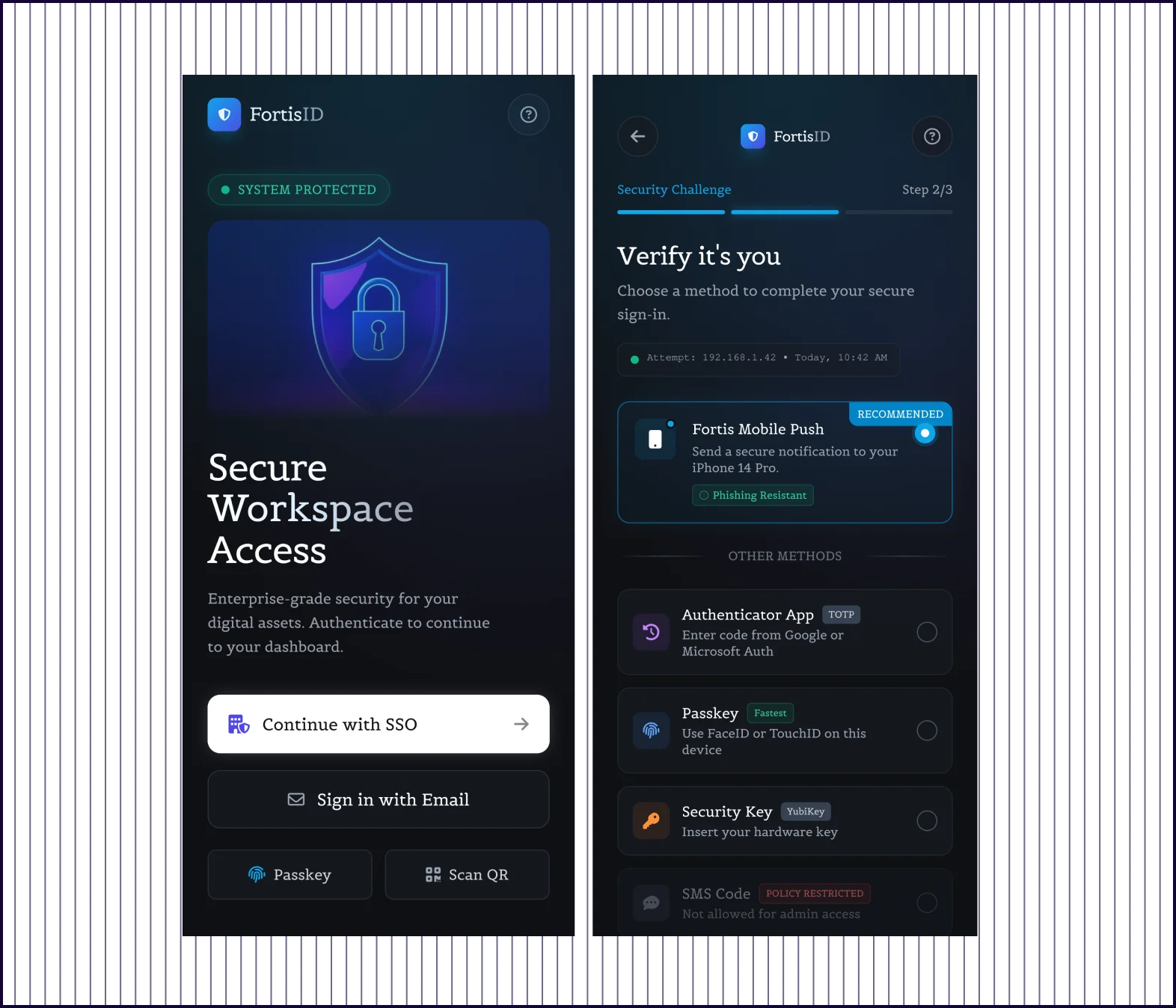 | 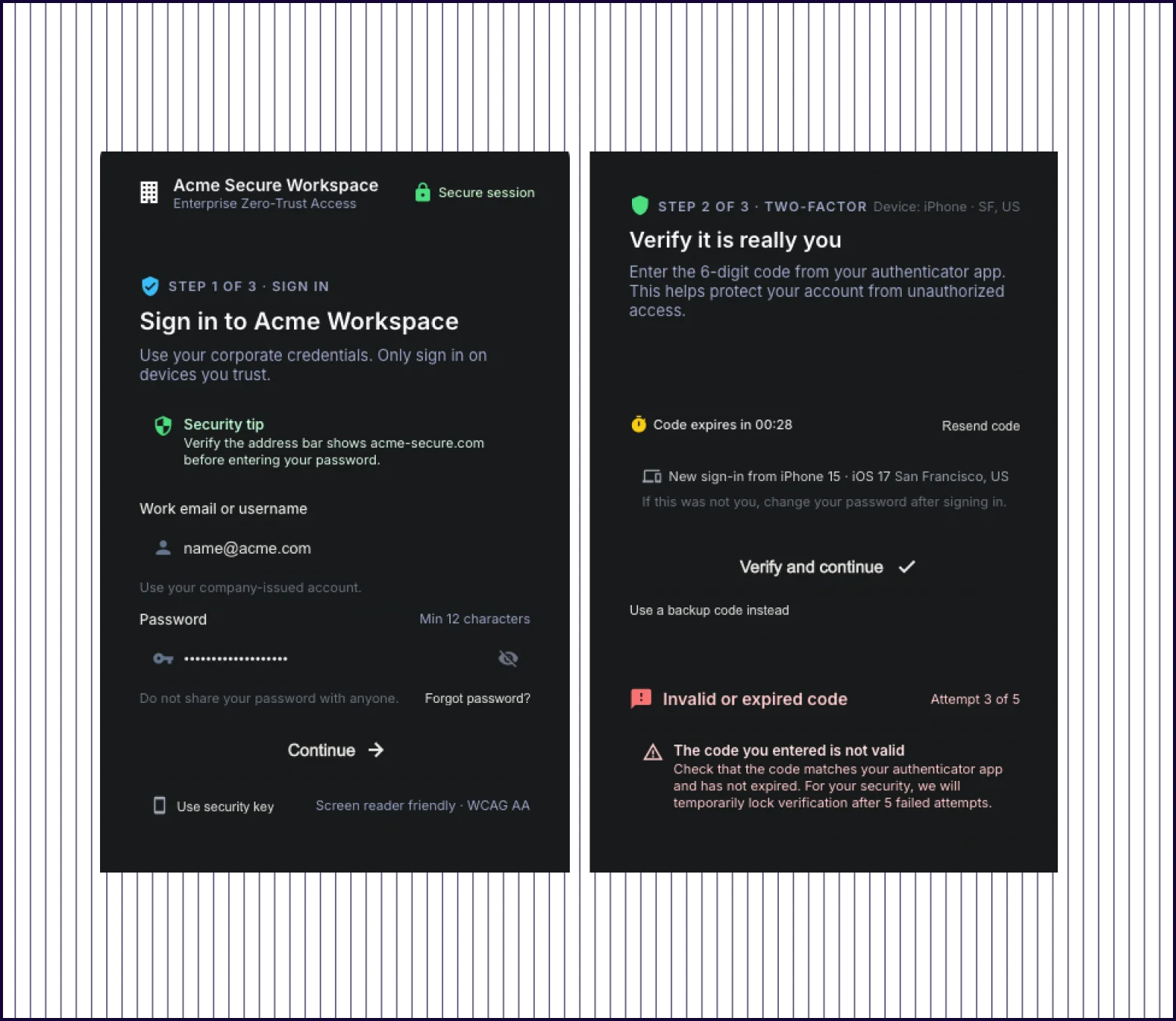 |
|---|---|---|
| Design Quality | Polished, modern interface with visual hierarchy, color-coded status indicators, and refined component design | Functional dark-themed layout with dense text and basic form styling |
| Content Depth | Rich contextual information: device details, enterprise security features, recent activity, backup codes, trusted devices, and recommended security actions | Covers core authentication steps with error messaging and password reset |
| Trust Elements | Multi-layered trust: certification badges, anomaly detection callout, verification attempt counter, supported authenticator apps, and 92/100 security score | WCAG compliance note and session summary on success screen |
| Prompt Adherence | Fully addresses all requirements with additional depth: device trust, backup codes, biometric setup prompts, and security scoring | Addresses login, 2FA, error states, and success with password reset included separately |
| Launch Readiness | Production-ready and polished enough to implement directly or present to stakeholders | Functional prototype but needs visual refinement for production use |
Embrace UX Pilot’s AI-Native Design Workflow
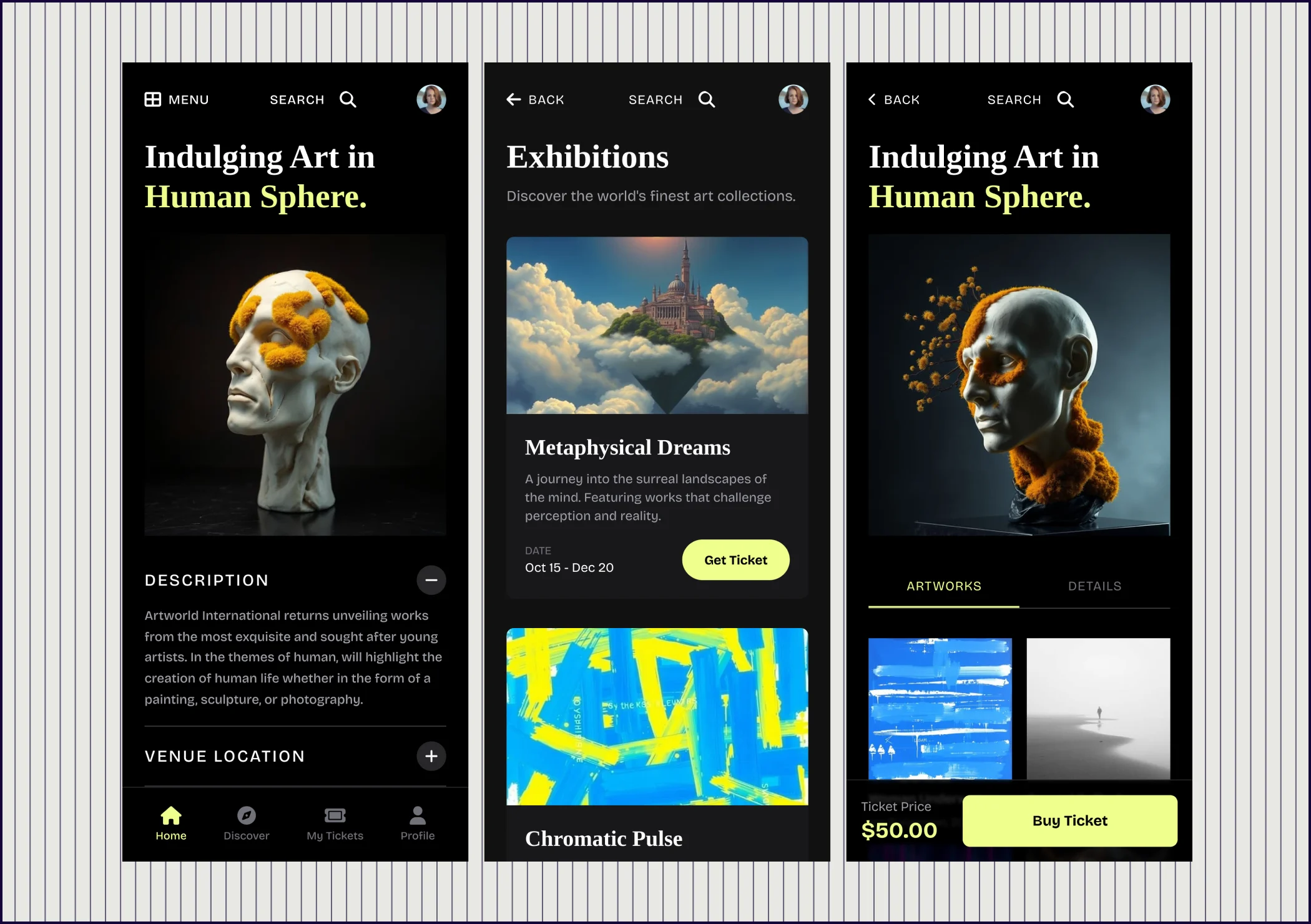
UX Pilot is built around AI and doesn’t just have AI features on top of an existing product. When you enter a prompt, the tool uses AI to generate complete UI screens. You are not stitching together components or adjusting AI suggestions one by one. As the side-by-side comparisons show, UX Pilot produces more complete design output from prompts.
UXPin offers some AI-assisted features, but they are additions to a manual workflow rather than the foundation of it.
What makes UX Pilot different from UXPin?
UX Pilot is built around AI from the ground up, while UXPin layers AI features onto a traditional design tool. When you enter a prompt, UX Pilot generates complete, structured screens that closely match what you asked for. UXPin's AI output tends to be more basic and often requires manual rework.
UX Pilot is also more accessible for non-designers. There is no steep learning curve or assumption that you have a design system in place. For teams that want AI to do real design work rather than assist with it, UX Pilot is the more practical choice.
AI generated designs that match the prompt
UX Pilot consistently produces layouts that reflect what you actually asked for. If the prompt specifies a dashboard with filters, tables, and summaries, those elements appear in the right places, with sensible hierarchy and structure. UXPin’s AI assistance can feel more hit and miss, often requiring additional restructuring before the design aligns fully.
Ideas to finished UX designs
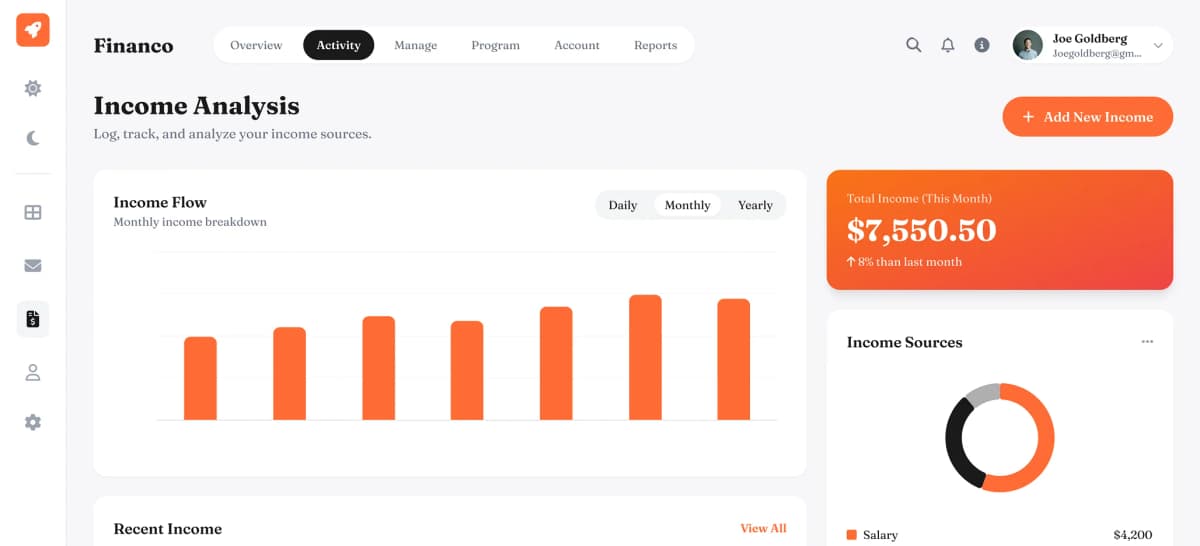
UX Pilot is useful for generating variations and testing different approaches in a short amount of time. Your design’s visual quality, UX structure and design structure mimic what a professional UX designer would deliver without needing tons of polishing. UXPin is better suited for refining a single idea in detail, especially when you already know what you want.
Non-designer accessibility
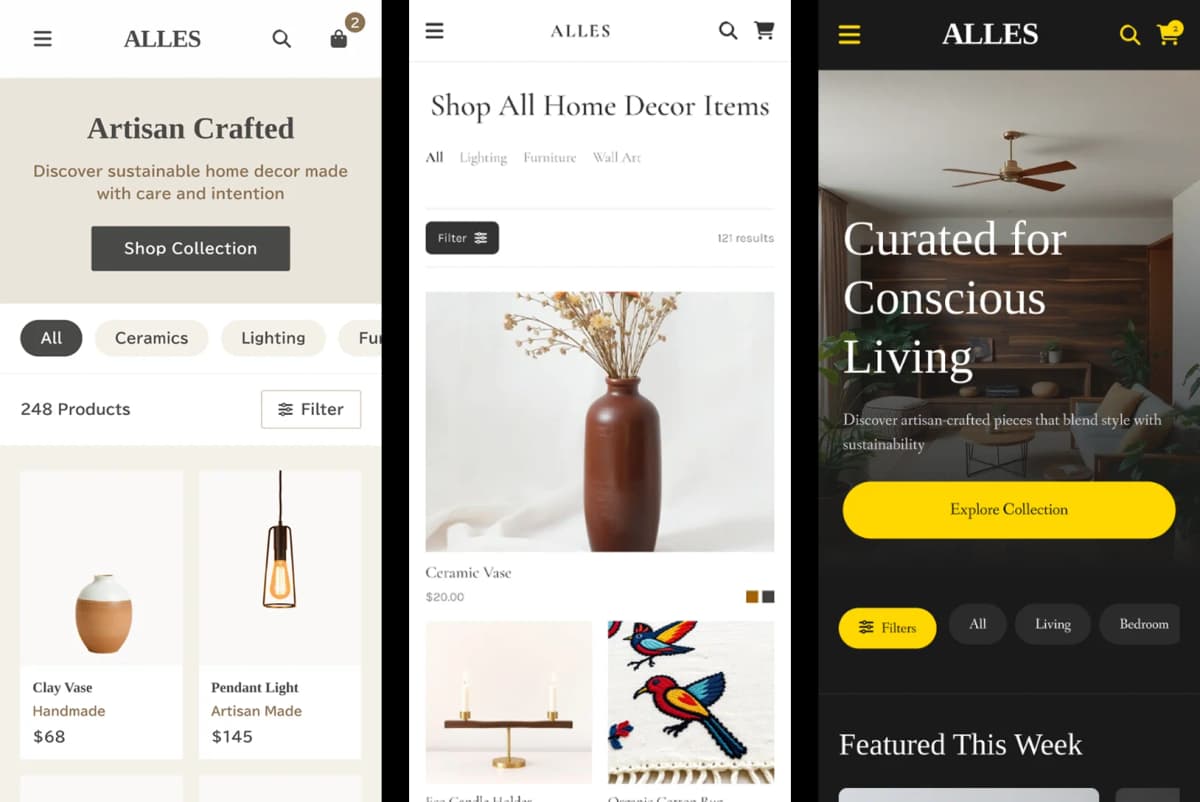
UXPin is a powerful tool, but it comes with a steep learning curve and expects a certain level of design system maturity from the start. UX Pilot is built for people who need to move fast and want results without spending weeks learning a new tool.
There is no assumption that you have a dedicated design team. If you are on a lean team or running an AI-first workflow, UX Pilot gets you to a working design faster.
Design systems in UX Pilot
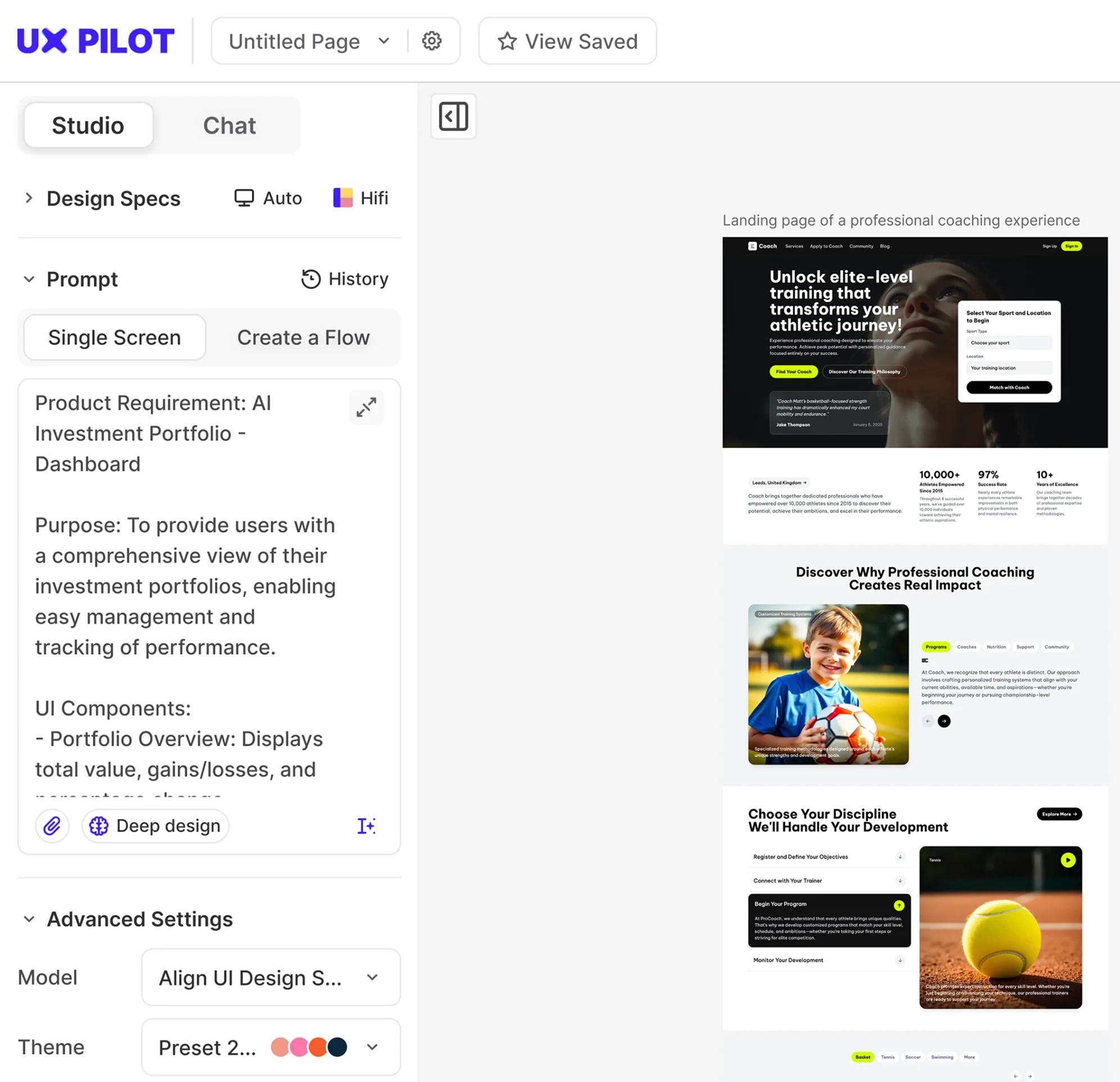
Bring your design system, or build one
Start from scratch with AI, or import from a website, a Figma file, a GitHub repository, your codebase or a DESIGN.md. New screens then use your tokens and components.
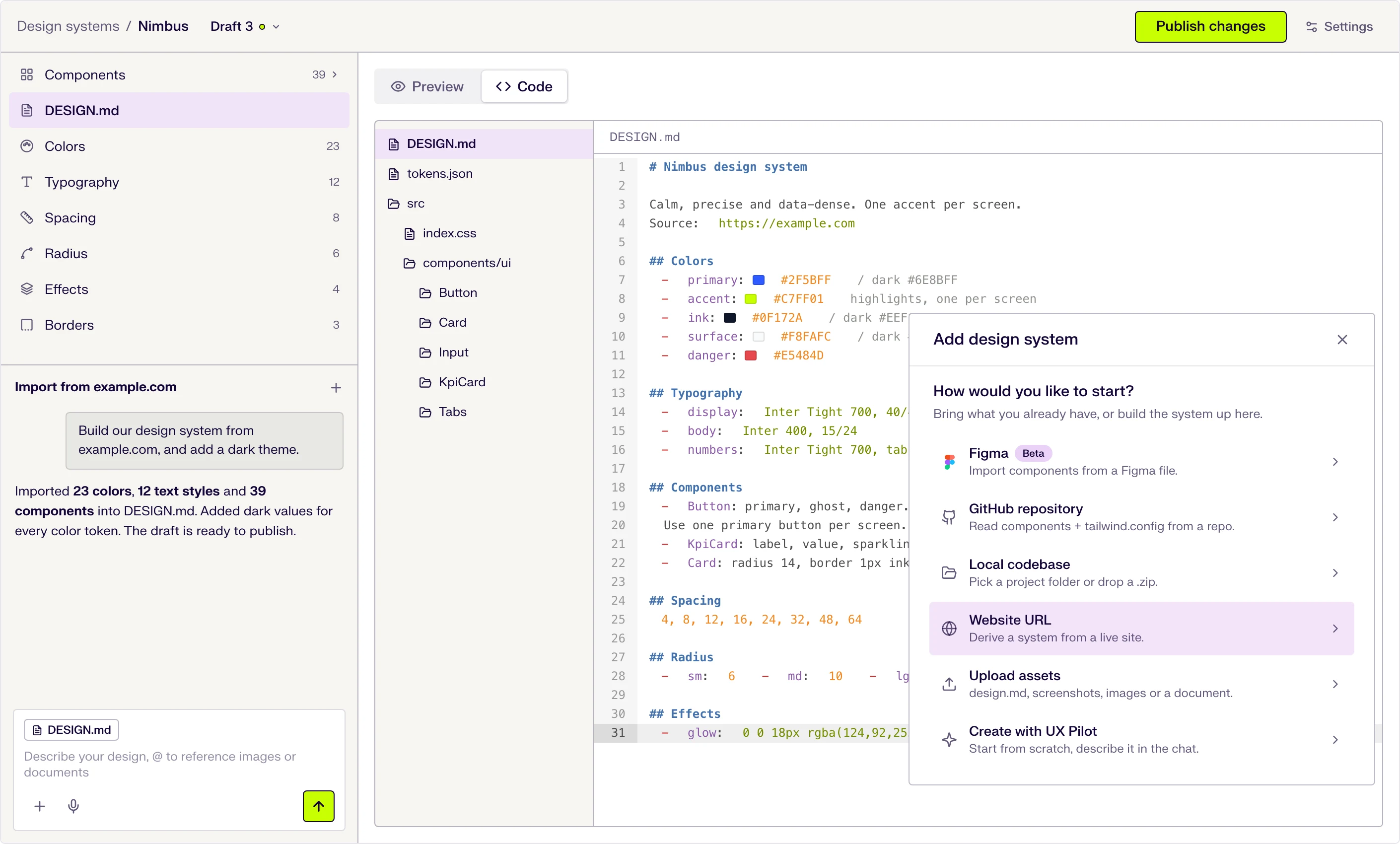
Six ways to start
Describe it in the chat, or import from a website URL, a Figma file (beta), a GitHub repository, a local codebase or uploaded files.
DESIGN.md at the core
Tokens and usage guidance live in one DESIGN.md file that the AI follows when it designs. Edit a token and the file updates.
Draft, publish, repeat
Changes stay in draft until you publish them, and version history keeps every release.

Kresimir Retih,
Project Manager"It has been a game-changer for me! Since signing up, my workflow has become much smoother, and my productivity has increased significantly. I love how intuitive and user-friendly the platform is, making UX tasks much easier and more efficient. Highly recommend it to anyone looking to streamline their UX process!"
Generate Interactive Prototypes with UX Pilot
UX Pilot generates interfaces that are clickable out of the box. You can tap through screens, test user flows, and get a feel for how the design behaves as a finished product. This makes it easier to gather feedback and validate ideas before committing to development.
UXPin has prototyping capabilities, but its AI-generated designs are not interactive by default.
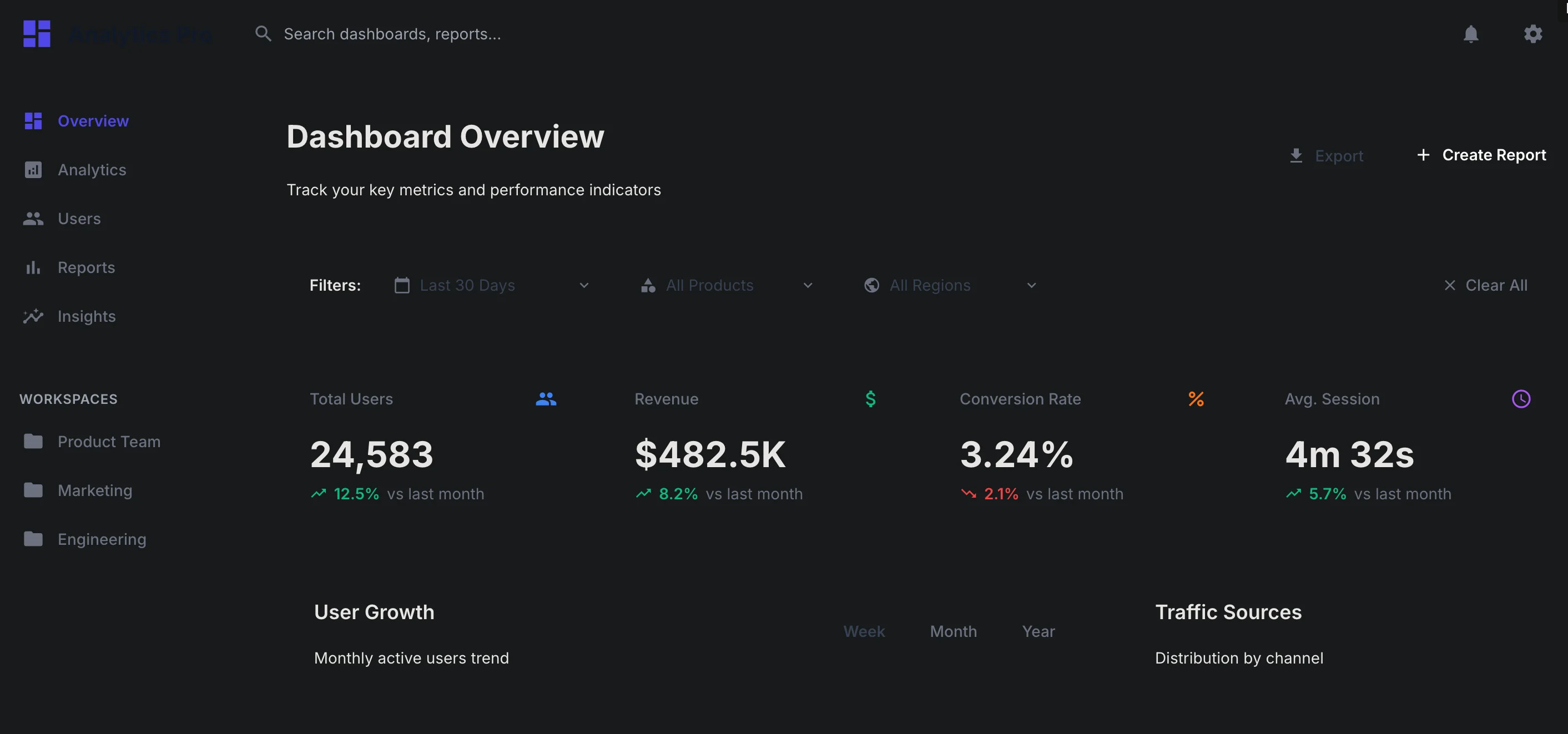

Create Designs from References, not just Prompts
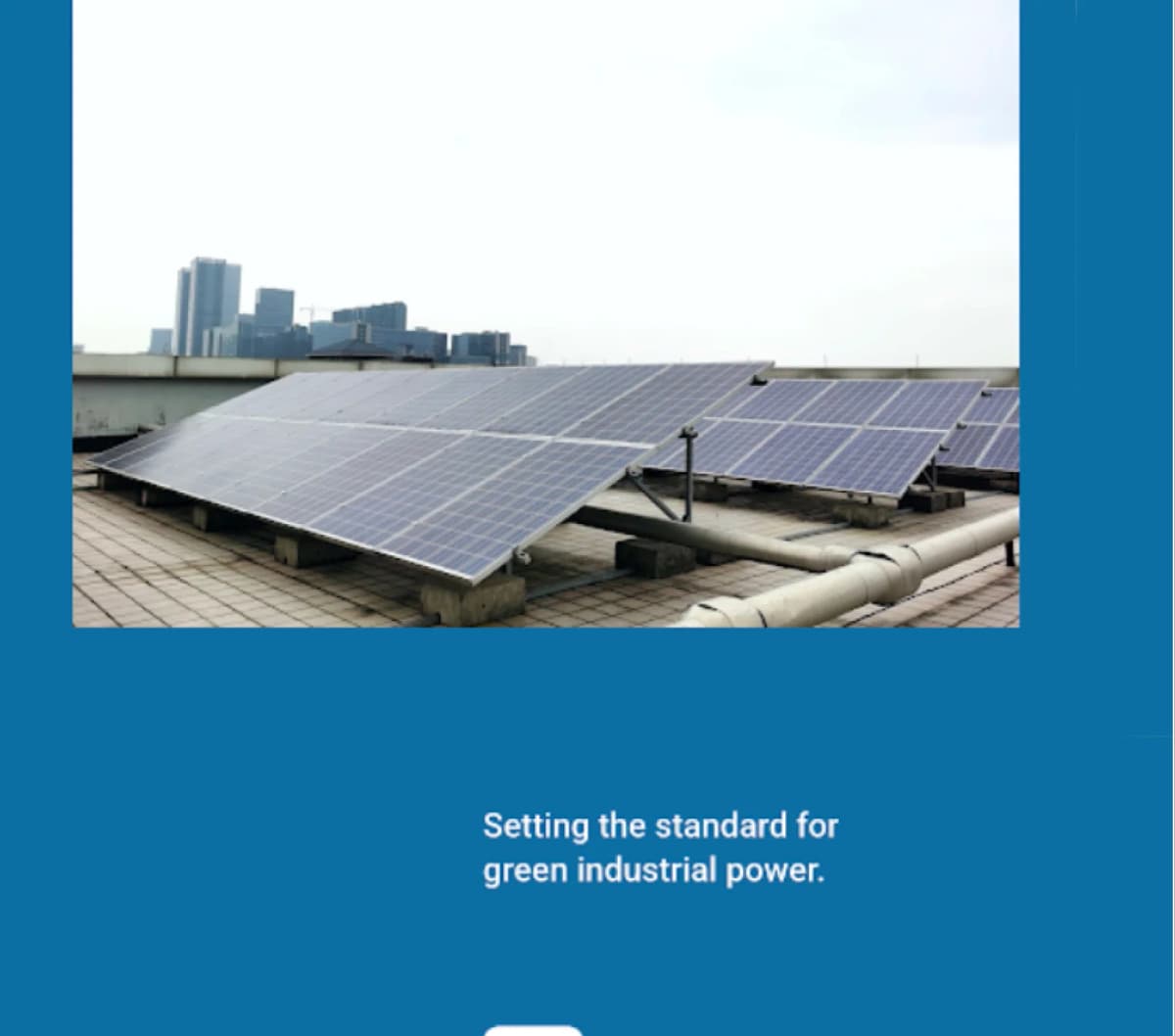
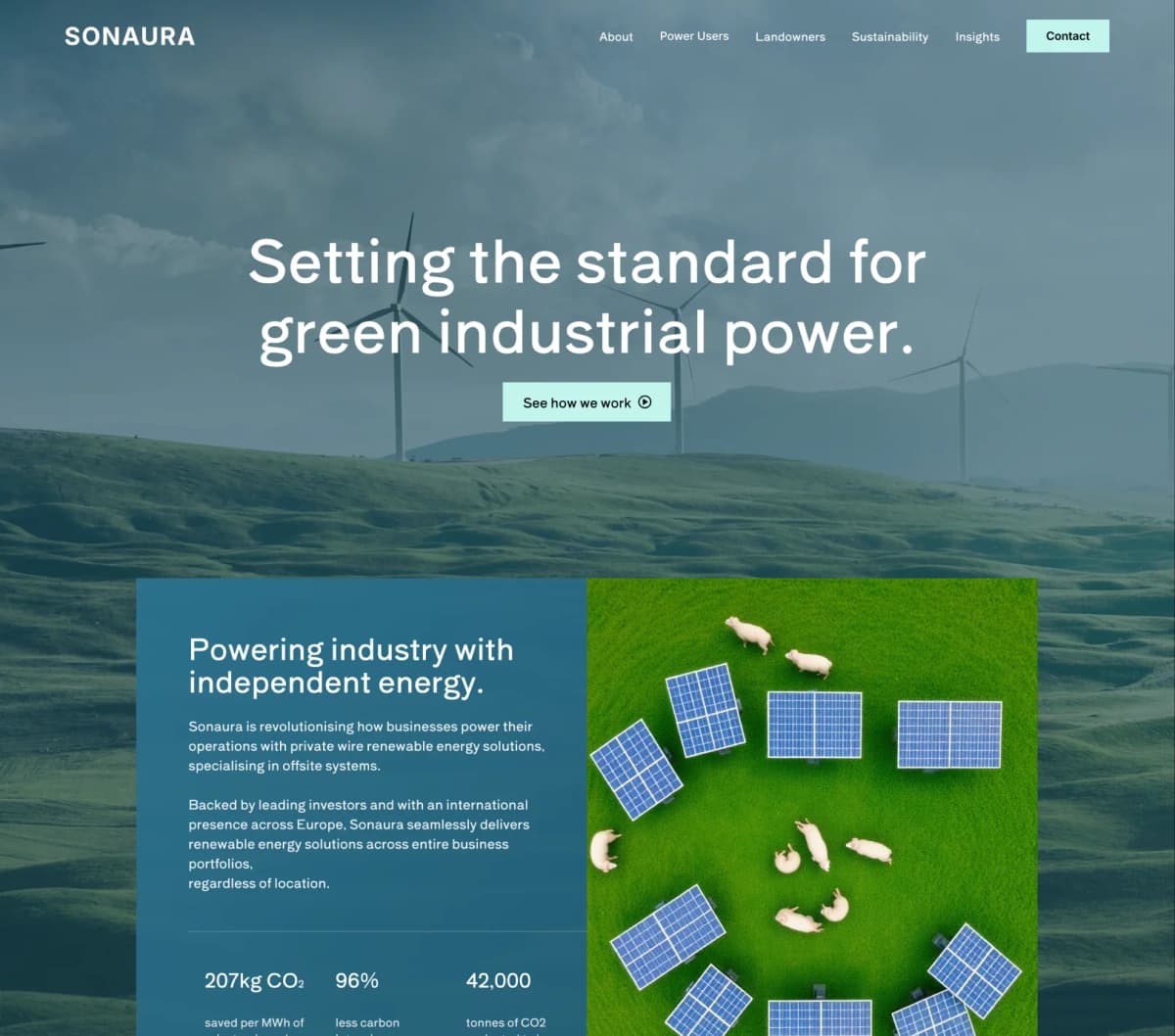
UX Pilot lets you upload wireframes, screenshots, or pages you like and generates high-fidelity designs based on them. It interprets the structure, adapts the styling, and fills in content based on the context you provide.
UXPin struggles with this. When given a reference to work from, it produces inconsistent results that require significant rework.
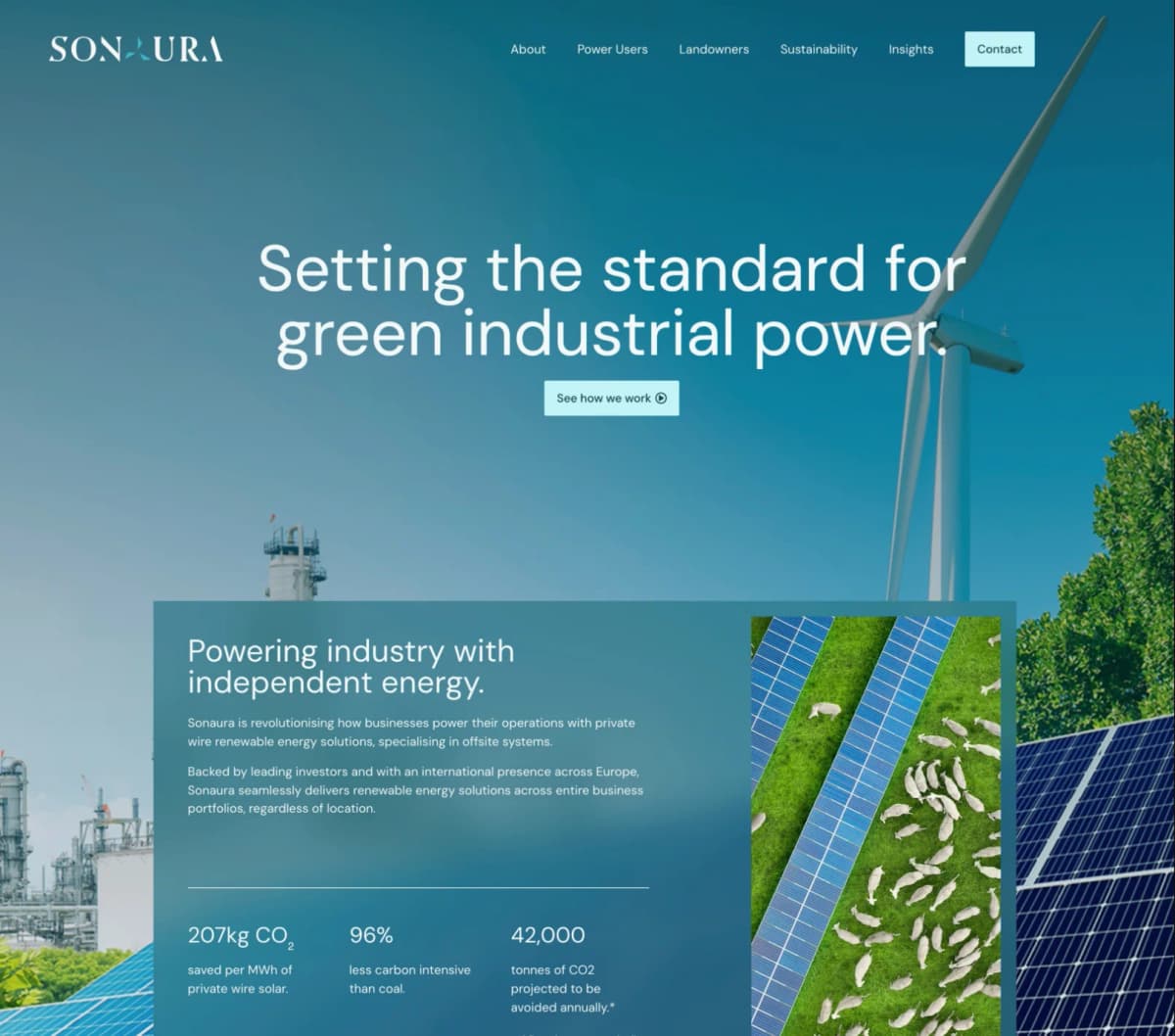
Original
What makes UX Pilot a great alternative to UXPin?
Both UX Pilot and Uizard use AI to generate designs from text prompts. Where they differ is in what happens after you hit 'generate'—how usable the output is, how much you can refine it, and whether the result is something you'd actually ship or just a starting point that needs more work.
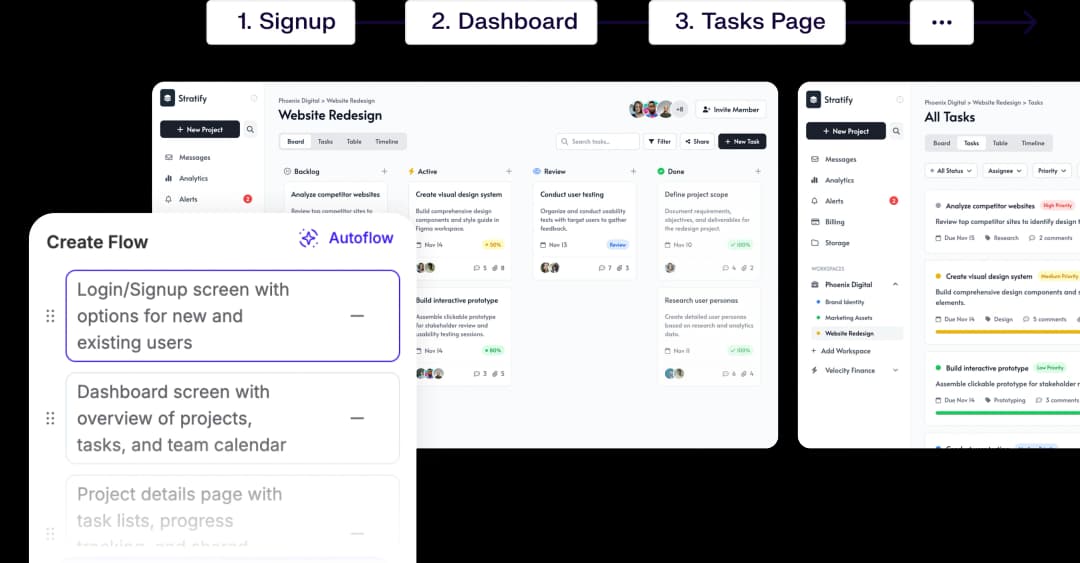
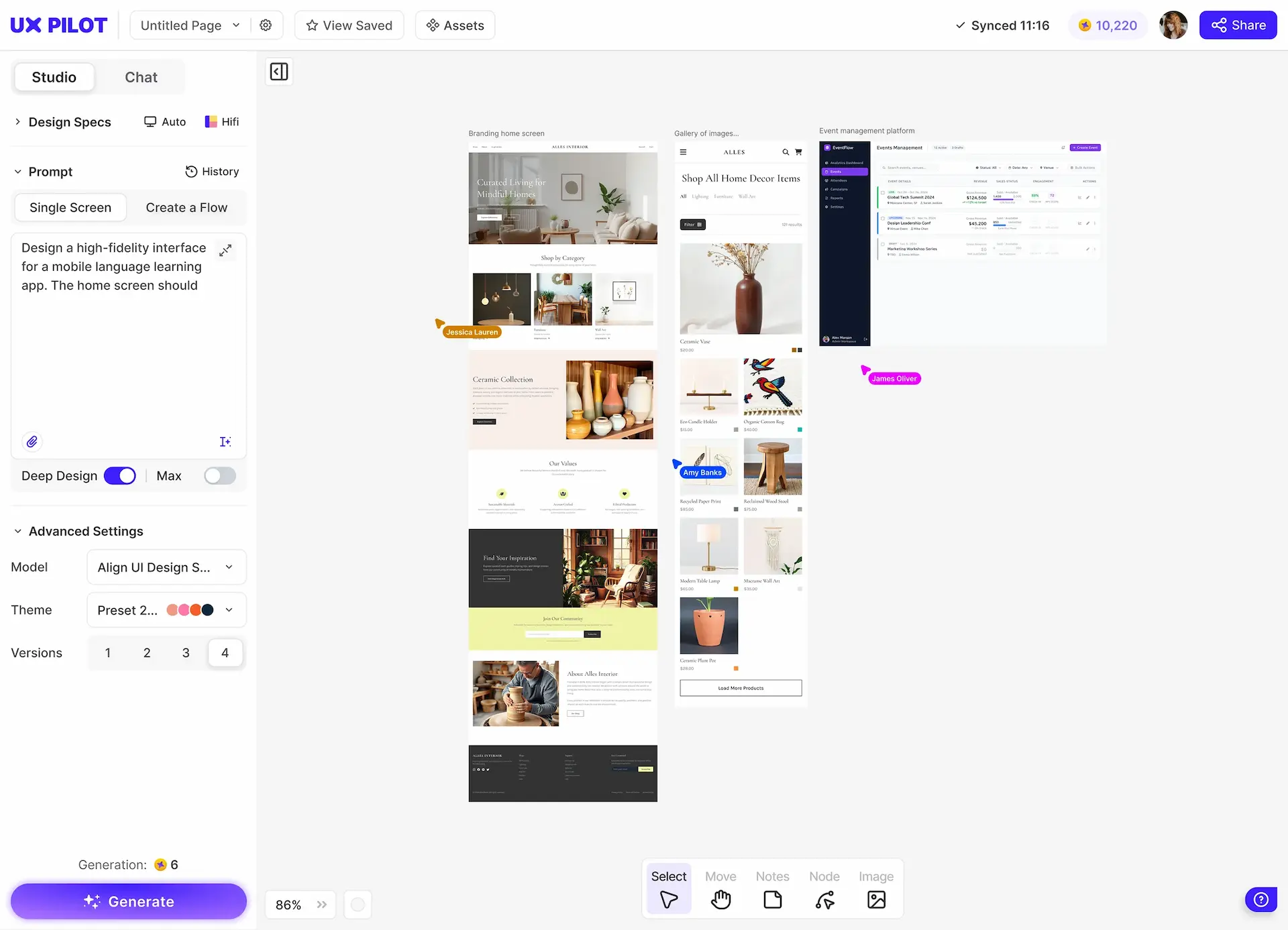
Like UXPin, you can build multi-screen flows, create interactive prototypes, edit individual components, and generate responsive versions. But with UX Pilot, you can do all of this starting from a single prompt instead of building from scratch.
Speed of ideation
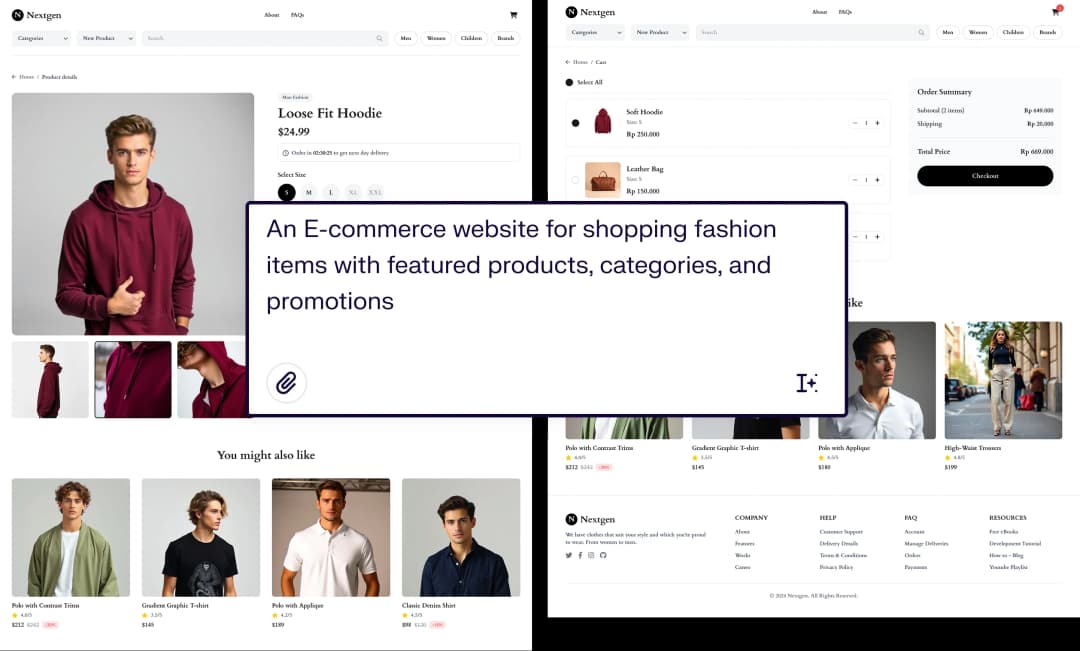
UX Pilot shines when you need to move from concept to concrete screens fast. You can describe a product, flow, or page in plain language and get a coherent, multi-screen design in seconds. This makes it easier to explore ideas, test directions, or unblock discussions without setting up components, logic, or design tokens upfront.
Early validation and stakeholder demos
UX Pilot’s interactive flows, realistic layouts, and consistent styling make it easier for non-designers to understand the product vision and give meaningful feedback. Its outputs are presentation-ready for internal reviews, stakeholder walkthroughs, or early user validation.
At this stage, UXPin’s depth can be unnecessary overhead. UX Pilot helps teams align quickly before investing time in high-fidelity system work.
Make exact edits and retain control
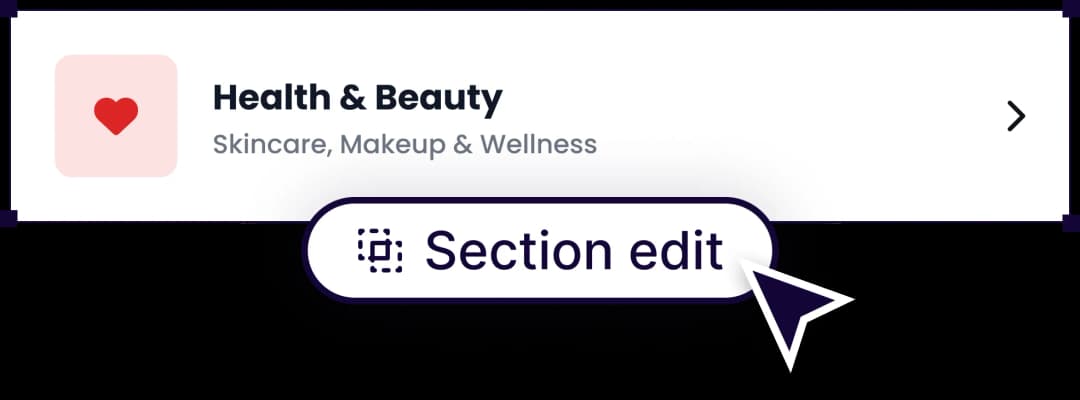
Like UXPin, UX Pilot allows you to edit a single section, swap out a component, or tweak the copy manually or using AI. You can also generate responsive versions for different screen sizes, create design variations to explore alternatives, and view predictive heatmaps that show where users are likely to focus their attention.
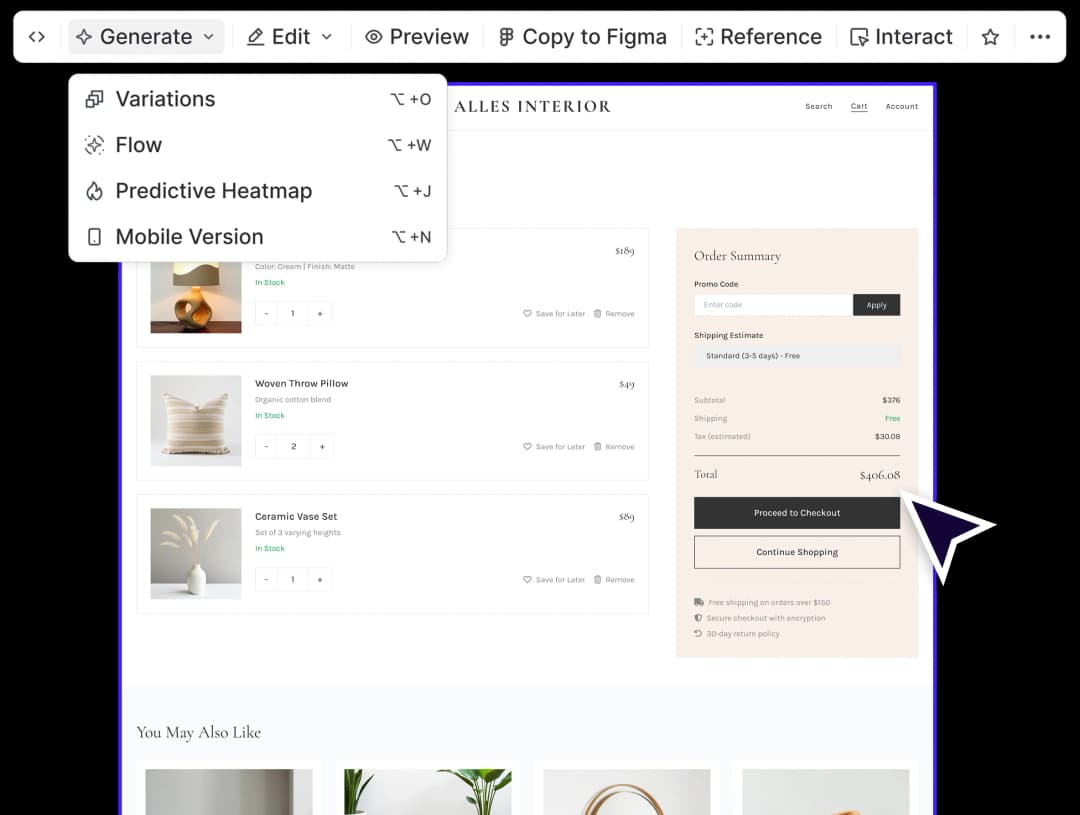
A design tool that goes beyond UX
With UX Pilot, you can iterate on specific sections, generate alternative versions, adjust layouts responsively, and refine designs using natural language or manual edits. Visual consistency across screens makes it practical to keep working inside the tool rather than treating it as a one-off generator. UX Pilot is an AI powered design environment where you can go from idea to complete UX design.
Pricing differences
Both tools offer free plans that you can get started with.
When it comes to paid plans, UX Pilot’s Standard plan comes in at a significantly lower monthly cost of $14/month (when billed annually) compared to UXPin’s equivalent Core plan at $29/month (when billed annually).
UX Pilot provides 420 AI credits which translates into more screens, more iterations, and more room to explore ideas without constantly hitting limits. UXPin’s Core plan, despite being priced substantially higher, includes a smaller AI credit allowance of 200, making AI usage feel more constrained.
We’ve seen in the side by side comparison that UX Pilot produces high-quality, production-ready outputs that closely follow the prompt while UXPin’s AI assistant is layered onto its UI tool, and the results tend to be more basic, often requiring additional design work to reach the same level of completeness and polish.
UXPin’s Core plan limits users to more basic AI models, while UX Pilot gives Standard users access to its latest generation models.
In summary, the lower monthly price, higher AI credit volume, and stronger designs make UX Pilot more affordable than UXPin for teams that want AI to help with real design work and not just act as an assistant.
UX Pilot vs UXPin: Which is right for me?
UX Pilot is the better choice if you need to move quickly from idea to working prototype. It lets you generate complete, multi-screen designs from a simple description, explore multiple directions at once, and get to something presentable in minutes rather than days.
For founders, product managers, lean teams, or anyone without dedicated design resources, UX Pilot removes the bottleneck of building screens manually.
UXPin makes sense if you already have established designs and need a tool for detailed refinement. It offers deep control over interaction logic, design tokens, and production-grade behavior. But it comes with a steeper learning curve.
Choose UX Pilot when you are exploring, validating, or moving fast. Choose UXPin when you already know exactly what you want and need precision tooling to perfect it.
Frequently asked questions
Everything you want to know about UX Pilot vs UXPin
From prompt to production-ready design
UX Pilot is built for workflows where design quality matters from day one. Whether you are building landing pages, product interfaces, or user flows, the output is polished enough to use immediately. You skip the rough draft stage and start with something you can actually ship.
Generate designs in seconds