10 Claude Design Alternatives for UI Prototyping and Visual Design

Saloni Kohli
Created on May 19, 2026
Claude Design launched in April 2026 as Anthropic’s AI-powered visual design tool and quickly grabbed attention for its conversational approach to prototypes, slides, and marketing assets.
For first drafts and non-designers who need polished visuals quickly, the experience is impressive.
But the limitations start showing once the workflow gets more serious.
Weekly usage caps on Pro plans can interrupt longer projects; there’s no pixel-level editing or standalone canvas, and Anthropic still labels the product as a research preview with known issues like save errors, comment persistence bugs, and lag with large codebases.
That’s why many teams are now exploring Claude Design alternatives instead. Depending on your workflow, budget, team size, and whether you need design exploration, production-ready code, or full-stack app generation, some tools may be a much better fit. And that’s exactly what I’ve covered in this blog.
Why look for Claude Design alternatives?
Claude Design has specific workflow limitations that push certain user types toward other tools. It’s genuinely impressive for conversational prototyping and fast visual ideation, but once you move into real day-to-day product workflows, some gaps start becoming harder to ignore.
Here are some of the biggest pain points I came across while exploring the platform:
1. Usage limits can interrupt real workflows
Claude Design shares usage allocation with the rest of the Claude ecosystem, including chat, code generation, and other AI assistance features. That becomes frustrating quickly if you’re generating multiple screens, testing design variations, or iterating on larger UX flows.
The $20/month Pro plan works for lighter experimentation, but regular design use can burn through weekly allowances surprisingly fast.
For teams doing heavier AI coding, design system setup, or repeated iterations, Anthropic’s Max plans at $100–$200/month become far more practical—and significantly more expensive.
That pricing gap is one reason many teams may want to start evaluating other Claude Design alternatives with more predictable free tier access or dedicated design-focused pricing.
2. No pixel-level editing control
Claude Design works conversationally. You refine layouts through prompts, comments, and adjustment sliders rather than directly manipulating elements on a canvas.
That workflow feels approachable for non-designers. But professional UX and UI teams often need far more precision.
As of now, Claude Design has no:
-
Layers panel
-
Direct canvas editing
-
Exact pixel nudging
-
Granular spacing control
-
Detailed component hierarchy editing
For designers used to Figma, Sketch, or advanced design systems, that lack of control becomes limiting very quickly.
3. Research preview limitations still show up
Anthropic currently positions Claude Design as a research preview product, and some of those early-stage limitations still appear during heavier usage.
Anthropic has already documented issues around:
-
Comment persistence
-
Save errors in compact view
-
Lag with large codebases
-
Inconsistent behavior during longer sessions
For lightweight experimentation, these issues may not matter much. But for enterprise teams, multiple users collaborating or larger product workflows, stability matters a lot more.
4. No native Figma export workflow
This is one of the biggest workflow gaps for professional design teams.
Claude Design currently exports to:
-
Canva
-
PDF
-
PPTX
-
Standalone HTML
But there’s still no direct Figma export workflow, which creates friction for teams already building around:
-
Figma libraries
-
Shared design systems
-
Developer handoff workflows
-
Collaborative reviews
-
Component-based UX processes
Several Claude Design alternatives focus heavily on tighter Figma integration because most production UX workflows still live there.
5. Claude Design is not a full-stack app builder
Claude Design creates visual prototypes and interface concepts. It is not designed for building fully functional applications with backend infrastructure.
If your workflow requires:
-
Authentication
-
Databases
-
API integrations
-
Environment variables
-
Autonomous task execution
-
Hosted deployments
-
Production code
-
Multi-file application logic
You’ll still need additional tools.
That’s why many teams evaluating Claude Design alternatives also look for stronger support around full-stack workflows, code generation, or AI coding assistant capabilities alongside UI generation.
How I selected the best Claude Design alternatives
I evaluated each tool across five criteria that matter most for production design workflows. The real difference between all these tools actually shows up when you start dealing with complex tasks like editing flexibility, developer handoff, collaboration, design systems, and actual day-to-day UX work.
To compare the best Claude Design alternatives fairly, these are the areas I focused most on for product teams, designers, founders, and agencies:
-
Design output quality: I looked at how polished and production-ready the AI-generated designs felt straight out of the box. Some tools generate decent concepts but still require heavy cleanup, while others produce UI screens, landing pages, and multi-screen flows that already feel close to something you could present to stakeholders or ship.
-
Editing and customization: AI generation is only part of the workflow. I evaluated whether each platform supports proper editing after generation, including pixel-level adjustments, layout refinement, component editing, and manual control—not just conversational prompt iteration.
-
Export and handoff options: A polished design still needs to fit into the rest of the workflow. I checked for Figma export support, code generation capabilities like React, HTML/CSS, and Tailwind, plus developer handoff options that reduce friction between design and engineering teams.
-
Collaboration features: Some tools work well for solo experimentation but fall apart in team environments. I compared multiplayer editing, commenting, stakeholder sharing, role-based access control, and collaboration workflows that matter for agencies, enterprise teams, and larger product organizations.
-
Pricing and value: AI pricing gets expensive very quickly once usage scales. I compared free tier access, starting plans, credit systems, token usage, and how predictable each platform feels for regular design work—especially compared to Claude Design’s shared token allocation model.
1. Figma Make: Best for AI-assisted UX workflows inside mature product teams
Figma Make is Figma’s AI-powered design generation tool built directly into the platform’s existing design ecosystem. Since early 2026, it has been able to generate UI layouts from text prompts and includes a “Code to Canvas” feature that converts AI-generated code into fully editable Figma designs.
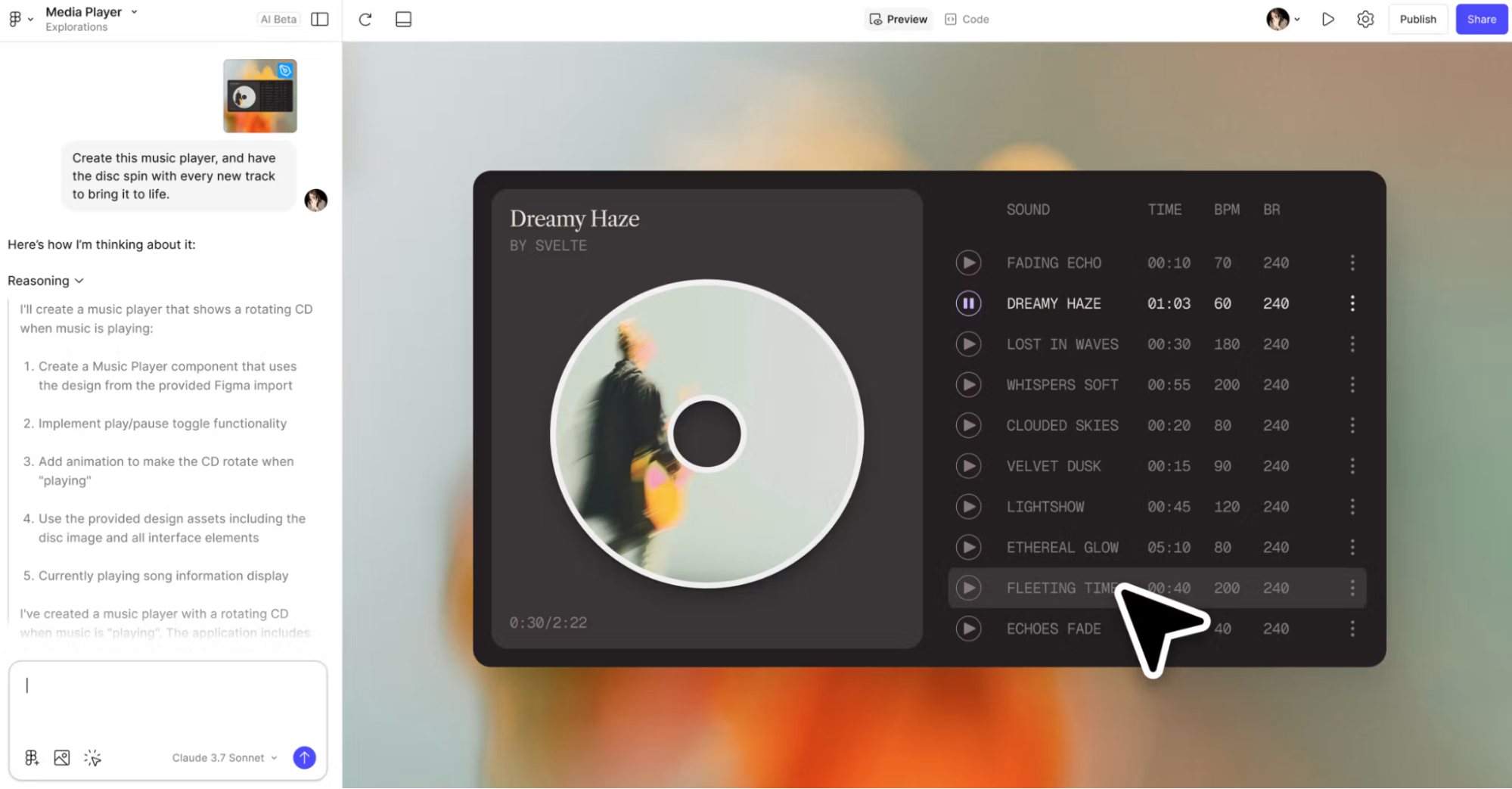
It’s probably the most obvious Claude Design alternative, as most product teams already use Figma. Instead of generating designs somewhere else and exporting them back into your workflow later, Make keeps everything inside the same canvas, files, components, and team workspace.
That workflow continuity is also where it beats Claude Design.
Generated outputs remain fully editable with layers, auto layout, design system tokens, variables, plugins, and Dev Mode support. Claude Design can create polished screens quickly, but it still doesn’t offer the same level of post-generation control that professional designers expect.
A few standout features make Figma Make particularly useful for enterprise UX and product teams:
-
Code to Canvas: Converts AI-generated code into editable Figma designs, creating a smoother bridge between AI code generation and UI workflows.
-
Pixel-level editing: Unlike Claude Design’s conversation-only workflow, Figma Make gives designers direct manipulation tools, layers, components, variables, spacing controls, and full design system support after generation.
-
Developer handoff with Dev Mode: Developers can inspect designs, extract code, and collaborate directly inside Figma without modifying the original design files.
-
Real-time collaboration: Designers, developers, and PMs can collaborate through multiplayer editing, comments, shared libraries, and handoff workflows inside the same platform.
But the tradeoff is that Figma Make still feels more like “Figma with AI added on” than a truly AI-native design tool. Generation quality can feel less polished and less imaginative than tools like UX Pilot or Claude Design, especially during early-stage exploration.
Pricing is another drawback. Figma’s 2025 pricing update increased plan costs by almost 25%, and many teams end up paying for bundled products like FigJam or Slides even if they only need AI design generation.
Who should use Figma Make?
Figma Make is best for established product and UX teams that already run most of their workflow inside Figma. If your components, design systems, developer handoff, and collaboration process already live there, Make adds AI generation without forcing everyone into a completely new tool.
Pros:
-
Native to Figma, so there’s no export friction or switching between multiple tools
-
Full pixel-level editing, layers, components, plugins, and design systems after generation
-
“Code to Canvas” creates a direct bridge between AI-generated code and editable UI designs
Cons:
-
AI generation quality still trails more AI-native tools like UXPilot and Claude Design
-
Less flexible and slower for rapid first-draft exploration
-
Figma’s expanding bundled pricing can become expensive for smaller teams
Pricing:
Figma offers a free tier Starter plan with limited AI credits, unlimited drafts, UI kits, and up to 500 AI credits per month. Paid plans start with the Professional plan, starting from $12/month per seat.
2. UX Pilot: Best for production-ready AI UX workflows with native Figma export
UX Pilot is an AI-native design platform built for generating high-fidelity wireframes, UI screens, interactive prototypes, and complete multi-screen flows from text prompts.
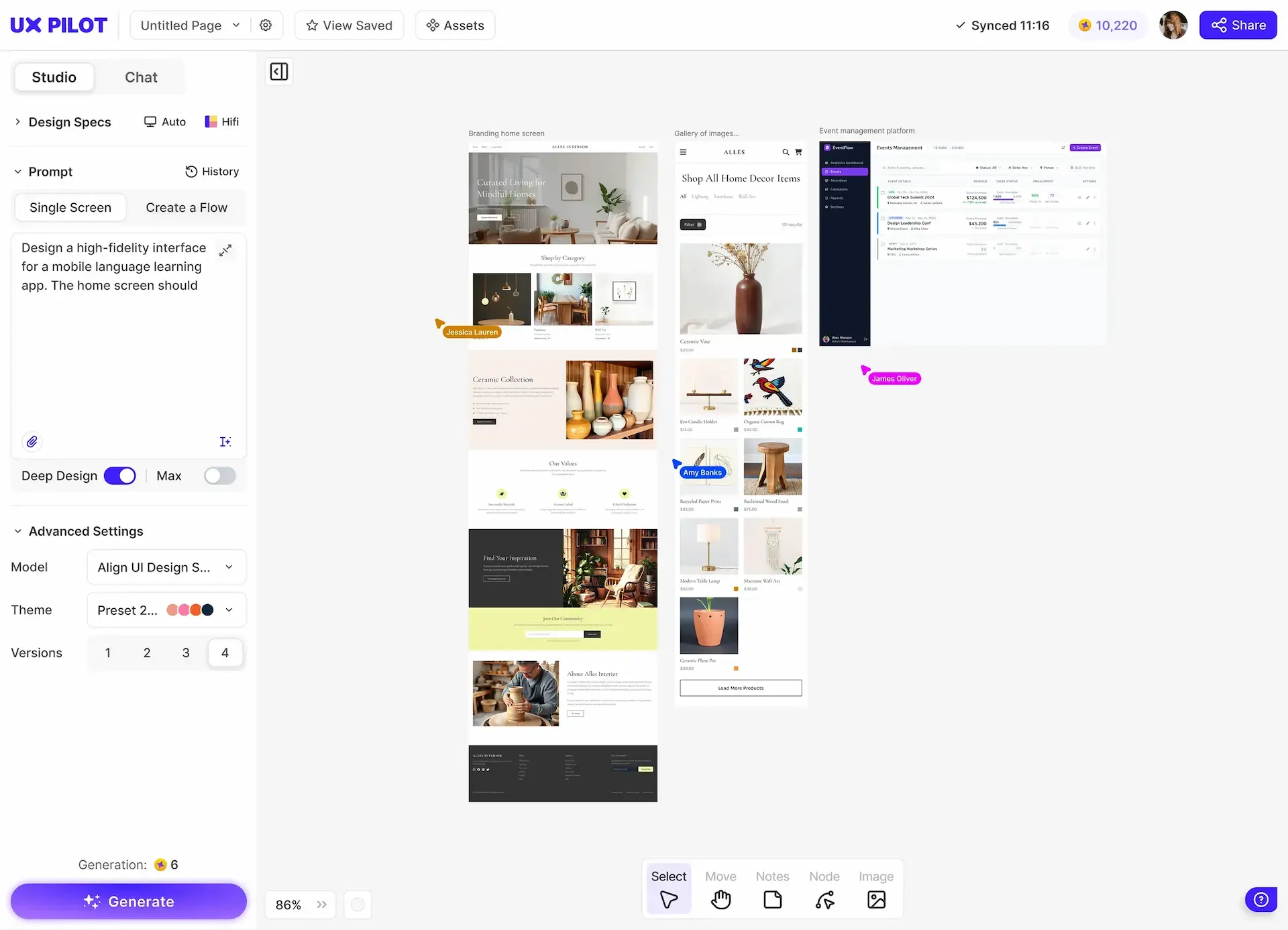
Unlike Claude Design, which mainly focuses on conversational prototyping, UX Pilot is designed around full UX workflows. It covers everything from ideation and validation to Figma handoff and developer collaboration.
The biggest advantage I found with UX Pilot over Claude Design is the native Figma integration.
UX Pilot exports directly into editable Figma files with layers and component structures intact, which makes it far easier to plug into existing product design workflows.
And I like how the workflow itself feels very familiar to Claude Design. You generate interfaces through prompts and refine them conversationally. The difference is that UX Pilot adds much more manual control after generation.
You can edit specific sections, tweak fonts, adjust colors, rewrite text, move elements around, and refine layouts without regenerating the entire screen from scratch.
A few key features stood out to me during testing:
-
Deep Design model: UX Pilot generates more production-ready SaaS UI, onboarding flows, dashboards, and app interfaces that feel closer to real-world product design instead of generic AI mockups.
-
Nodey for Figma: UX Pilot’s Figma-native AI agent works directly inside existing Figma files, reuses your design system components, and keeps outputs editable as native Figma layers.
-
Section-level editing: Instead of regenerating an entire design, you can refine very specific elements like typography, colors, layouts, spacing, buttons, and text using natural language prompts.
-
Developer handoff workflows: UX Pilot supports image-to-HTML generation and GitHub syncing, helping teams move from AI design generation into actual production code faster.
-
UX optimization tools: Features like predictive heatmaps, accessibility reviews, and screen flows make it feel more like a complete UX workflow platform than just an AI design generator.
Overall, I found that UX Pilot goes beyond visual generation with features Claude Design currently lacks, including predictive heatmaps, automated accessibility reviews, screen flows for connected user journeys, image-to-HTML generation, and GitHub syncing for developer handoff workflows.
It feels much more workflow-oriented than Claude Design as it’s built for real production UX work across designers, developers, and product teams.
Who should use UX Pilot?
UX Pilot fits two very different user types surprisingly well: UX professionals who want to speed up production workflows without leaving Figma, and non-designers who need to quickly visualize ideas before handing them off to design or development teams.
Since it combines fast AI generation with manual editing flexibility, it feels much more practical for real production workflows than Claude Design’s mostly conversation-only approach.
Pros:
-
Native Figma export and Figma-native workflows through Nodey, which adds a nice workflow advantage over Claude Design
-
Predictive heatmaps, accessibility reviews, and screen flows built directly into the platform
-
Lets you refine individual sections, fonts, colors, layouts, and components without regenerating everything
-
Low learning curve via prompt-based interface, with manual fine-tuning options for precision
Cons:
-
Credit-based pricing can escalate costs for heavy users who need additional credits
-
Standard and Pro plans limit project storage to five active projects
Pricing:
UX Pilot offers a free plan with 45 one-time credits and support for up to 7 screens. Paid plans start at $14/month for the Standard plan (billed annually), which includes 420 monthly credits.
3. Relume: Best for AI-powered website planning and wireframing
Relume is an AI website builder and wireframing platform built for speeding up the messy early stages of web design. Instead of jumping straight into polished UI screens like Claude Design, Relume starts with structure first: sitemaps, page planning, wireframes, and style systems.
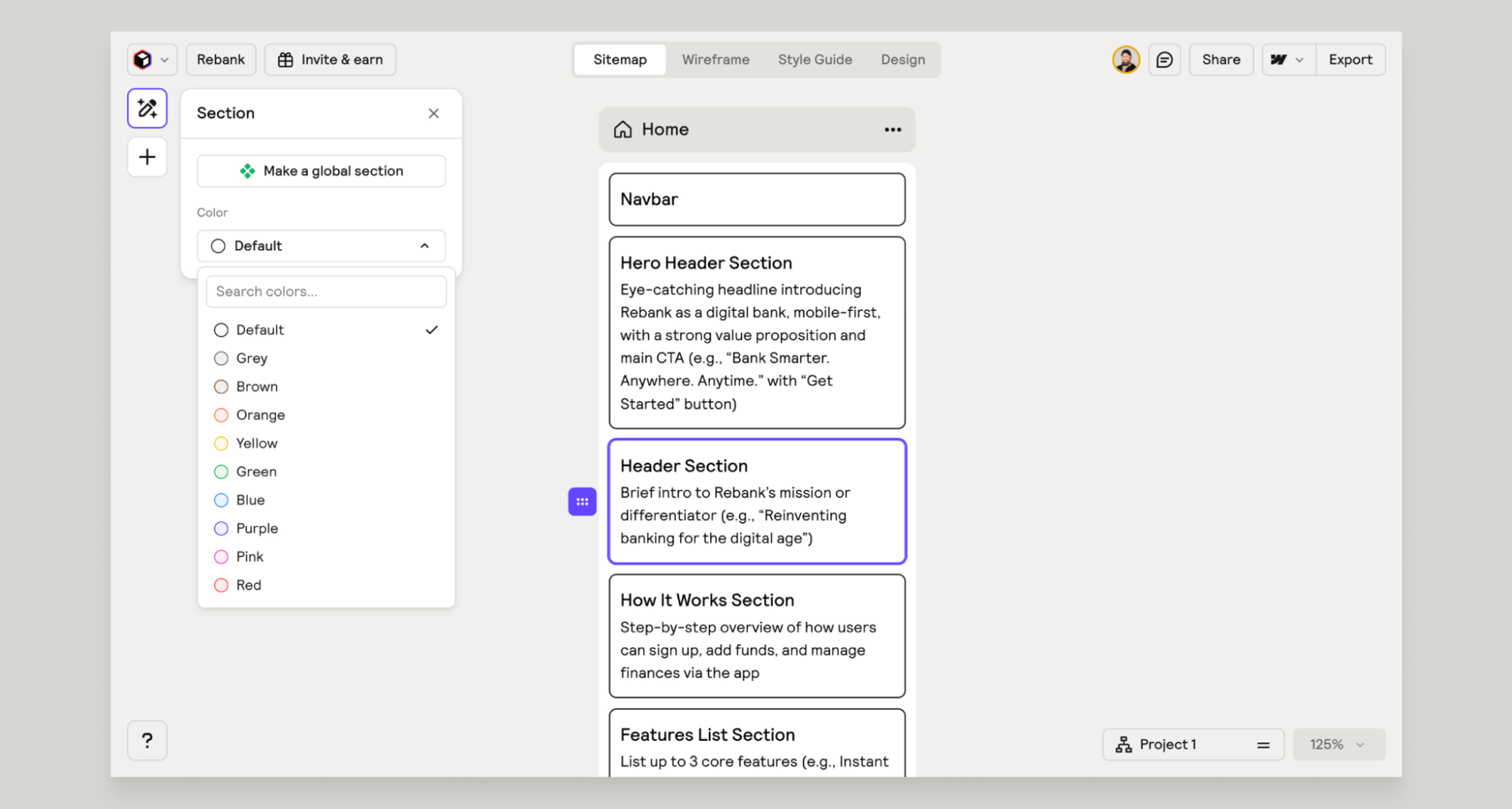
I found that the workflow is very different from most AI design tools:
-
Describe your product or company in simple, conversational language
-
Relume’s AI generates a full sitemap with connected pages
-
One click turns that sitemap into low-fidelity wireframes
-
Customize layouts using 1,000+ human-designed components
-
Export directly into Figma, Webflow, or React workflows
That makes Relume especially useful for agencies and web designers handling large marketing sites, SaaS websites, or multi-page client projects where information agent architecture matters just as much as visuals.
A few key features make it more workflow-oriented than Claude Design:
-
Prompt-to-sitemap generation: Relume automatically maps out key pages and user journeys before design work even starts, helping teams reduce scope creep and structure projects faster.
-
AI Style Guide Builder: You can generate color palettes, typography pairings, buttons, cards, and UI styling systems with AI, then export the full design system directly into Figma or Webflow.
-
Human-designed component libraries: Instead of generating random AI layouts every time, Relume uses 1,000+ curated Figma, Webflow, and React components for more consistent outputs.
-
Cross-team collaboration: Teams can collaborate in real time, leave comments, share projects with stakeholders, and streamline approvals across designers, developers, and clients.
Where Relume falls short is flexibility.
The platform is heavily tied to Figma and Webflow workflows, so teams working in Shopify, WordPress, Framer, or custom stacks may find it restrictive.
And unlike tools focused on high-fidelity AI generation, Relume is more about planning and structure than polished visual exploration.
Who should use Relume?
Relume is ideal for web designers, agencies, and product teams working in Webflow or Figma who want to accelerate the planning and wireframing stages.
If your biggest bottleneck is creating sitemaps, structuring pages, selecting reusable components, and aligning teams early in the process, Relume saves a huge amount of repetitive work that Claude Design doesn’t really address.
Pros
-
The AI sitemap-to-wireframe workflow helps structure projects faster
-
Strong Figma, Webflow, and React export workflows
-
AI Style Guide Builder keeps branding and UI systems consistent
Cons
-
Deeply tied to Webflow and Figma ecosystems
-
Better for planning and wireframing than polished UI generation
-
Pricing feels expensive for solo freelancers on smaller projects
Pricing:
Relume offers a free plan with 1 project, 1 page, Figma export support, and limited component access. Paid plans start at $18/month (billed annually).
4. Canva AI: Best for AI-powered marketing, branding, and content design workflows
Canva AI is Canva’s growing suite of AI-powered creative tools built directly into the Canva platform, including:
-
Magic Design for prompt-based template generation
-
Magic Write for AI copywriting
-
Magic Media for image and video generation, AI-powered editing, background removal,
-
Brand Kit automation
-
and Canva AI 2.0—a conversational assistant that helps generate and refine designs through natural language prompts.
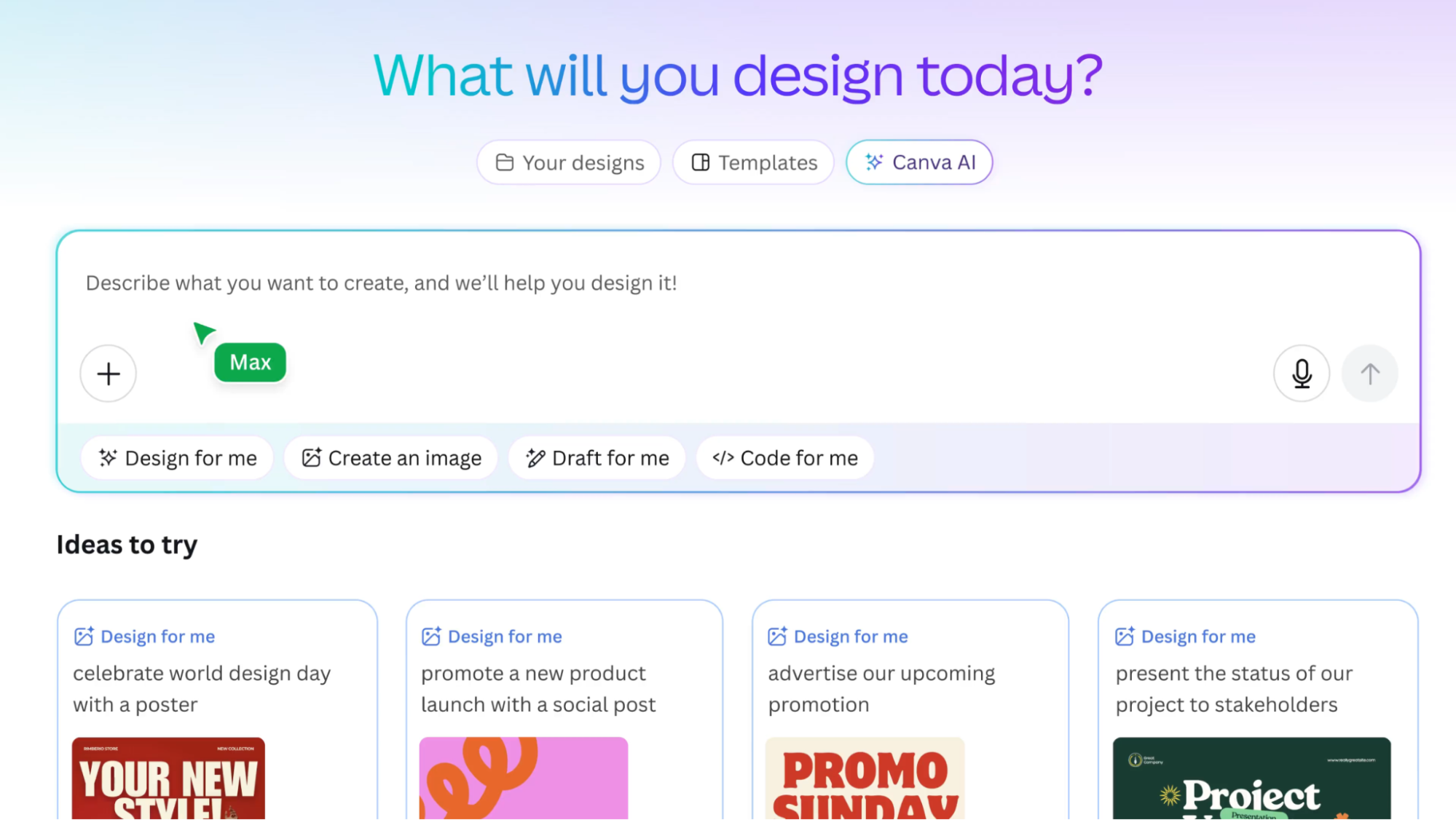
Unlike tools like UX Pilot or Claude Design that focus heavily on UI/UX prototyping, Canva AI is built more for marketing, branding, presentations, and visual content creation for things like slide decks, social media graphics, ad creatives, one-pagers, videos, and branded campaign assets rather than app flows or SaaS dashboards.
Ironically, Canva and Claude Design actually complement each other pretty well because Claude Design already supports native Canva export. But if your workflow already lives inside Canva, the built-in AI tools are often enough without needing a separate AI design platform.
What stood out to me most is how much Canva AI focuses on speed, accessibility, and collaborative content creation rather than pure interface design.
Some key features include:
-
Magic Design + AI-powered templates: Generate editable presentations, marketing assets, and branded visuals from simple prompts directly inside the editor. Canva also falls back to matching templates if the AI generation isn’t perfect, which makes the workflow feel less fragile than many AI tools.
-
Brand Kit automation: Canva AI can automatically apply your fonts, colors, logos, and brand guidelines across generated assets, helping large marketing teams maintain visual consistency.
-
Conversational editing workflow: Canva AI 2.0 lets users refine designs through natural-language conversation, comments, voice commands, and lightweight inline editing panels instead of forcing full regeneration every time.
-
Collaboration features: Real-time commenting, stakeholder sharing, multiplayer editing, approvals, team roles, and admin controls make Canva particularly strong for agencies, marketing teams, and distributed content teams.
-
All-in-one creative workflow: Canva combines AI writing, image generation, video generation, code generation, and visual editing inside one platform, so teams don’t have to constantly jump between separate tools.
That said, Canva AI still isn’t really a UX design or prototyping tool.
There are no proper clickable prototypes, advanced screen flows, developer handoff workflows, Figma-native product design systems, or UX validation tools like predictive heatmaps.
The AI generation also feels much more template-driven compared to the prompt-to-custom-product-design workflows you get with UXPilot or Claude Design.
And while Canva AI now supports conversational editing, the outputs are still optimized more for marketing visuals and branded content than production-ready software interfaces.
Who should use Canva AI?
Canva AI is best for marketing teams, startups, content creators, agencies, sales teams, and non-designers who mainly need presentations, social media graphics, branded one-pagers, ad creatives, and visual marketing assets.
If the main appeal of Claude Design for you was “quickly creating polished visuals” rather than UX prototyping or SaaS UI generation, Canva AI is honestly the more mature and practical option for that workflow.
Pros:
-
Massive template library and Brand Kit management for scalable brand consistency
-
Magic Design, Magic Write, Magic Media, and Canva AI cover the full content creation workflow
-
Extremely beginner-friendly with a very low learning curve and strong collaboration features
-
Enterprise-grade security and AI safeguards through privacy controls, admin governance, permissions, etc.
Cons:
-
Not a UI/UX prototyping platform, as there are no proper screen flows, developer handoff, or advanced interaction design
-
AI generation is still template-driven rather than deeply custom, prompt-to-product-design generation
-
Less useful for product design teams building complex software interfaces
Pricing:
Paid plans start at $13 per month (billed annually) for Canva Pro with AI features, with a free plan available, which includes up to 200 Standard AI uses or 20 Premium AI uses.
5. Framer AI: Best for designers and marketers turning AI-generated designs into live websites
Framer AI started as a prototyping tool, but it has evolved into a full AI-powered website builder focused on helping users go from prompt to a polished site and live publishing inside a single platform.
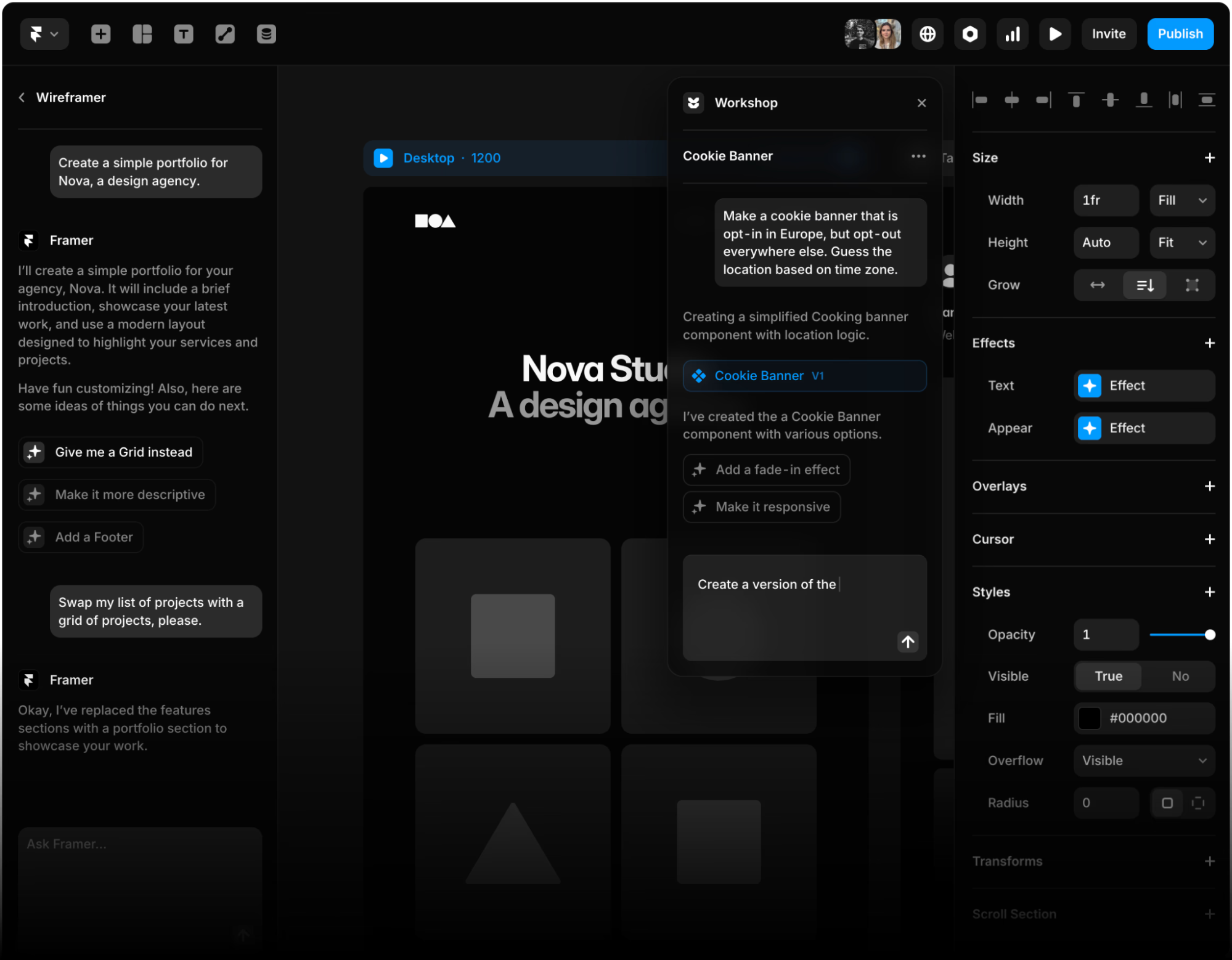
In fact, Nocode MBA’s 2026 Framer review described it as a platform that “went from prototyping tool to full website builder” and called it “one of the fastest ways to go from an idea to a live site,” with AI generation adding “a meaningful speed boost.”
You describe your website in conversational language, and Framer AI generates a responsive multi-page layout instantly using its AI Wireframer.
From there, you refine everything visually using Framer’s Figma-like editor, add animations and interactions, connect a CMS, optimize SEO, and publish directly to the web without touching code.
Claude Design mainly generates visual concepts and UI mockups that still need a developer handoff. Framer AI is designed for actually shipping production-ready websites with built-in hosting, CMS, responsive layouts, localization, publishing, and SEO tools.
In short, Claude Design helps you prototype the idea, but Framer helps you launch it.
This is also why Framer has become especially popular among freelancers, startup founders, marketers, and designers building landing pages, SaaS marketing sites, portfolio websites, and product launch pages.
A few standout AI and website-building features stood out to me while evaluating Framer:
-
AI Wireframer for prompt-to-website generation: Framer AI can generate responsive multi-page website structures, layouts, starter copy, and sections from a single text prompt instead of just producing static screens.
-
Pixel-perfect visual editing: Unlike prompt-only AI builders, Framer gives direct visual control over typography, spacing, layout hierarchy, motion, and responsive breakpoints through a polished no-code editor that feels very close to Figma.
-
AI-powered localization and translation: Framer AI can automatically translate entire websites into multiple languages without relying on external plugins or manual localization workflows.
-
CMS + SEO optimization built in: Framer includes a production-ready CMS optimized for blogs, docs, resource hubs, and large-scale content sites, along with built-in SEO tooling, sitemaps, indexing controls, server-side rendering, and performance optimization.
One thing I genuinely liked about Framer AI, compared to Claude Design, is that it solves the “last 20% problem” of AI website generation surprisingly well.
A lot of AI design tools generate decent first drafts, but become frustrating once you start refining spacing, responsiveness, hierarchy, and interactions. Framer’s visual-first workflow makes iteration feel much faster because you edit directly on canvas instead of repeatedly re-prompting the AI.
That said, Framer AI is still fundamentally a website builder and not a traditional UI/UX design or product prototyping platform.
It’s great for landing pages, marketing websites, startup sites, documentation hubs, and portfolios. But it’s not ideal for mobile app design systems, deep UX exploration, complex user journey mapping, usability testing, or advanced product prototyping workflows.
And unlike tools like UXPilot, Framer still lacks strong developer handoff workflows, native React/Tailwind code export, and deeper Figma integration for product design teams.
Who should use Framer AI?
Framer AI is best for designers, marketers, freelancers, founders, agencies, and solopreneurs who want to generate and publish production-ready websites from a single platform.
If your end goal is a live website rather than a prototype handoff, Framer AI covers a lot of what Claude Design doesn’t, including hosting, publishing, CMS management, SEO optimization, localization, responsive design, and real production deployment.
Pros:
-
Complete end-to-end workflow: AI website generation → visual editing → animations → CMS → hosting → SEO → publishing
-
Pixel-perfect no-code editor with advanced motion design and responsive breakpoints
-
AI generates full multi-page websites instead of isolated screens or mockups
Cons:
-
Primarily built for marketing websites, not mobile apps, SaaS UX flows, or complex product prototyping
-
Per-editor pricing can become expensive for larger teams
-
No strong developer handoff workflows or production-ready code export compared to developer-focused AI design tools
Pricing:
Framer offers a free plan for experimentation, prototyping, and publishing to Framer subdomains. Paid plans start at $10/month (billed annually) for Basic sites.
6. Magic Patterns: Best for AI-generated UI with production-ready code export and fast shipping
Magic Patterns is an AI-powered UI generation and prototyping platform built for teams that want to move from prompt → interface → production code much faster.
You can generate UI components and full screens from text prompts, screenshots, markdown files, existing product flows, or user stories, then export everything directly into React, Tailwind, Vue, or Figma workflows.
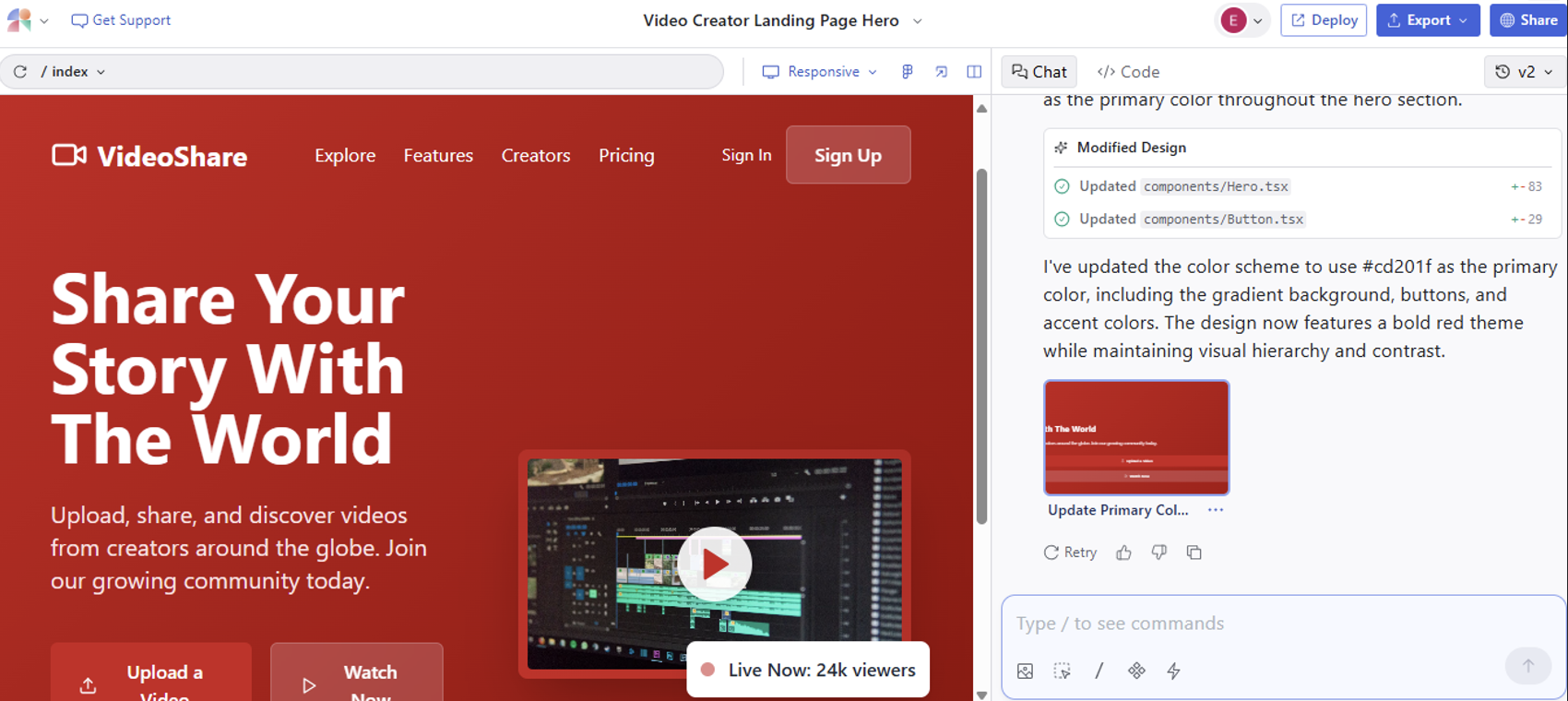
Out of all the Claude Design alternatives on this list, Magic Patterns probably feels the closest to Claude Design conceptually.
Both tools focus heavily on prompt-based AI generation and natural language workflows. The difference is that Magic Patterns is much more developer-oriented once the design generation phase is over.
Instead of stopping at visual mockups, Magic Patterns is designed around production code, design systems, component libraries, and AI coding workflows.
That developer-first DNA makes sense considering the platform was founded by ex-Robinhood engineers.
A few features make Magic Patterns stand out from both Claude Design and more traditional design tools:
-
Production-ready code generation: Magic Patterns can export clean React, Tailwind, and Vue code instead of relying on standalone HTML exports. The output becomes much more usable for frontend teams handling production workflows, multiple file access, and design-to-code pipelines.
-
Design system integration: Teams can upload their own design systems so future generations automatically follow existing typography, spacing, colors, tokens, and component patterns. This is pretty useful for enterprise AI teams working across multiple repositories and large UI systems.
-
Agent Mode for autonomous iteration: Magic Patterns includes AI agents that can iterate on interfaces, refine layouts, and handle repetitive design tasks with less manual prompting. The workflow starts feeling closer to agentic coding and AI pair programming than basic prompt-to-design generation.
-
Direct Figma + GitHub workflows: Magic Patterns supports Figma export through its plugin ecosystem and also syncs directly with GitHub repositories, helping bridge design generation and developer handoff workflows much more cleanly than Claude Design’s HTML-only exports.
Another thing I noticed is that Magic Patterns feels much more aligned with the growing wave of AI coding assistant tools and coding agent workflows than most AI design platforms. It sits somewhere between a design tool, an AI coding assistant, and a lightweight frontend generation environment.
Who should use Magic Patterns?
Magic Patterns is best for product teams, design engineers, frontend developers, and startups that want AI-generated UI connected directly to production-ready frontend workflows.
If your workflow revolves around React, Tailwind, component libraries, code generation, GitHub syncing, and design systems rather than just visual prototyping, Magic Patterns feels much more practical than Claude Design’s conversation-to-HTML approach.
Pros:
-
Production-ready React, Tailwind, and Vue code export
-
Strong design system integration for scalable UI consistency
-
Figma export, GitHub sync, and Chrome extension workflows bridge design and development well
Cons:
-
Smaller ecosystem and template library than more established platforms
-
Advanced AI agents and autonomous workflows require higher-tier plans
Pricing:
Magic Patterns offers a free tier for lightweight experimentation and smaller projects. Paid plans start at $20/month for Individuals and $100/month for Pro.
7. Penpot: Best for open-source design workflows with real-time developer collaboration
Penpot is an open-source UI design and prototyping platform built around one core idea: design and code should work together in the same workflow instead of existing as separate silos.
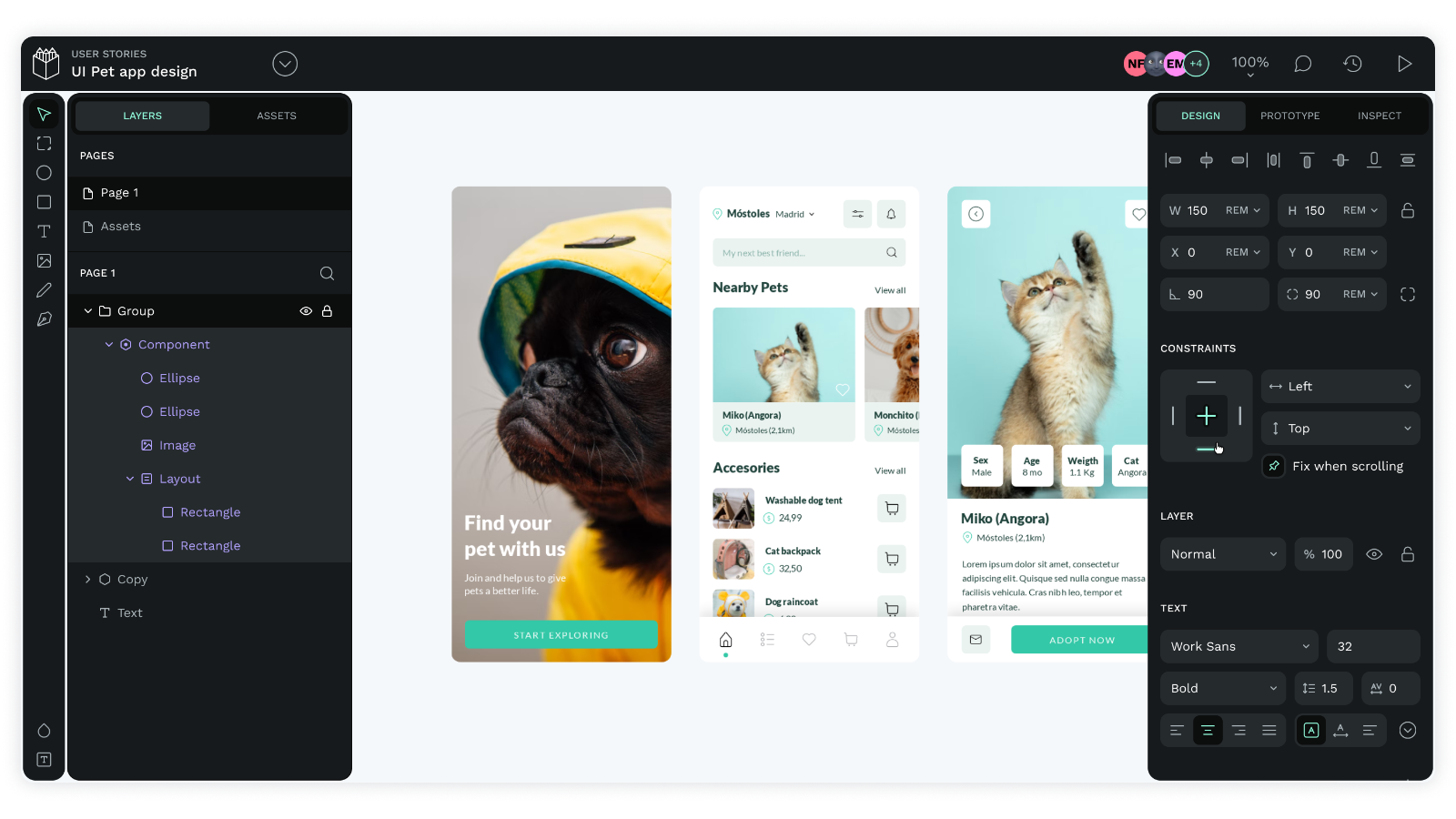
Compared to most Claude Design alternatives, Penpot takes a completely different approach.
Claude Design is a closed, subscription-based AI product tied closely to Anthropic’s ecosystem. On the other hand, Penpot is open-source, self-hosted, community-driven, and designed for teams that care about data sovereignty, design infrastructure, extensibility, and avoiding vendor lock-in.
That flexibility makes Penpot particularly interesting for enterprise teams, developers, and organizations with strict security requirements or teams experimenting with custom AI workflows, local AI infrastructure, and multi-agent workflows.
One of Penpot’s biggest differentiators is how tightly it connects design and development workflows in real time.
As designers update layouts, developers can instantly inspect code quality, generated CSS, HTML, and SVG snippets directly through Penpot’s built-in Inspect tool instead of waiting for traditional developer handoff exports.
The entire workflow feels much closer to “design as code” than traditional UI tooling.
Some key features that stood out to me include:
-
Real-time code inspection: Penpot automatically generates CSS, HTML, and SVG snippets for every design element, allowing frontend teams to inspect layouts, spacing, typography, properties, and conduct code reviews directly from the canvas.
-
CSS Grid and Flex layouts: Unlike many design tools that simulate responsive behavior visually, Penpot is built directly around real CSS Flexbox and Grid logic, which makes responsive design workflows feel much more developer-friendly.
-
Multiplayer collaboration: Multiple users can collaborate simultaneously in real time, leave comments directly on prototypes, share presentations, and streamline feedback across design and development teams.
-
Penpot MCP Server: One of the more interesting additions is the Penpot MCP server, which connects Penpot to AI agents, coding assistants, language models, and agentic coding workflows using the model context protocol ecosystem. Teams can connect Claude, OpenAI Codex, VS Code workflows, custom agents, or other local models directly into their own infrastructure.
Honestly, Penpot feels less like a typical AI design tool and more like a programmable design infrastructure layer for teams building custom design-development workflows.
That also means it’s not trying to compete directly with Claude Design or UXPilot on AI generation quality. There’s no polished prompt-to-UI generation workflow, no AI-generated SaaS dashboards, and no conversational prototyping system comparable to Claude Design.
Instead, Penpot focuses on:
-
Open workflows
-
Code collaboration
-
Self-hosted infrastructure
-
Design systems
-
Real-time developer inspection
Who should use Penpot?
Penpot is best for design-development teams, open-source organizations, enterprise AI teams, and security-conscious companies that want real-time code collaboration, self-hosted models, and freedom from vendor lock-in.
It suits organizations with data sovereignty requirements or teams that want to extend their design tool without vendor lock-in (the opposite approach to Claude Design's closed ecosystem).
Pros:
-
Open-source with self-hosted deployment options and no vendor lock in
-
Real-time code inspection eliminates traditional developer handoff friction
-
Strong collaboration workflows with multiplayer editing, comments, and extensibility through plugins and APIs
Cons:
-
No official desktop app. Community-supported alternatives only
-
No dedicated customer support; most help comes through community resources
-
No AI generation workflows comparable to Claude Design, UXPilot, or Magic Patterns
Pricing:
Penpot includes a generous free tier with unlimited projects, multiplayer collaboration, prototyping, and code inspection features. Paid cloud plans start at around $7/editor/month (billed annually) with enterprise plans scaling to $950/month.
Keep in mind that they offer different plans for the cloud version and self hosted models.
8. Google Stitch: Best free-tier AI-native alternative to Claude Design
Google Stitch is probably the closest free alternative to Claude Design right now.
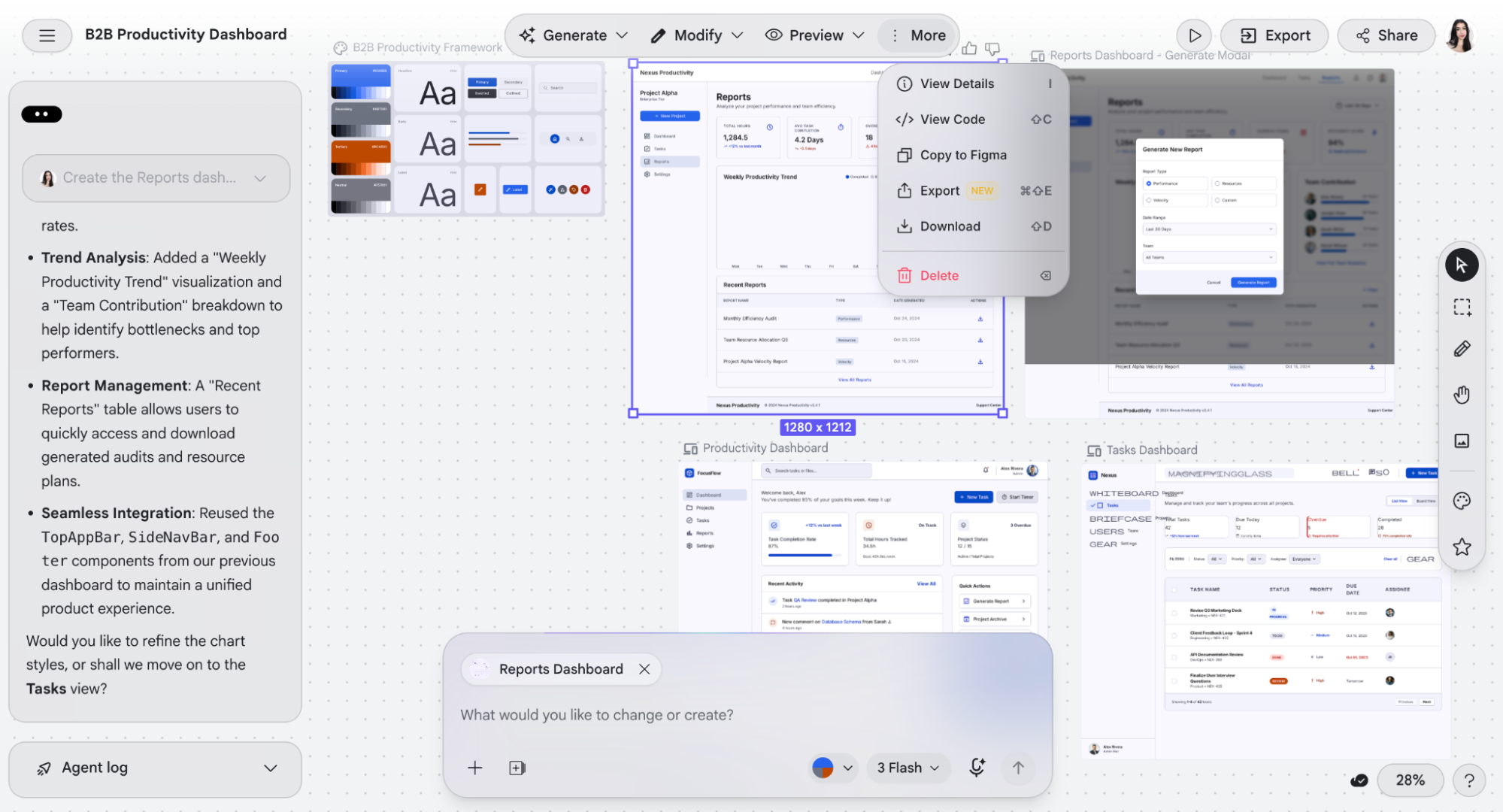
Built inside Google Labs and powered by Gemini AI models, Stitch follows a very similar AI-native workflow to Claude Design.
The biggest difference is that Google Stitch is currently 100% free during its Labs phase, making it one of the easiest ways to experiment with AI-native UI generation without committing to a paid plan.
Like Claude Design, Stitch focuses heavily on conversational AI assistance and prompt-to-design workflows.
With model flexibility, you can switch between Gemini 3.0 Flash for HTML-ready designs and faster code generation workflows, Gemini 3.1 Pro for higher-fidelity UI layouts, and Redesign mode for reinterpreting screenshots or existing interfaces.
But it also adds several developer-oriented features that make it surprisingly practical for lightweight frontend and design-to-code workflows, including:
-
Multi-viewport UI generation: Stitch can generate responsive interfaces across mobile, tablet, and desktop layouts automatically instead of forcing teams to manually rebuild breakpoints.
-
Redesign-from-screenshot workflows: Similar to modern AI coding assistant and coding agent workflows, Stitch can analyze screenshots, existing websites, or layouts and generate refreshed UI variations from them.
-
Direct Figma export: Generated designs can be exported directly into Figma with editable Auto Layouts, structured layers, and reusable components for further refinement.
-
Full HTML and CSS code viewing: Unlike many lightweight AI design tools, Stitch exposes generated source code directly, making it useful for frontend experimentation, AI coding workflows, and developer collaboration.
-
Interactive multi-screen prototypes: Stitch supports hover animations, clickable interactions, connected screen flows, and lightweight prototyping instead of limiting generation to static mockups.
-
Predictive heatmaps and PRD generation: Stitch also includes lightweight UX optimization features like predictive heatmaps and AI-generated product requirement documentation for faster collaboration between designers, PMs, and developers.
But I found that Stitch feels slightly more developer-friendly because of the direct HTML visibility, Figma export support, and growing support for AI coding assistant workflows and external AI agents.
That said, the platform is still clearly in Beta.
During testing, I noticed bugs and inconsistent behavior fairly often. Color scheme updates inside generated style guides don’t always propagate correctly to layouts, more complex projects can break unexpectedly, and there’s currently no proper manual editing workflow after generation.
Unlike tools like Figma Make or UXPilot, Stitch doesn’t really support detailed post-generation editing. You can regenerate, redesign, and iterate conversationally, but you can’t manually tweak layouts, spacing, typography, or components with pixel-level precision.
So while Stitch is genuinely impressive for quick ideation and AI-assisted UX exploration, it’s still not suitable for complex production-ready prototyping workflows or enterprise-scale product design systems.
Who should use Google Stitch?
Google Stitch is ideal for anyone who wants to test AI-native design generation at zero cost. It’s great for quick ideation, concept validation, and lightweight prototyping without committing to an expensive subscription upfront.
Pros:
-
100% free during the Labs phase
-
Direct Figma export plus full HTML/CSS code visibility
-
Multi model support through Gemini, optimized for different UI generation workflows
-
Works within the Google Cloud platform
Cons:
-
Still in Beta with bugs and inconsistent behavior
-
No manual editing workflow after generation
-
Not reliable enough yet for complex projects or production-ready prototyping
Pricing:
Google Stitch is currently 100% free to use during its Google Labs beta phase.
9. Visily: Best AI wireframing tool for non-designers
Visily is an AI-powered wireframing and prototyping platform built for non-designers, including product managers, founders, developers, marketers, and business analysts who need to turn ideas into visual UI without learning complex tools like Figma.
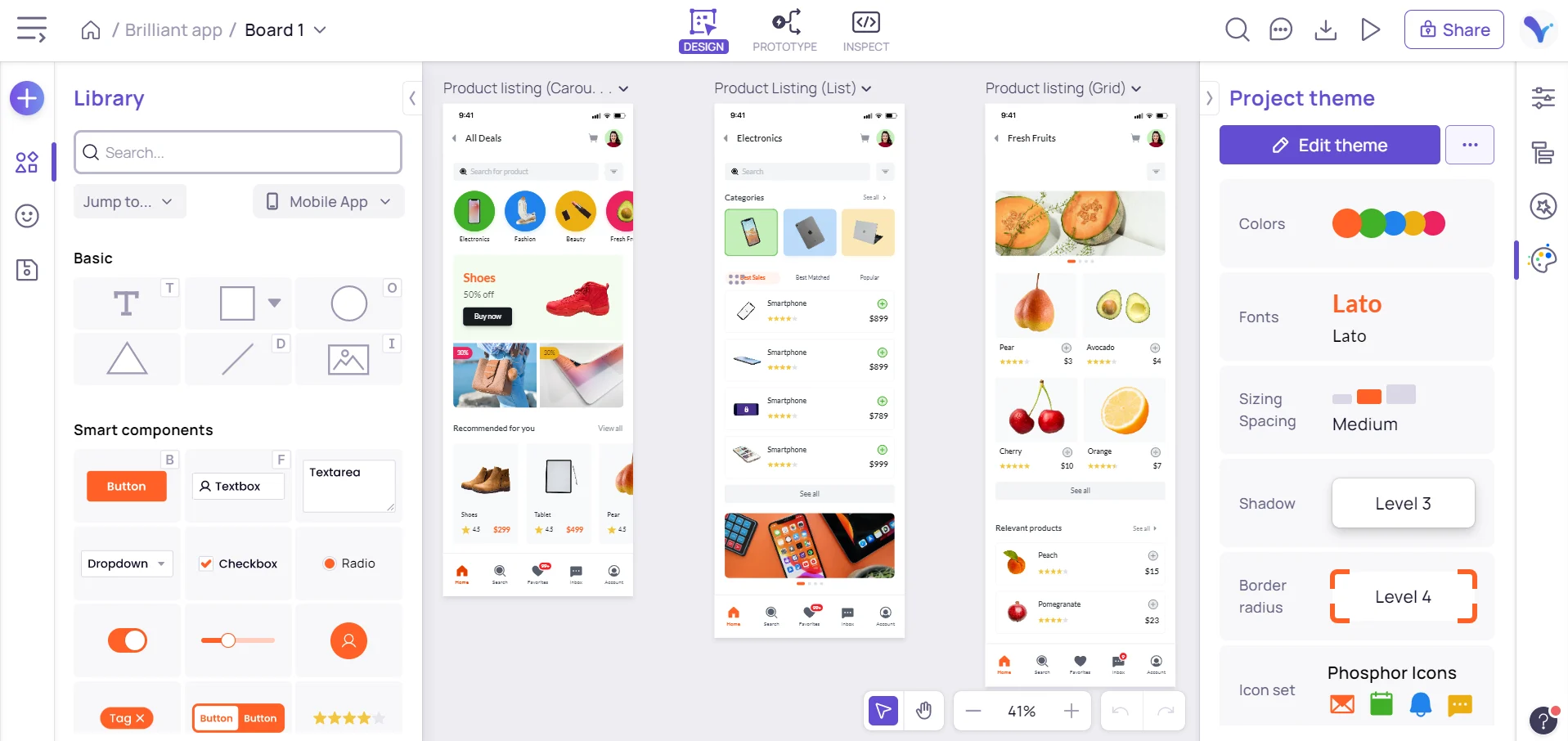
Out of all the Claude Design alternatives on this list, Visily feels the closest to Claude Design’s original promise of how anyone can create polished UI with AI through natural language prompts.
But unlike Claude Design’s conversation-only workflow, Visily adds a proper drag-and-drop canvas with manual editing, collaborative brainstorming, editable wireframes, and visual flows. That makes it much more practical for real product ideation workflows.
Here’s why Visily stood out to me:
-
Strong text-to-design capabilities: Generate editable UI screens and wireframes from natural language prompts. You can also map out ideas visually, including flows, onboarding journeys, diagrams, and user logic, instead of only generating screens.
-
Screenshot to Design + Sketch to Design: Convert screenshots, UI references, or hand-drawn sketches into editable wireframes.
-
LoFi/HiFi toggle: Instantly switch between low-fidelity wireframes and polished high-fidelity UI views for different stages of the design process.
-
Context-aware AI editing: Instead of regenerating entire screens, Visily lets you refine layouts, add sections, adjust flows, and evolve ideas conversationally while staying aligned with the existing design.
-
1,500+ templates and smart components: Includes a large template and UI library for web and mobile projects.
Visily also supports real-time collaboration, commenting, role-based permissions, Figma export, and Tailwind-friendly developer handoff, which are features that many lightweight AI wireframing tools still lack.
Compared to more developer-focused tools like Magic Patterns or UXPilot, Visily is less focused on production code generation, AI coding workflows, or complex agentic coding tasks. Instead, it prioritizes accessibility, visual thinking, and fast ideation.
Who should use Visily?
Visily is ideal for non-designers who need to create professional-looking wireframes and prototypes without formal UX or UI experience.
If Claude Design’s appeal is “anyone can design with AI,” Visily delivers a very similar experience, but with much stronger editing controls, brainstorming workflows, collaboration features, and a much more generous free tier.
Pros:
-
Built specifically for non-designers with a drag-and-drop canvas and intuitive AI assistance
-
Screenshot to Design and Sketch to Design workflows convert existing assets into editable wireframes
-
LoFi/HiFi toggle makes it easy to switch between wireframes and polished UI
Cons:
-
Better suited for early-stage ideation than complex production-ready design systems
-
Navigation can feel cluttered for first-time users
-
Limited integrations and developer tooling compared to Figma or UXPilot
Pricing:
Visily's Starter plan is free with 300 AI credits/month. Paid plans start at approximately $11/month (billed annually).
10. Uizard: Best for collaborative AI UI design for cross-functional and enterprise teams
Since its acquisition by Miro in 2024, Uizard has leaned even more heavily into collaborative workflows for product teams, marketers, consultants, startup founders, and enterprise users.
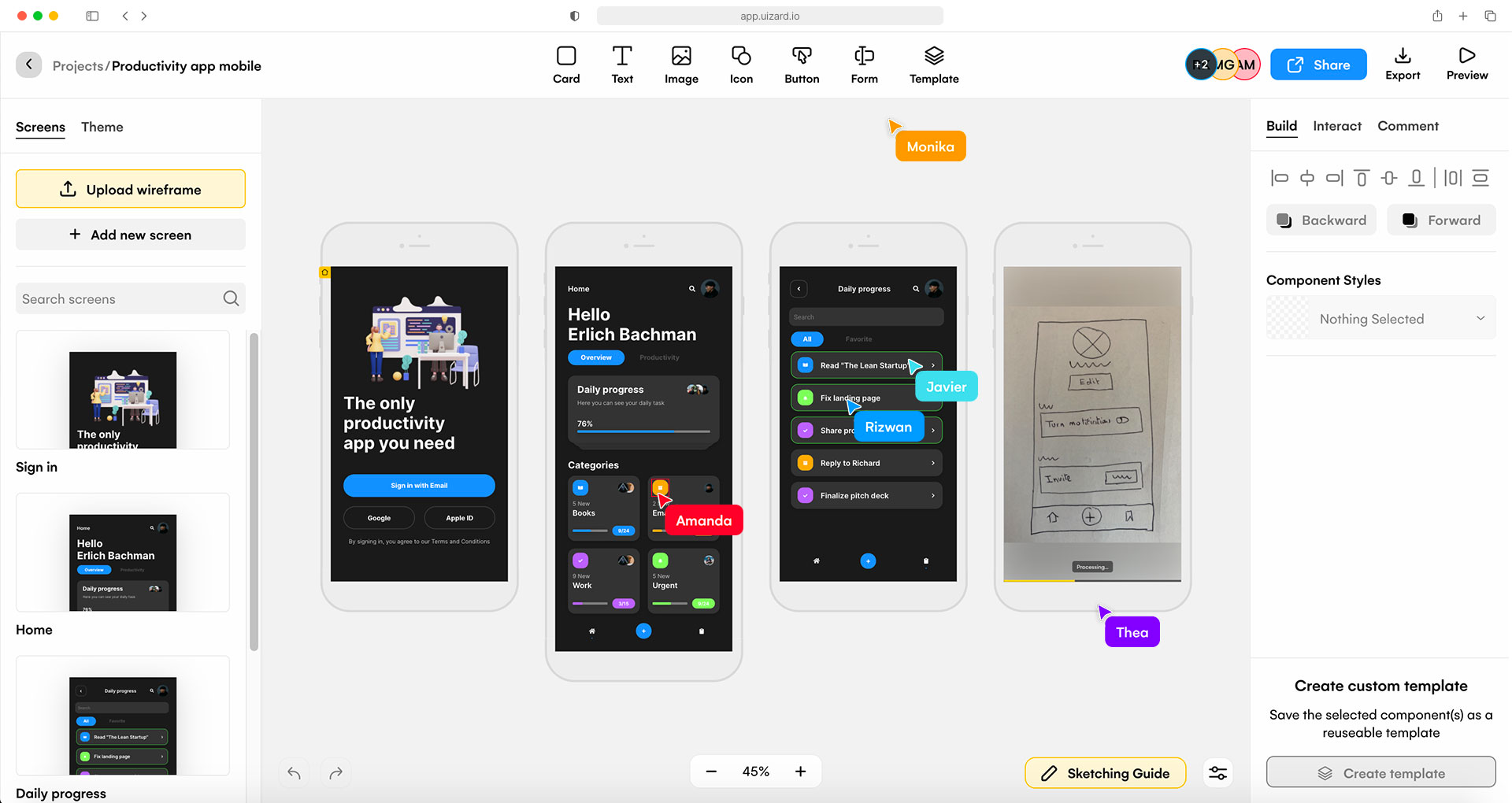
Like many newer Claude Design alternatives, the platform uses natural language prompts to generate editable UI screens through its Autodesigner AI assistant. But compared to Claude Design’s more individual-focused workflow, Uizard puts much more emphasis on multiplayer collaboration, shared ideation, and stakeholder participation.
One thing I found really unique was how Uizard can convert hand-drawn sketches into digital, interactive wireframes and features a chatbot for design revisions.
Here’s what makes Uizard stand out from other Claude design alternatives:
-
Autodesigner AI assistant: Generate editable multi-screen layouts, themes, and UI flows from prompts in seconds.
-
Wireframe Scanner: Upload hand-drawn sketches and convert them into editable wireframes automatically.
-
Screenshot-to-mockup generation: Turn existing apps, websites, or UI screenshots into editable designs.
-
HiFi/LoFi switching: Easily toggle between polished mockups and low-fidelity wireframes for faster reviews and stakeholder alignment.
-
Brand kits and AI themes: Generate consistent themes, typography, and UI styling from prompts or screenshots.
That said, Uizard still feels more lightweight than tools like UXPilot or Figma Make when it comes to advanced editing precision, developer handoff, or production-ready workflows. There’s also no direct Figma export yet, so workflows often rely on SVG exports and manual cleanup.
Who should use Uizard?
Uizard works especially well for product managers, marketers, consultants, founders, and non-technical stakeholders who want AI assistance, rapid prototyping, and collaborative editing in one place, without the learning curve of more advanced UX tools.
Pros:
-
Strong collaboration workflows through Miro integration and multiplayer editing
-
Wireframe Scanner and screenshot-to-design features speed up early ideation
-
Supports desktop, tablet, and mobile viewport generation
Cons:
-
Free plan only includes Autodesigner 1.5 instead of the more capable 2.0 version
-
No direct Figma export. Requires SVG-based workaround
-
Fewer advanced customization controls than tools like UXPilot or Figma
Pricing:
Uizard offers a free plan with limited AI generation features. Paid plans start at $12/month.
Claude Design alternatives: A quick comparison
If you’re looking for a quick rundown of the tools, here’s a side-by-side comparison of the best Claude Design alternatives across pricing, AI features, Figma export, code generation, and their best use cases.
|
Tool |
Best for |
Starting price |
Free plan |
AI features |
Figma export |
Code generation |
|
Figma Make |
Mature product and UX teams already using Figma |
$12/month per seat |
Yes |
Prompt-to-UI generation, Code to Canvas, AI-assisted editing |
Native |
Limited |
|
UXPilot |
Production-ready UX workflows and native Figma handoff |
$14/month |
Yes |
Deep Design model, screen flows, predictive heatmaps, accessibility reviews |
Native |
HTML generation + GitHub sync |
|
Relume |
Website planning, sitemaps, and wireframing |
$18/month |
Yes |
AI sitemap builder, wireframe generation, AI style guides |
Yes |
React export |
|
Canva AI |
Marketing, presentations, and branded content creation |
$13/month |
Yes |
Magic Design, Magic Media, AI copywriting, conversational editing |
No |
Basic |
|
Framer AI |
AI-generated websites with live publishing |
$10/month |
Yes |
AI Wireframer, localization, responsive site generation |
Partial |
Production website publishing |
|
Magic Patterns |
Developer-focused UI generation and frontend workflows |
$20/month |
Yes |
AI UI generation, Agent Mode, design system integration |
Yes |
React, Tailwind, Vue |
|
Penpot |
Open-source design workflows and developer collaboration |
$7/editor/month |
Yes |
Minimal AI features, MCP integrations, code inspection |
Partial |
CSS, HTML, SVG inspection |
|
Google Stitch |
Free AI-native design generation and rapid prototyping |
Free |
Yes |
Gemini-powered UI generation, redesign from screenshots, predictive heatmaps, PRD generation |
Native |
Full HTML/CSS viewing |
|
Visily |
Non-designers creating wireframes and prototypes |
$11/month |
Yes |
Text to Design, Screenshot to Design, Sketch to Design, LoFi/HiFi toggle |
Yes |
Tailwind-friendly handoff |
|
Uizard |
Collaborative AI UI design for cross-functional teams |
$12/month |
Yes |
Autodesigner AI, Wireframe Scanner, AI themes, Screenshot-to-mockup |
No (SVG workaround) |
Limited |
Find the right Claude Design alternative for your workflow
The best Claude Design alternative depends on what you actually need AI for.
Some tools are better for fast design exploration, others focus on production-ready code, full-stack website building, marketing assets, or professional design system management for enterprise teams.
But if you want the most balanced mix of AI-powered design speed and real product workflow support, UXPilot stands out the most.
It keeps the same conversational, AI-first experience that makes Claude Design exciting, while adding native Figma export, predictive heatmaps, screen flows, accessibility reviews, and much more flexible editing workflows.
So if Claude Design’s prototyping style clicked for you, but the workflow limitations didn’t, UXPilot feels like the smoother long-term upgrade.