My 9 Best AI Prototyping Tools in 2026

Khanh Linh Le
Created on Jan 4, 2026
In 2026, the top AI prototyping tools can turn a prompt, a sketch, or an existing screen into an interactive prototype within minutes. But the real challenge comes after the demo. Do you throw out the prototype and start over, or can you turn it into the final product?
The answer to that question affects which tool is right for you. It also depends on whether you’re starting from scratch or working with an existing product.
I spent a few weeks testing these nine tools using the same product brief and building real user flows instead of just reading about their features. Here’s what each tool does well and which starting point it works best for.
Here are the 9 best prototyping tools I narrowed down to.
Best AI prototyping tools for UI
Here are my nine picks, each labeled by the job it does best rather than by an overall score. If you already know whether you need a throwaway mockup or something closer to a shippable product, that label is the fastest way to narrow the list. Start with the one that matches your situation:
-
Best overall for product teams: UX Pilot
-
Best for speeding up prototyping inside Figma: Figma AI
-
Best free option for exploring an early idea: Google Stitch
-
Best for designing and publishing a marketing website: Framer
-
Best for turning an idea into a working app: Lovable
-
Best for testing interactions and product behavior: ProtoPie
-
Best for prototyping changes to an existing product: Alloy
-
Best for planning a website before you design it: Relume
-
Best for creating a quick mockup from a prompt, screenshot, or sketch: Visily
I'm not ranking these tools from best to worst because that would be misleading. What I did was compare them by where you’re starting and what you need the output for. I also considered the learning curve associated with a prototyping tool, as some may require coding knowledge while others do not.
Then I used the same product idea across the tools wherever that made sense to see how much work it took to build out the rest of the flow, whether I could make precise changes without fighting the AI, and whether the output was still usable or close to what I intended.
I also ran my conclusions past designers and product people I work with, mostly to check that I wasn’t overlooking problems that matter for these end users.
Last but not least, it's important to evaluate how well a prototyping tool integrates with other tools in your design and development workflow.
1. UX Pilot AI UI Generator
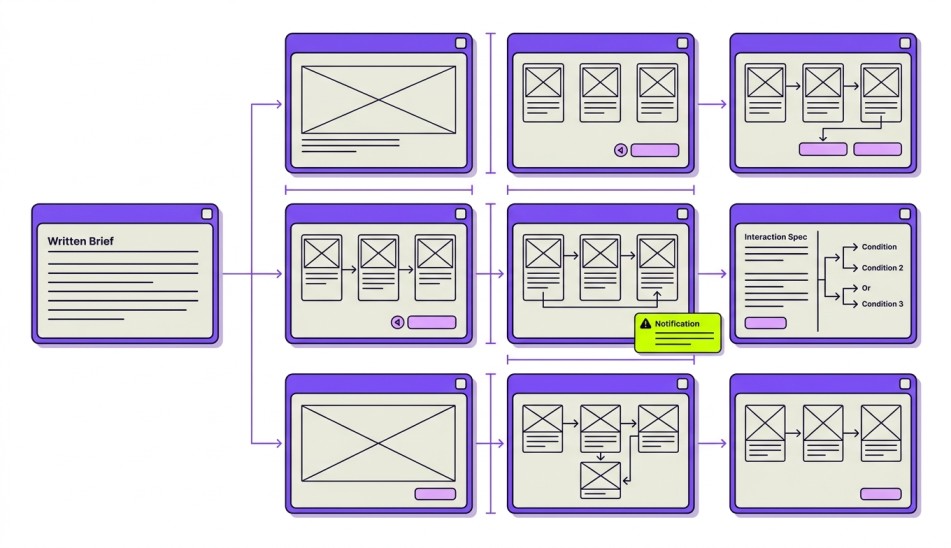
UX Pilot is an AI design platform that can take you from a prompt, PRD, screenshot, or sketch to individual screens, complex prototypes, or a complete multi-screen flow.
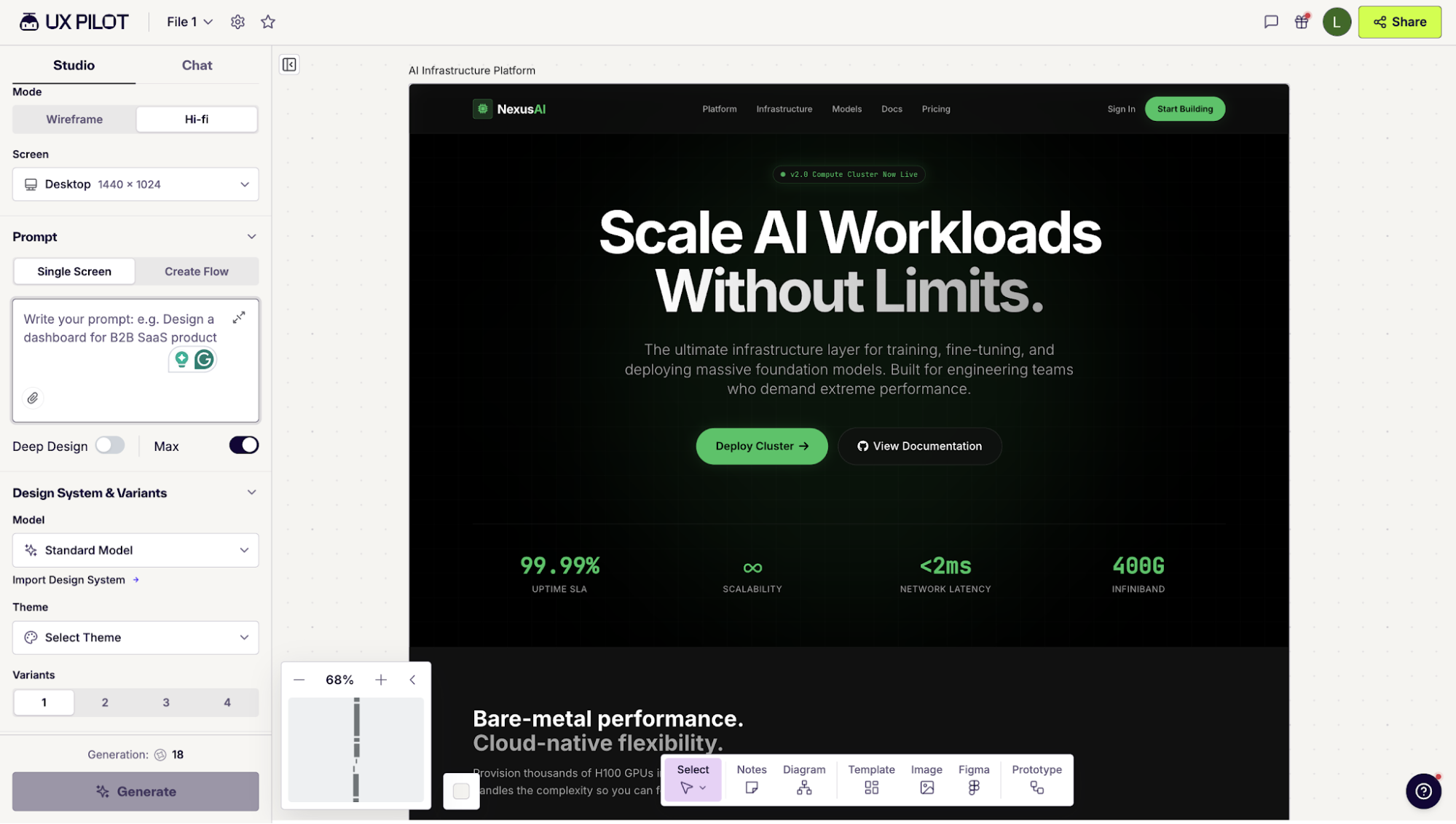
It also works for teams that already have an established Figma workflow. You can import your Figma components to create a custom AI model, generate designs that follow your existing system, and pull the output back into Figma as editable layers.
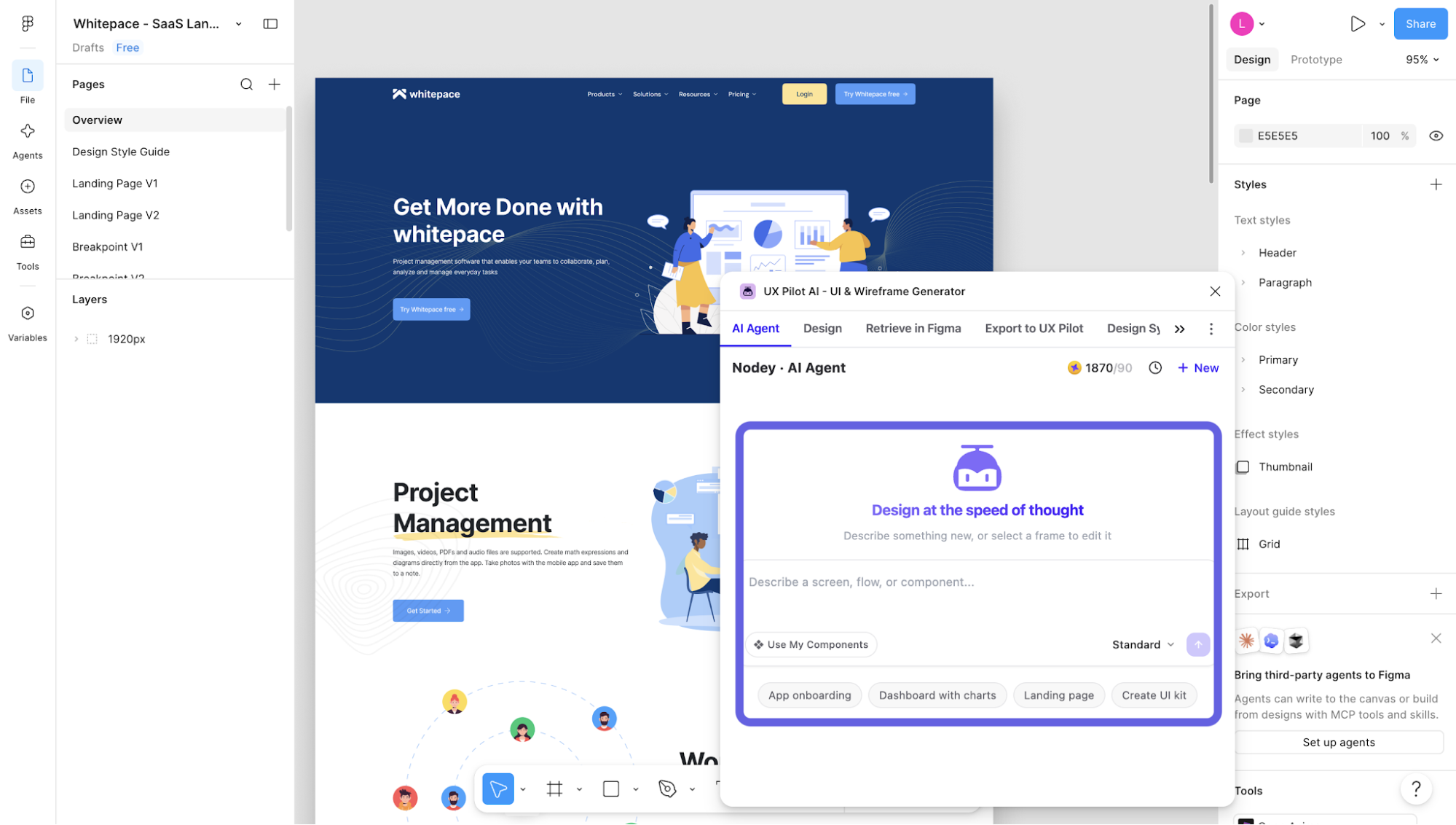
With Nodey, UX Pilot's Figma-native AI agent, you can also generate and refine screens directly inside the Figma canvas, so UX Pilot doesn’t have to sit outside the rest of your design process.
UX Pilot is best for end-to-end AI prototyping
You can start in Chat if you want UX Pilot to interpret a broader idea, or use Studio when you want more control over the output before it generates anything. There are two ways to start from Chat. You can give UX Pilot more context first by adding a:
-
Design system
-
Screenshot
-
PRD
-
Website link
Or, you can click Prototype in the bottom toolbar and choose whether to create one from a new prompt or convert something already on the canvas. I started from a new prompt, which opened with “Create a React prototype for…,” then added the product idea, its main use case, Brand24 as the visual reference, and the ways I wanted my design to differ.
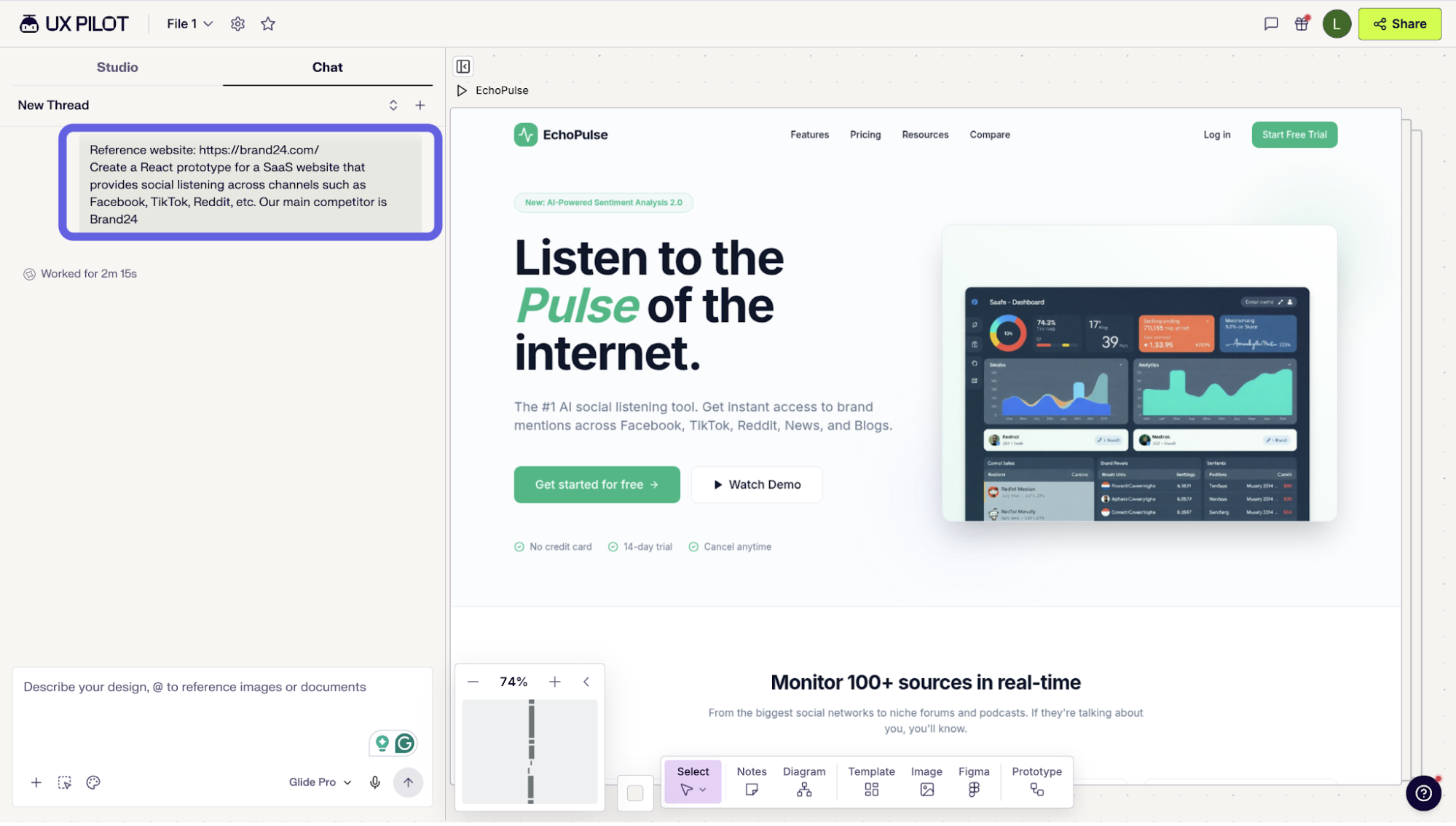
You can even adjust the generation model, similar to choosing a model or mode when working with an LLM. Since UX Pilot’s models are built specifically for UI and UX design, I generally needed less back and forth to get something that followed common interface and flow patterns.
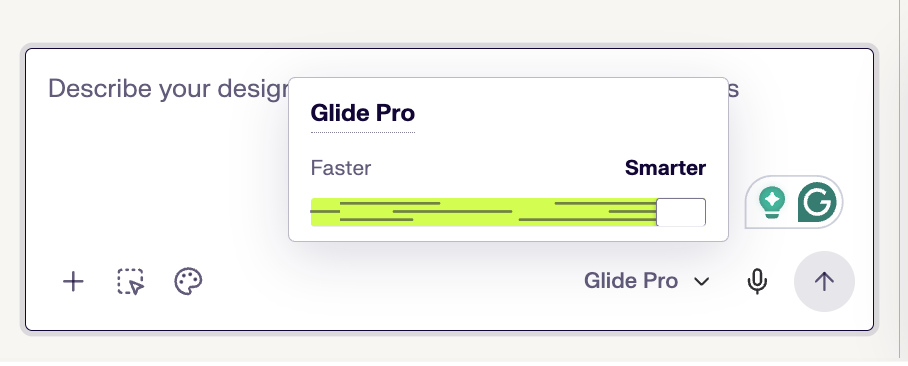
Once UX Pilot generates the first version, you can continue refining it through Chat or switch to manual editing for more precise changes. I’d also open the preview before moving on, especially for a multi-screen flow, because it lets you click through the prototype and check whether the navigation and interactions work the way you intended.
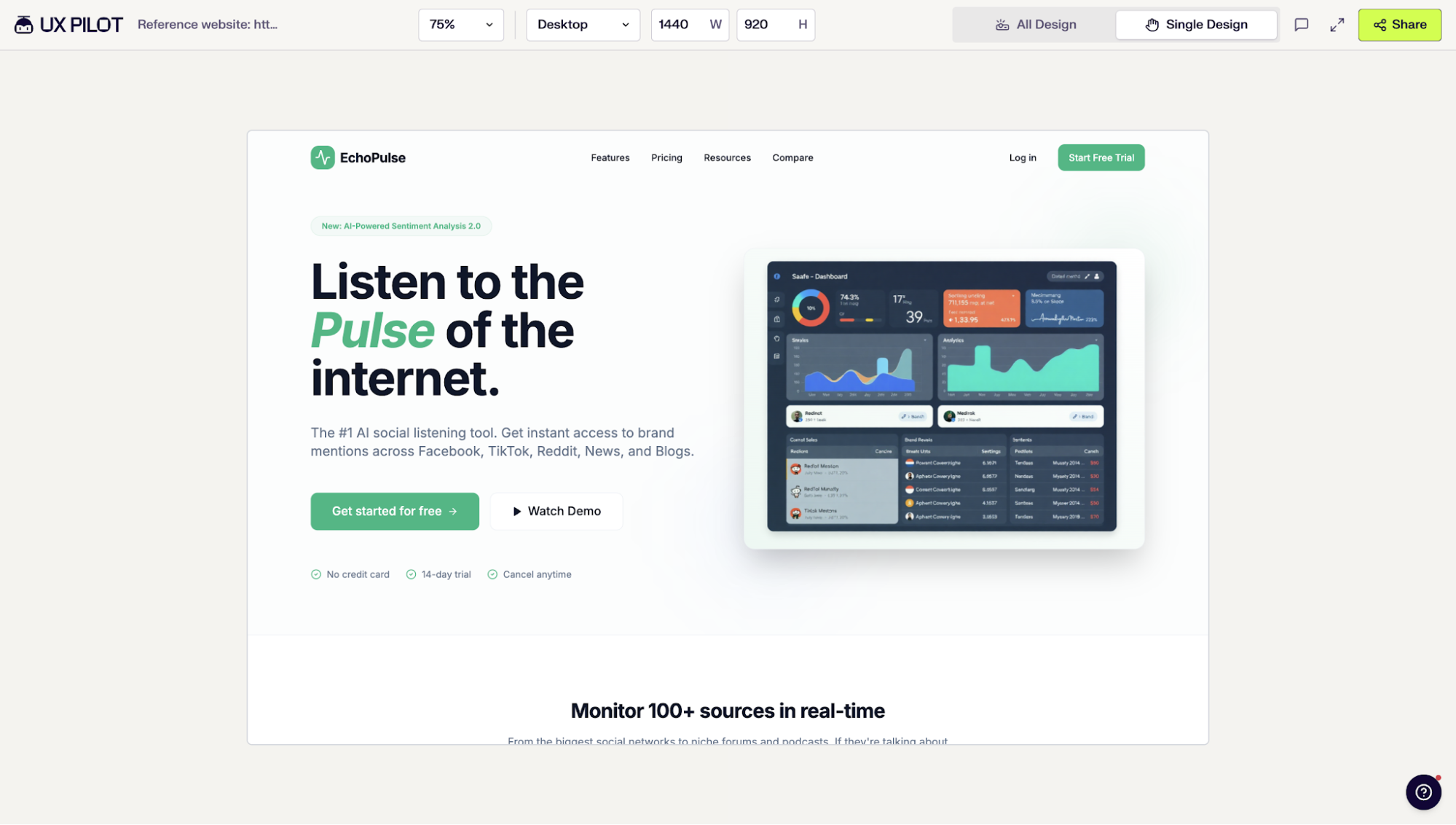
You can then run a few checks directly on the design:
-
UX Review and Accessibility Review to catch hierarchy, usability, contrast, and accessibility issues.
-
Persona Audit to review the experience against the user you designed it for.
-
Predictive Heatmap and Gaze Flow to see which parts of the interface are most likely to attract attention.
A single run gives you four distinct design directions rather than one, so you can compare approaches before committing to any of them. Autoflow handles the part that usually eats the most time: generating a connected multi-screen flow instead of a pile of unlinked screens.
From there, you can keep working in UX Pilot, take the screens into Figma as editable layers, or export the whole thing as React or HTML and CSS.
And if you already have a flow in Figma, you can start there instead with Nodey, UX Pilot’s Figma-native AI agent. It lets you generate or refine screens inside the existing file and reuse the components from your design system rather than rebuilding the flow on a separate canvas.
UX Pilot offers a free plan, so you can always try it out to see if it meets your needs without first investing. Once you do decide to upgrade, you can choose from one of the three paid plans.
2. Figma AI
Figma is known for its collaborative features, allowing real-time design and prototyping.
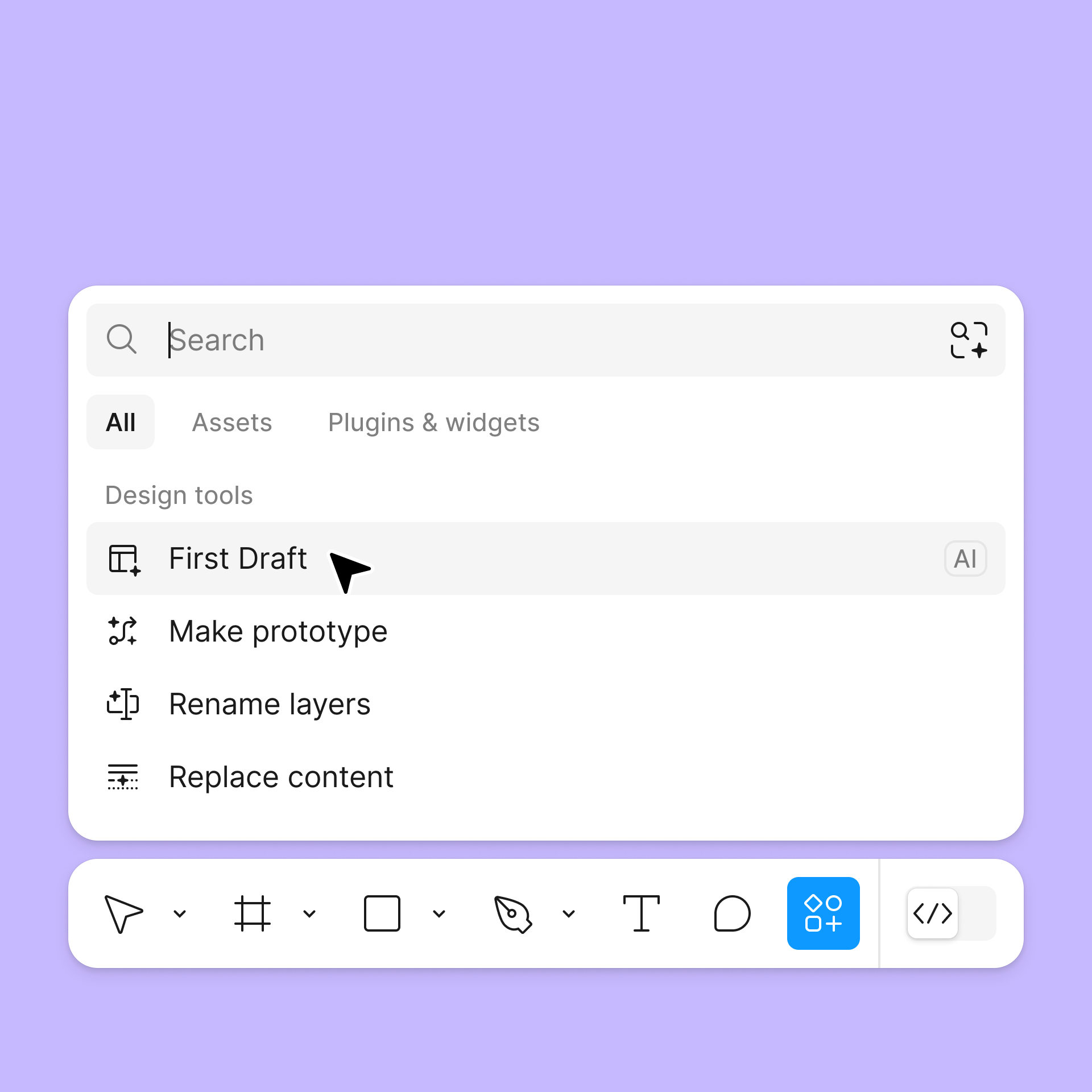
In 2026, Figma AI is no longer a single feature within Figma Design. It covers several different prototyping workflows: the new Figma agent has become the entry point for First Draft, add interactions can connect existing screens into a basic flow, and Figma Make can turn a prompt or design into a working prototype.
I’d still see it as a better fit for teams already working in Figma than as a reason to adopt Figma specifically for AI prototyping.
Its main advantage is that you can use AI to explore ideas, add interactions, or build something more functional during the product development process. All of that without moving your designs, components, and team context into another platform.
Figma AI is best for speeding up prototyping inside Figma
Figma now has two fairly different AI prototyping workflows: Figma Agents and the existing Figma Make.
The first sits inside Figma Design, where the new agent is becoming the entry point for generative work, starting with First Draft. This is the more useful workflow when you already have designs on the canvas because the AI can help you:
-
Generate editable wireframes or UI explorations with First Draft.
-
Connect existing screens into a clickable flow with Add interactions.
-
Find relevant components and previous designs using a prompt, screenshot, or canvas selection.
-
Replace placeholder content, rewrite copy, and clean up layer names as you refine the prototype.
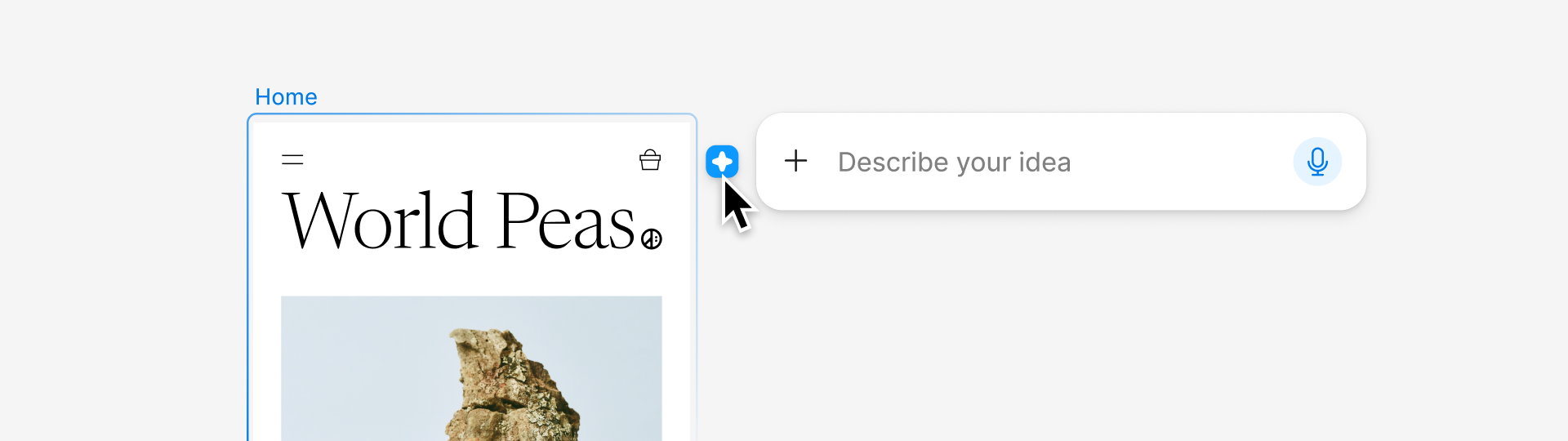
I couldn’t test this part because Figma’s AI tools inside Design are only available on paid plans and require a Full seat.
What I could test was Figma Make, which is available with limited access on the free Starter plan. The design was decent for my prompt, so I think it's useful for exploring an idea and testing how the flow might work.
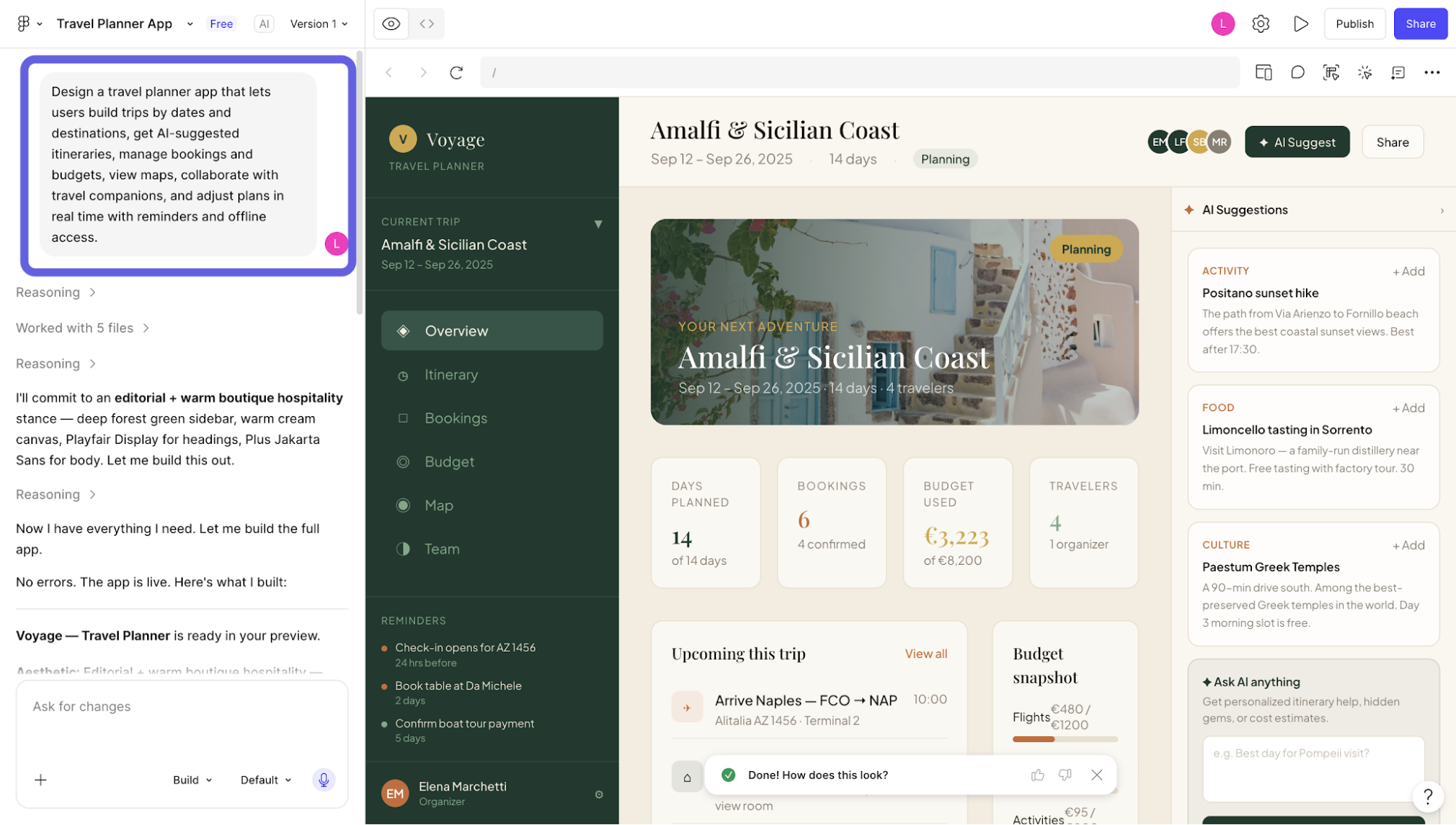
The limitation on the free plan is that Make still feels fairly separate from the rest of the Figma workflow. Starter users can’t bring in styling context from a team library, and copying the Make preview back into Figma Design as editable layers is reserved for paid plans. Even then, what you copy is only a snapshot: it isn’t connected back to the Make prototype or automatically tied to your design system.
Figma’s free Starter plan includes limited access to Figma Make, but the AI features inside Figma Design require a paid Full seat. The Professional plan costs $16 per month with annual billing or $20 month-to-month, and includes 3,000 AI credits per user each month.
3. Google Stitch
If you've seen Google Stitch referred to as Galileo AI, they're the same product. Google acquired Galileo AI in May 2025 and relaunched it as Stitch inside Google Labs, so there's no separate Galileo tool to evaluate.
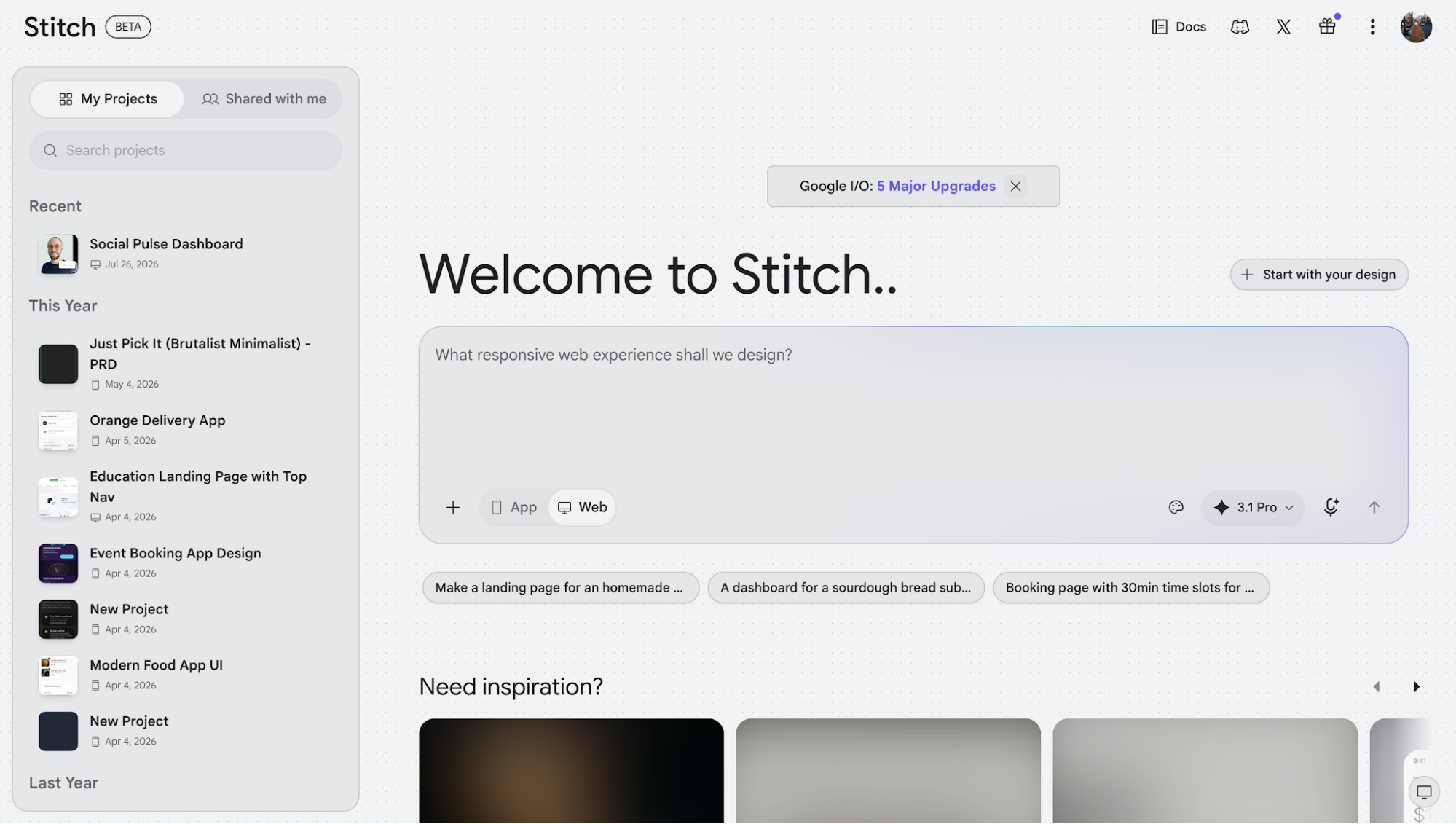
It can also connect screens into an interactive prototype, generate the next logical screen from a click, and let you preview the flow as you build it.
It is still a Google Labs experiment, so I’d see it mainly as a fast way to explore and validate an early idea rather than somewhere to manage a mature design system.
Google Stitch is best for exploring and validating early product ideas
I’d use Stitch when I want to explore a few visual and product directions for free. I wouldn’t rely on the first generation to give me a complete website or a particularly coherent end-to-end prototype.
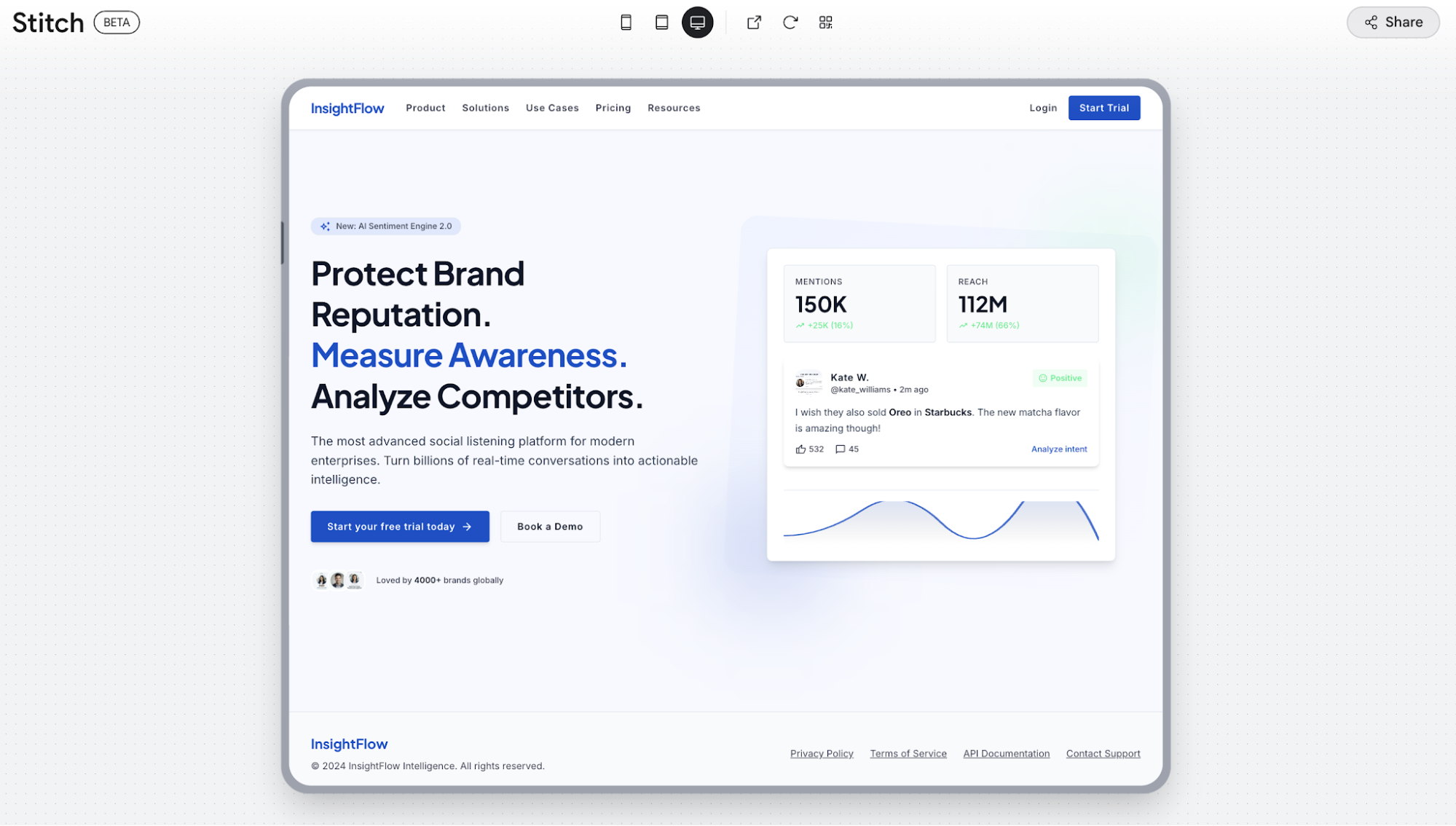
I used the same social-listening brief that I used for UX Pilot, selected Web, and switched to the slower Thinking mode. Even then, Stitch didn’t interpret the brief as coherently as I expected.
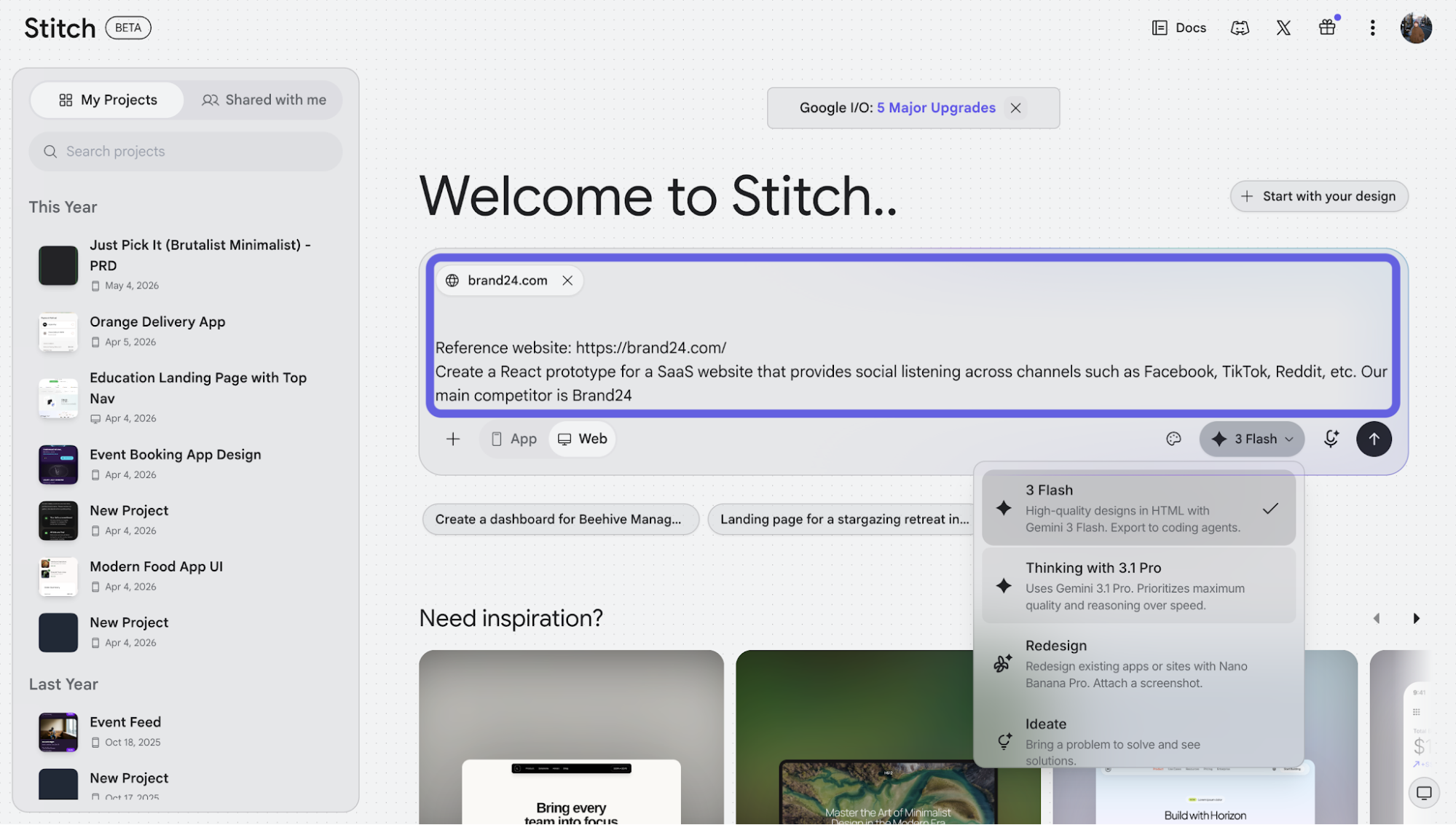
Instead of building one complete website, it generated a mixture of landing-page concepts and sample web-app screens. The landing page itself was closer to a single hero viewport, with the footer placed immediately underneath, rather than the full page I had expected.
Once you have something on the canvas, you can:
-
Ask the agent to modify a selected screen or generate variations.
-
Regenerate weaker outputs without starting a new project.
-
Turn static screens into an Instant Prototype, then preview the flow with the Play button.
-
Generate missing states, animations, mobile versions, and supporting web or marketing assets.
-
Run a predictive heatmap or accessibility audit before moving the design forward.
-
Share the prototype or export it into the next stage of development.
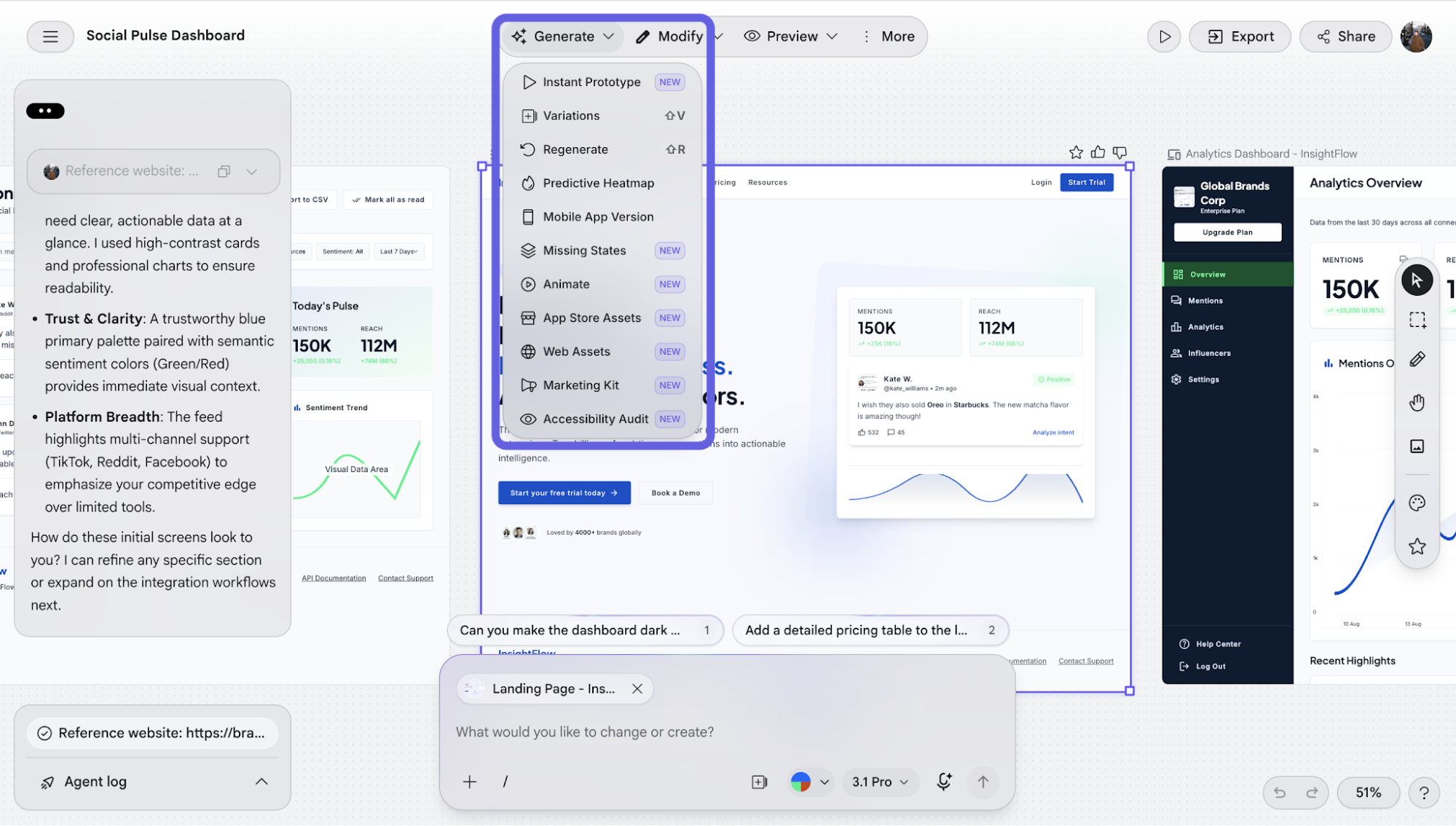
Google’s latest updates also let you steer the agent while it works, bring existing design files or code onto the canvas, and export projects to Antigravity or publish them through Netlify.
Stitch can automatically connect screens and generate the next logical screen from an interaction, although the quality of that flow still depends heavily on how clearly it understood the original brief.
Stitch is free as long as it remains a Google Labs experiment, with no paid tier to upgrade to. Generation limits vary by model and change frequently, so check the current allowance in the product before planning a project around it.
4. Framer
Framer lets you prototype a website in the same environment where you can continue refining and eventually publish it.
You can start from a prompt or brief, have its AI agent generate editable pages and sections, then adjust the layout, copy, typography, breakpoints, components, effects, and interactions directly on the canvas.
Framer has a free plan with limited AI credits. Paid plans start at $10 per month for Basic when billed annually, which includes 1,000 monthly AI credits, while Pro costs $30 per month and includes 3,000.
Framer is best for prototyping and publishing web pages
Framer is best for prototyping web pages you plan to publish because the AI generates directly on the same canvas where you can refine and launch the final site.
For testing, I used the same prompt and Brand24 reference as I did for UX Pilot, but Framer’s first output was much weaker. It produced a full page, but the hierarchy and section flow felt messy, so I would have needed to restructure quite a bit manually.
Framer routes its agent to general-purpose frontier models from OpenAI and Anthropic rather than running a model of its own trained on UI and UX patterns. That may be why the first output needed more direction than tools with design-specific models behind them.
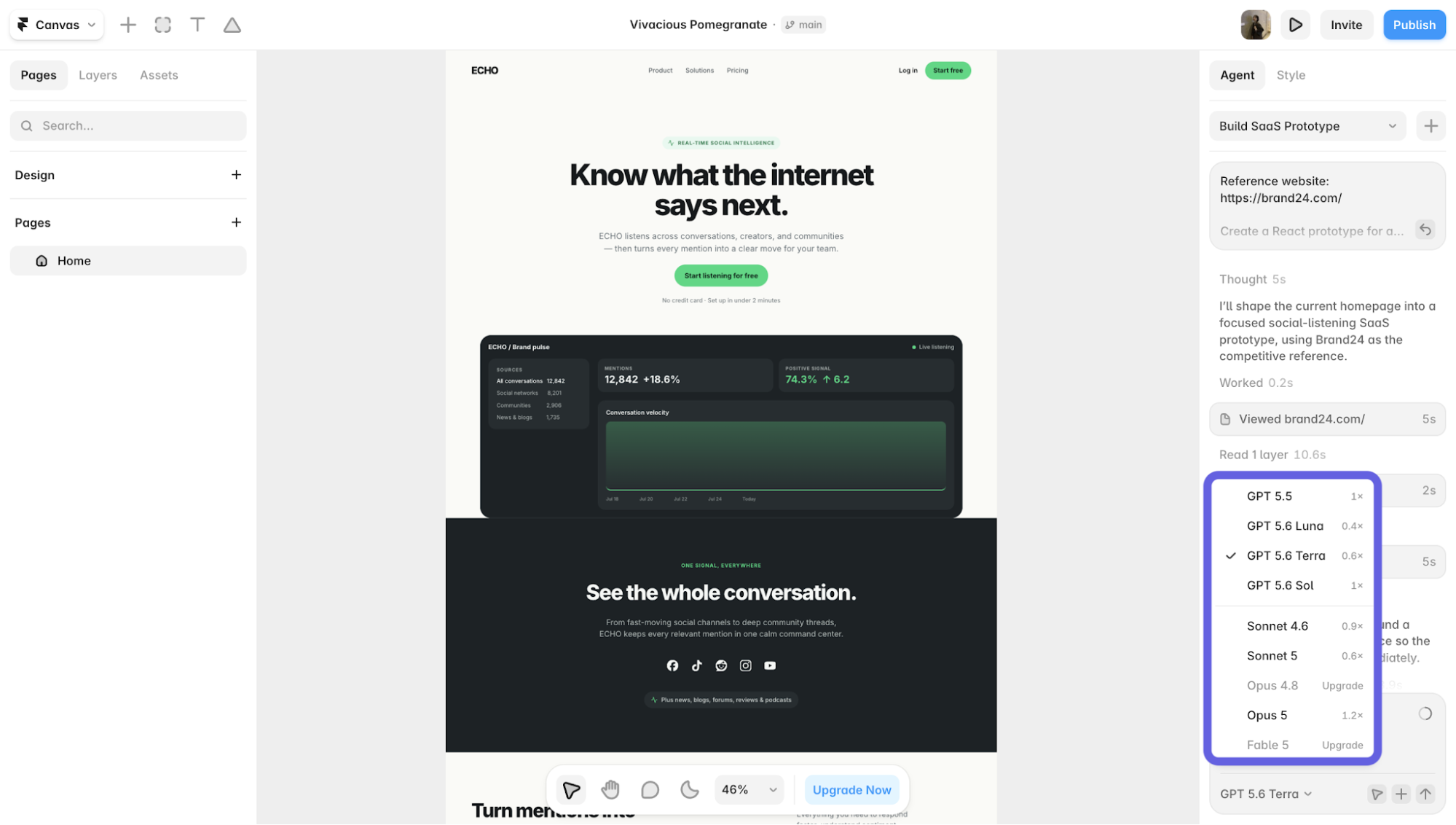
The advantage is that you can continue working on the output inside Framer:
-
Ask the agent to revise individual sections.
-
Manually edit the layout, copy, styles, and components.
-
Preview the responsive page and its interactions.
-
Publish it from the same platform.
While I wouldn’t rely on Framer for the strongest first draft, its connected workflow still makes it useful for website prototypes you intend to refine and publish.
5. Lovable
Lovable is designed for non-technical users, making it easy to create prototypes without coding. You describe the product you want to build and add context through documents, screenshots, or existing designs, then it generates a working web app with code.
That makes it one of the most useful AI coding tools when you want to test how an idea works. Lovable generates a full-stack app with frontend, backend, auth, and hosting for MVP prototyping.
Lovable’s free plan gives you five daily credits, capped at 30 per month. Pro starts at $25 per month, or $21 per month with annual billing, and includes 100 monthly credits on top of the daily allowance.
Lovable is best for testing and turning an idea into a working app
Lovable is best for turning an idea into a working app because it gives you functional pages and flows from the first generation.
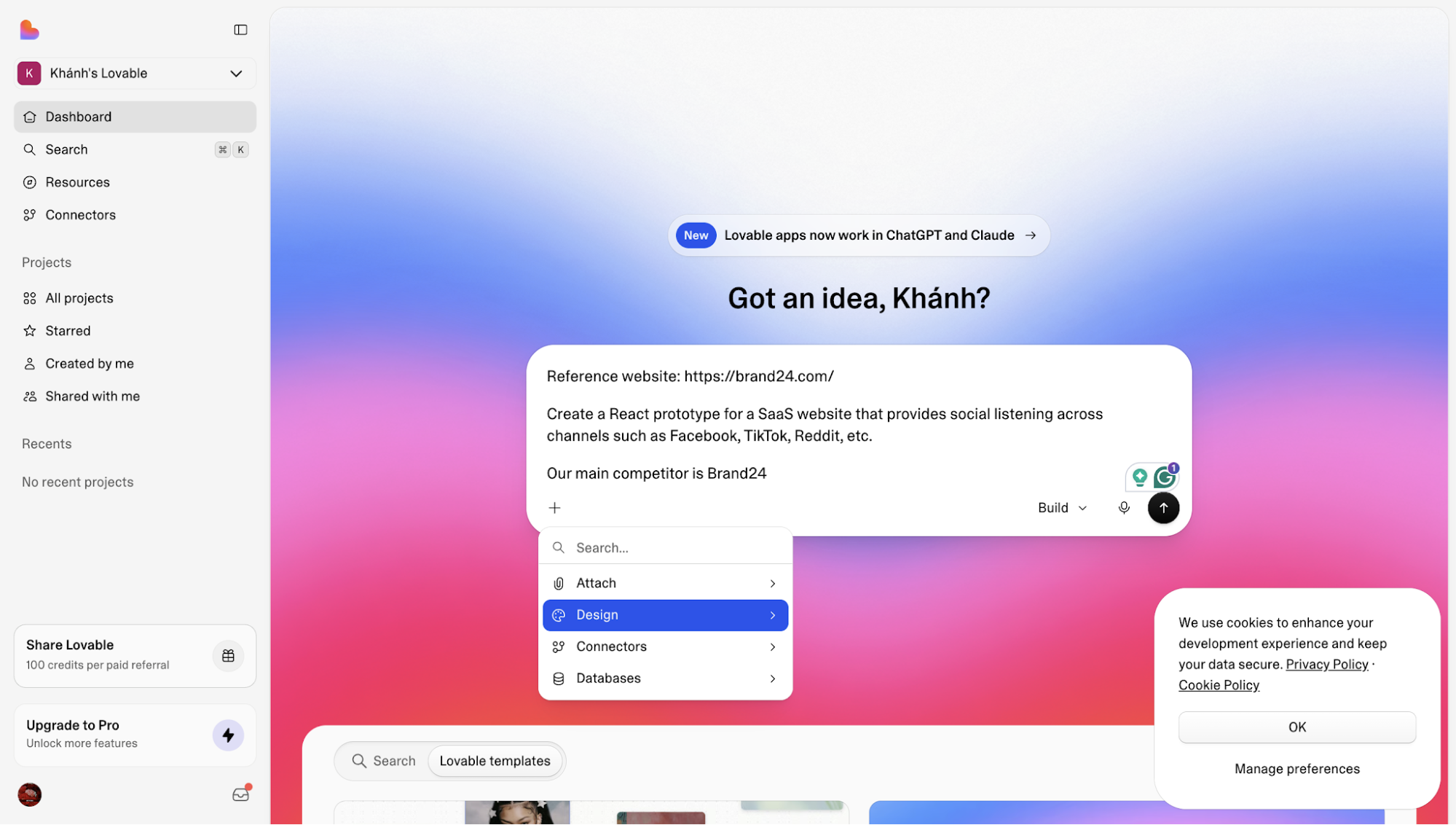
I used the same prompt and Brand24 reference as I did for the other tools, and the result was pretty decent. It understood the product, came up with a distinct visual direction, and produced a working landing page.
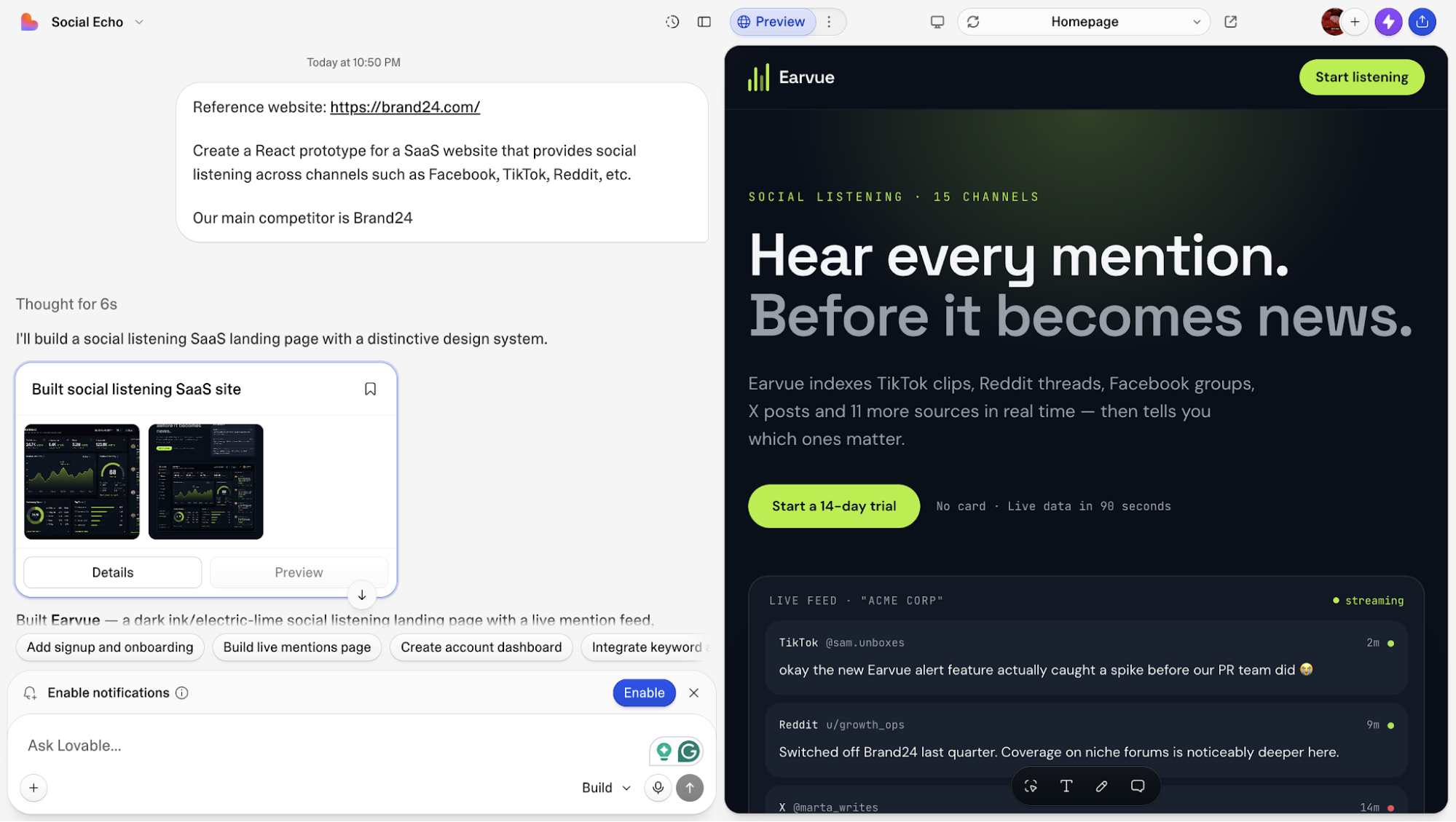
The limitation is how you refine it. You can use Visual Edits to change text, colors, spacing, borders, images, and other smaller design details without spending credits, but more substantial changes to the structure or behavior still need to go through the agent.
Switching to Plan mode doesn’t get around that credit system either. It lets you discuss and review a change before Lovable touches the code, but every message still uses one credit, and you then have to approve the plan before the agent implements it.
6. ProtoPie
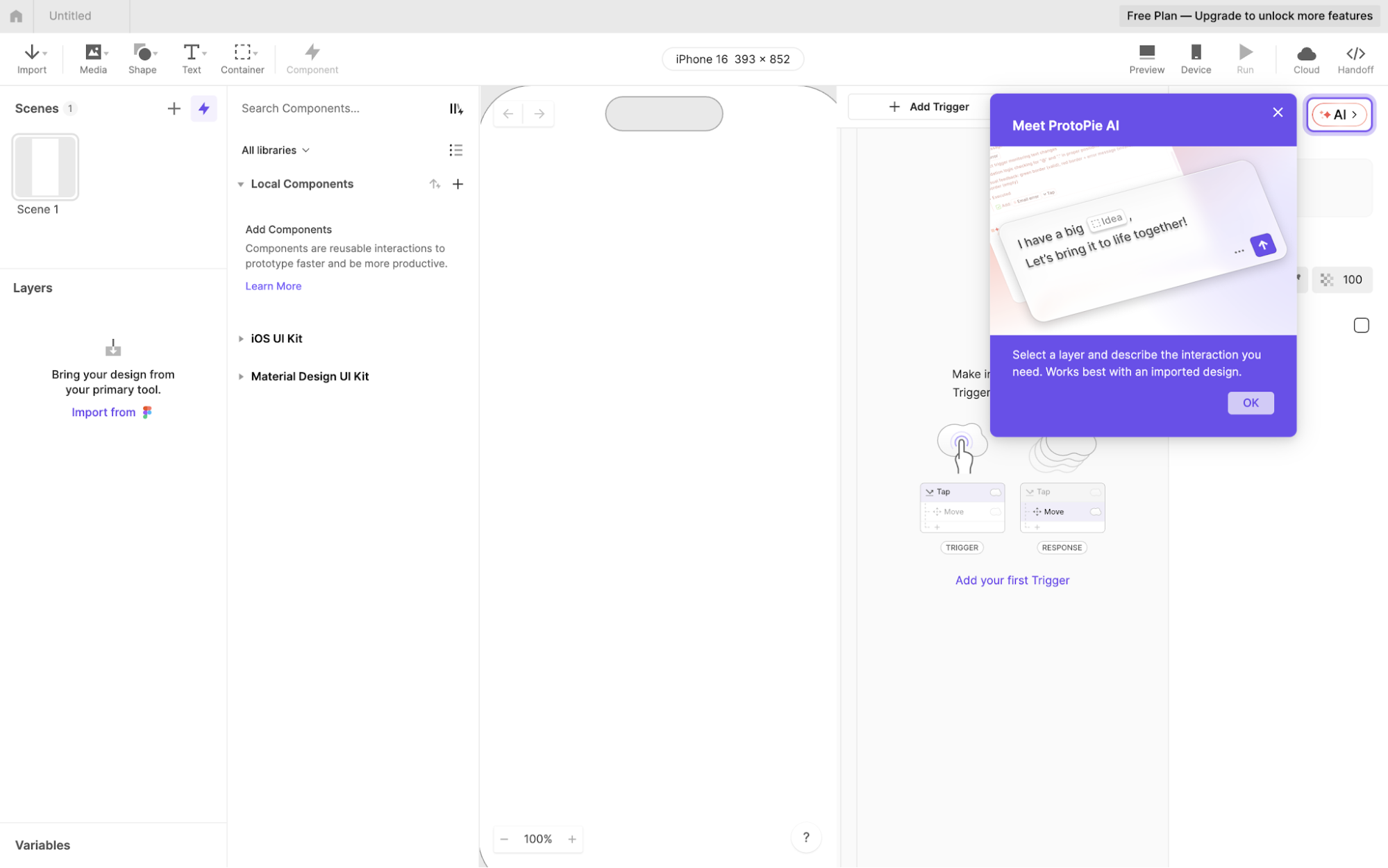
ProtoPie turns static designs into high-fidelity prototypes you can actually user-test. You import screens from Figma, Sketch, or Adobe XD, then use ProtoPie AI to generate the interaction logic from a prompt and refine the details manually.
ProtoPie is best for high-fidelity interactive prototypes
ProtoPie is best for high-fidelity interactive prototypes because it lets you add real logic and behavior to an existing design, rather than stopping at basic screen-to-screen navigation.
You need to install the ProtoPie Studio desktop app and import or build your screens there first. The free plan lets you create interactions manually. Nevertheless, you need to be on the Basic, Pro, or Enterprise plan to use ProtoPie AI.
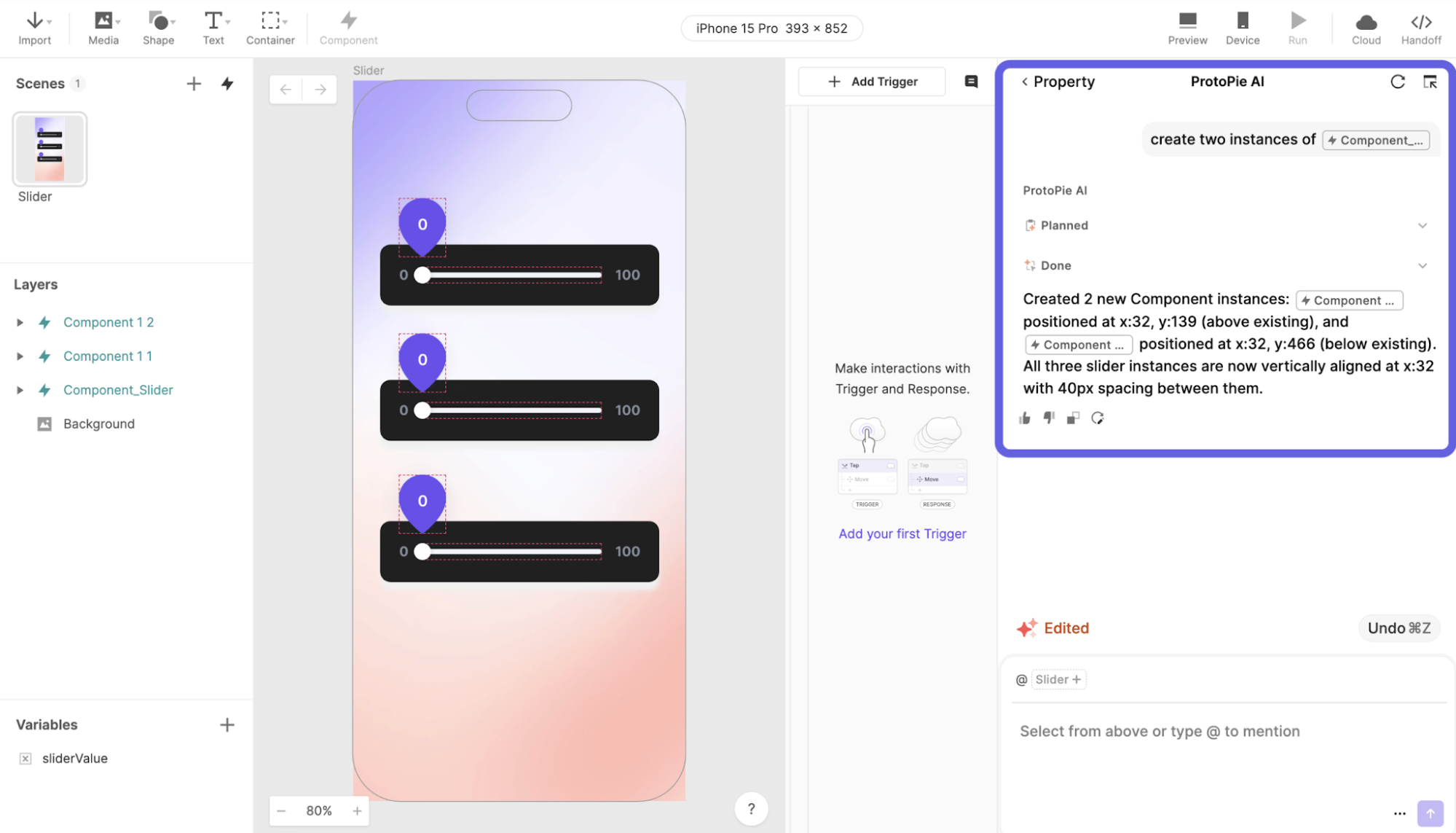
Once you have access, you select a layer or component and describe the behavior you want. ProtoPie AI then creates the relevant triggers, responses, and conditional logic, which you can continue adjusting manually. This makes it useful for interactions that depend on variables, states, or more complex product behavior rather than simple clickable flows.
Basic starts at $25 per month, while Pro starts at $47 per editor per month, both with annual billing.
7. Alloy
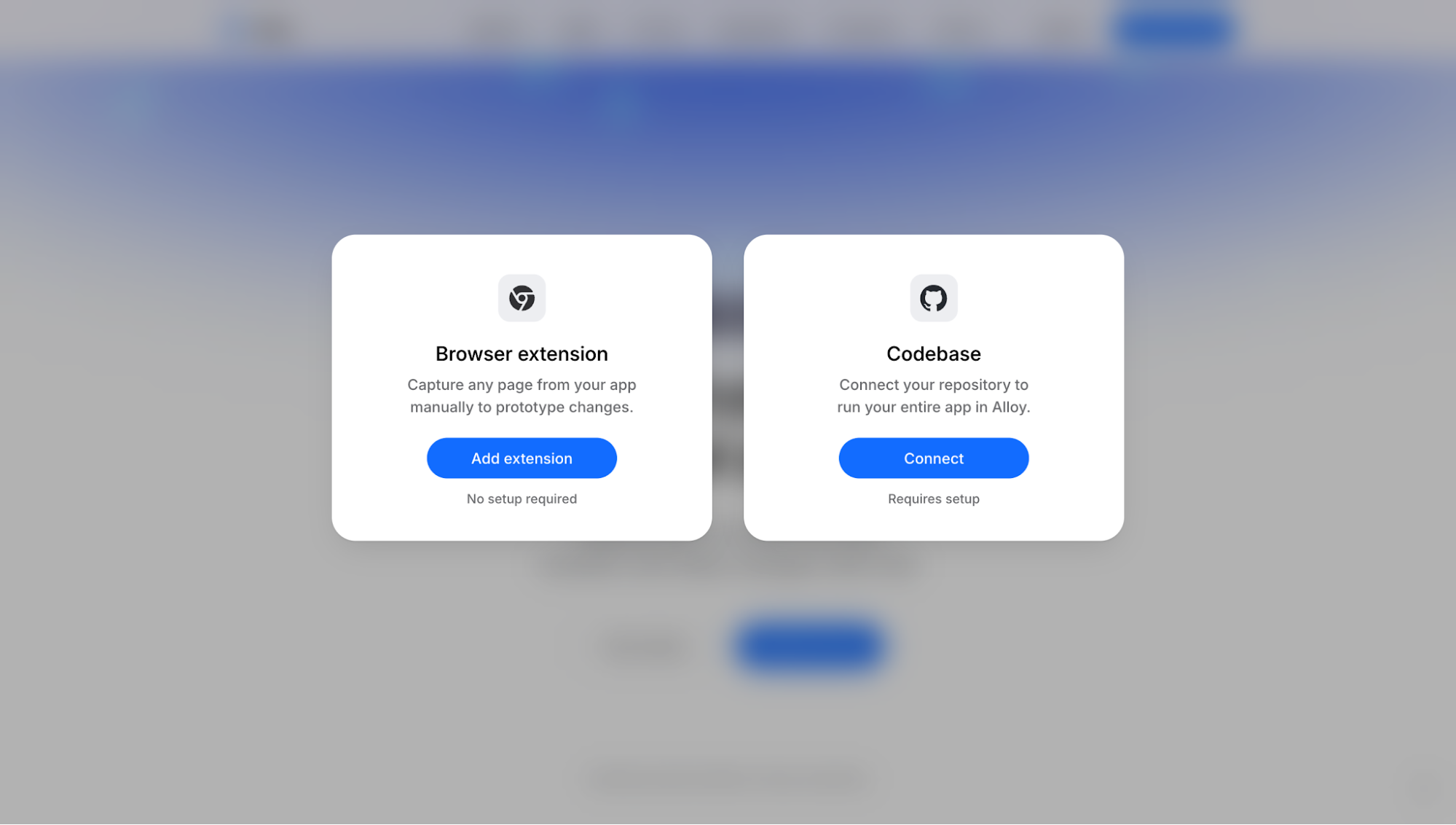
Alloy is an AI prototyping tool for testing new ideas directly on top of an existing product. You can capture a live page with its browser extension or connect your codebase, then use chat to change the interface while keeping the product’s current components and visual style.
Alloy has a free plan with unlimited users and $5 in AI credits per user each month. Pro costs $20 per user per month, includes $20 in monthly AI credits per user, and unlocks code export and credit top-ups. Enterprise pricing is custom.
Alloy is best for prototyping changes to an existing product
Alloy is best for prototyping changes to an existing product because its main workflow starts by capturing a live page through the browser extension. You can then refine the result through chat or visual edits, test it at different viewport sizes, and share or export the prototype.
I didn’t have an existing app I could use for this test, so I started from scratch with the same travel-app prompt instead. You can also select from the available models by Anthropic, OpenAI, and xAI.
Alloy generated both web and mobile versions, and the web design was decent. The mobile version, however, felt more like the web app compressed into a phone viewport than a native mobile experience.
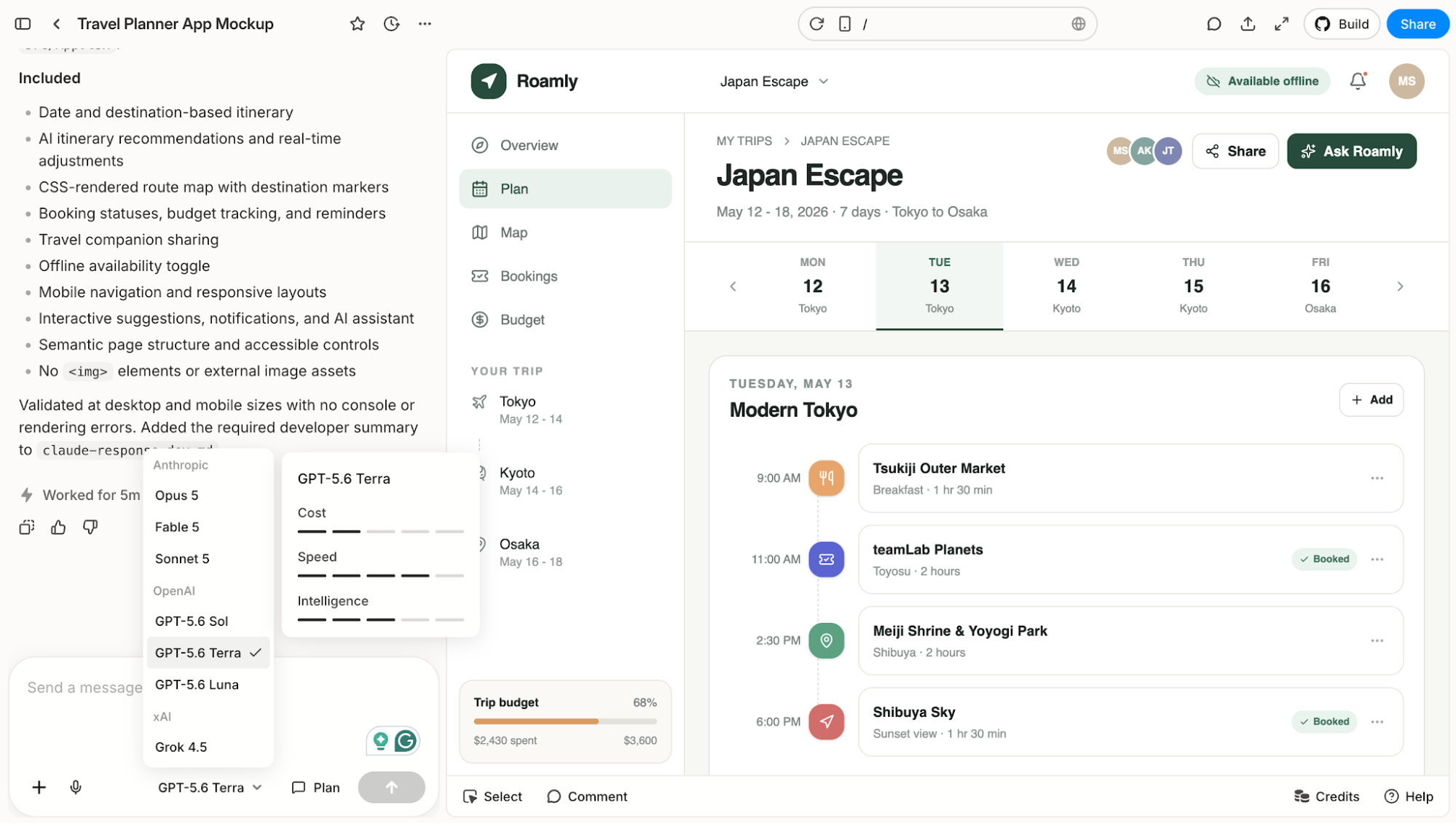
That isn’t necessarily the fairest test of Alloy, since starting from scratch isn’t what it is best for. Its documentation also recommends capturing your web product to get the best results. My bigger issue was speed, as this generation took around five minutes, making it the longest wait of all the tools I tested.
8. Relume
Relume is an AI website-planning tool for turning a brief into a sitemap and a set of page wireframes before you start the final design. It maps out the pages, suggests the sections and copy for each one, then lets you apply a shared style guide before exporting the project to Figma, Webflow, or React.
Relume has a free plan for testing the Site Builder, while paid plans start at $26 per month, or $18 per month with annual billing. You need a paid plan to export your work to Figma, Webflow, React, or HTML.
Relume is best for low-fidelity website prototypes
Relume is best for planning a website before you design it because it gives you the sitemap, the section-by-section structure, and the wireframes in a single pass, before anyone spends time on polish.
I tested its Design View, but the result wasn’t particularly strong. The structure and element organization felt awkward, with sections that didn’t flow naturally.
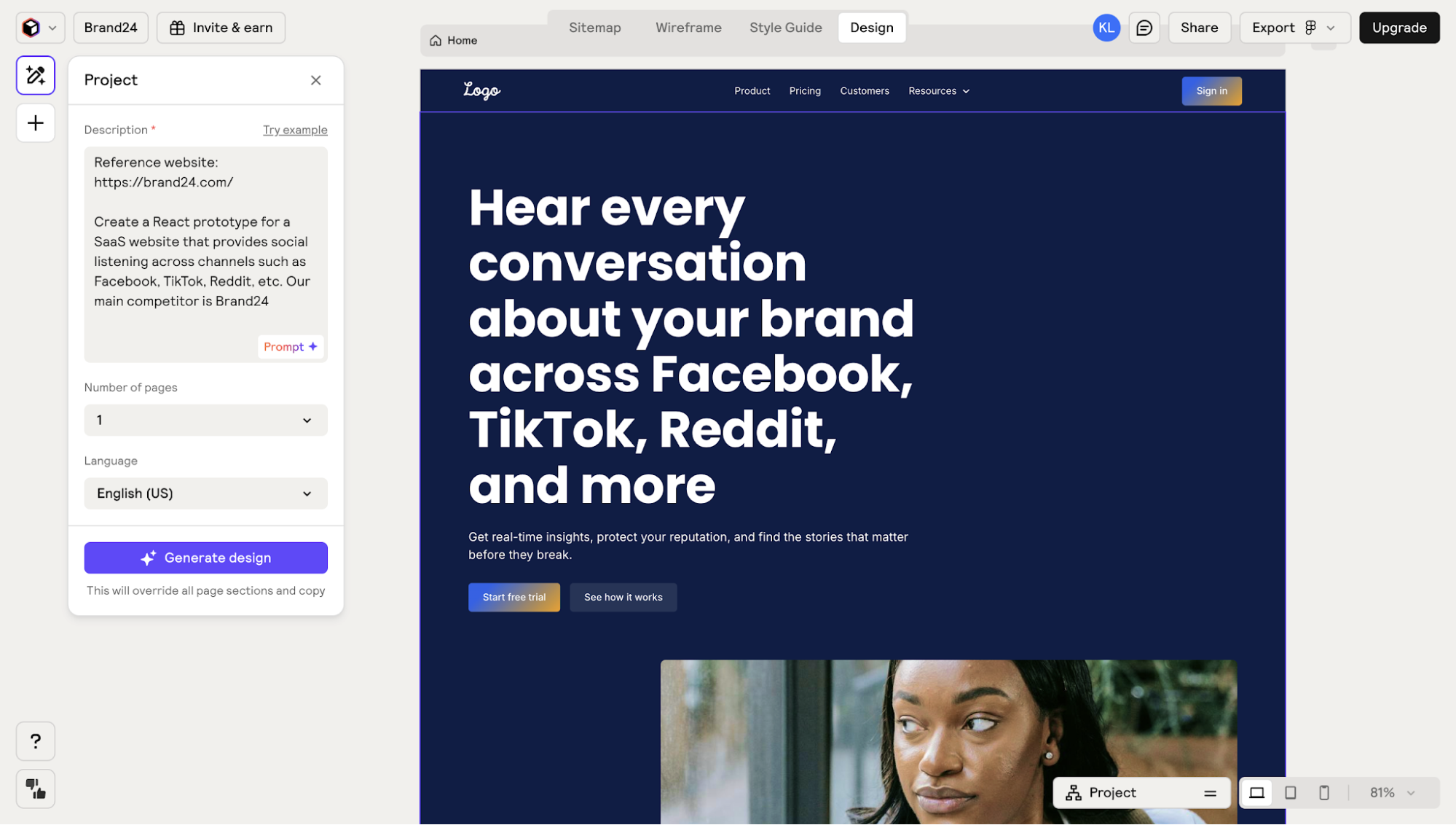
That makes sense once you look at how Relume works:
-
The sitemap defines the pages and sections.
-
Those section descriptions guide the wireframes it generates.
-
Design View then applies the style guide to that existing structure.
-
You export the result to Figma or Webflow for further refinement
So I’d use Relume for getting a website plan and initial wireframes together with AI help, rather than expecting a polished, high-fidelity prototype from the first generation. Relume itself describes Design View as an accelerator rather than the final design canvas, which is a much more accurate way to set expectations.
9. Visily
Visily is an AI prototyping tool for quickly turning a prompt, screenshot, sketch, or existing interface into editable screens and clickable flows.
It is mainly built for founders, product managers, developers, and other non-designers who want to get an idea onto the screen without first learning a more complex design tool.
Visily is best for fast mockups you can easily edit without leaving the platform
I used the same Brand24 brief here. The result was decent, and the structure made sense, but the design itself was fairly basic. I wouldn’t use the first output as-is, but Visily gives you enough control to clean it up without having to prompt the AI for every small change.
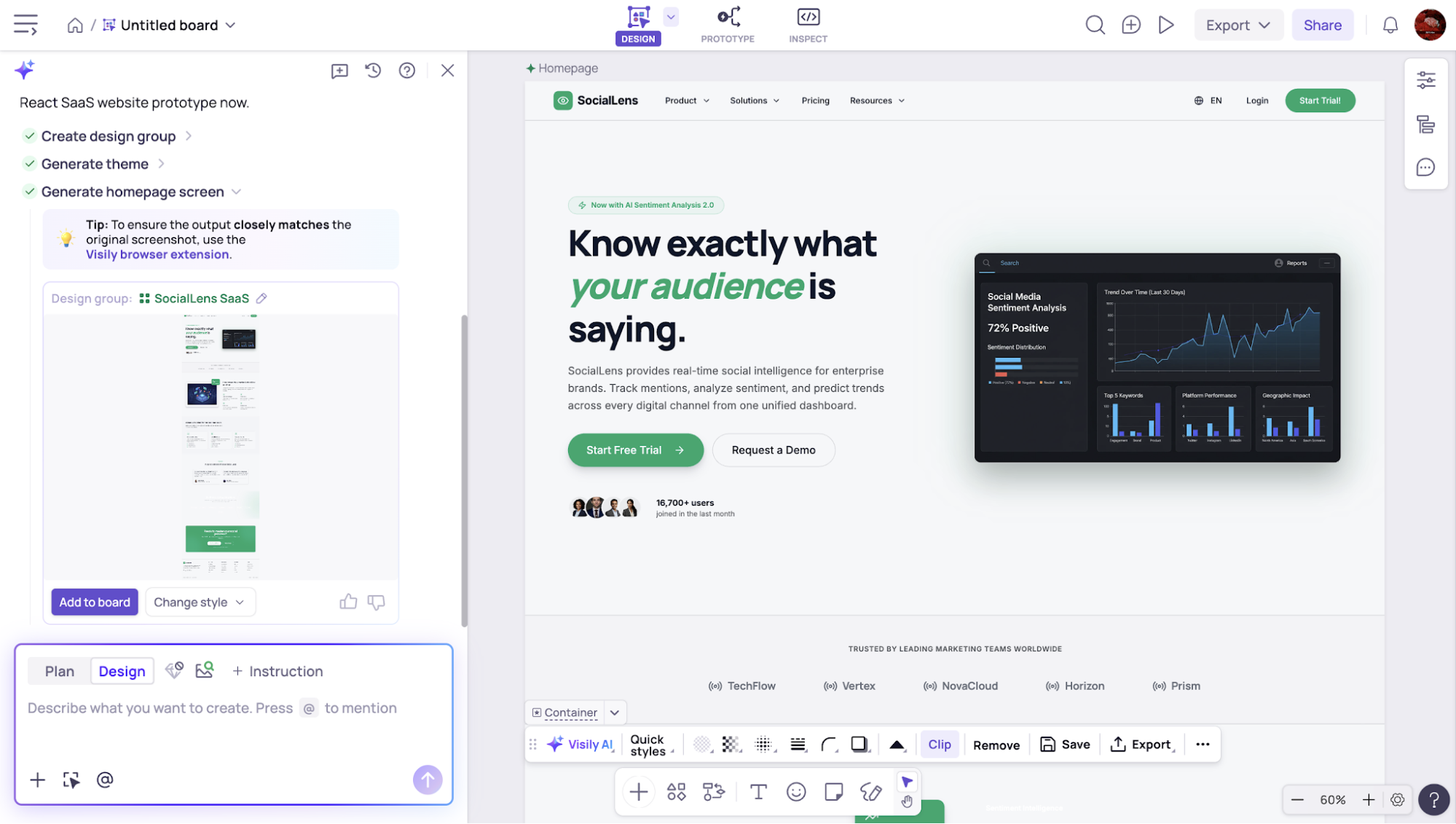
Once the design is on the board, you can:
-
Move, resize, restyle, replace, or remove individual elements.
-
Change the overall theme or add components from its library.
-
Switch to Prototype mode to connect screens manually or let AI create the initial flow.
-
Adjust triggers, navigation, overlays, and scrolling, then preview the prototype directly on the canvas.
It works well when you need a quick mockup that you can continue editing yourself.
Visily’s free plan includes 300 AI credits per month. Pro costs $11 per editor per month when billed annually and includes 3,000 credits, unlimited boards, Figma import and export, and code export.
Which AI prototyping tool is right for you?
Choosing the right AI prototyping tool comes down to two things: your starting point and what you want the prototype to become. Here’s how the nine options compare on both fronts.
By what happens after the demo
-
If you need a quick mockup that you’ll only show once and plan to rebuild later, Visily and Google Stitch are your fastest options. Both are free to start. These tools prioritize speed over detail, so expect to discard the file afterward.
-
A prototype that has real interactivity and that you can show to users. You should choose ProtoPie in the case where it is the interaction logic itself that you want to test and the screens are already in place. With respect to the more typical version of this task, UX Pilot allows you to create the connected multi-screen flow from scratch using Autoflow and then keeps it editable as you make changes in response to what the test revealed.
-
If you want a prototype that can become the final product, Lovable can create a full-stack application from your first prompt, though you’ll have less control over the design details. Framer does something similar for marketing sites if you’re okay with hosting on Framer. If you need the design to transfer smoothly, UX Pilot can export your project to React and HTML/CSS, or back into Figma as editable layers.
By where you start
-
If you start with a blank prompt, Google Stitch and Visily quickly generate screens for you. UX Pilot, on the other hand, takes the same prompt and gives you four sets of recommendations at once. This can be more helpful than it seems, especially when you’re still figuring out the direction of your product.
-
Whether it's a screenshot, a sketch, or a PRD, Visily handles screenshots and hand-drawn sketches well. UX Pilot, on the other hand, accepts all three types of input, including the full PRD, which is typically a document a product team already has stored somewhere.
-
It's based on a product that is already available. Alloy is the company that provides this solution: it uses a browser extension to capture the current page and then allows you to make changes through chat.
-
The website was structured using Relume for the sitemap and wireframes, and Framer for the design and publishing.
-
From inside Figma. Figma AI if you want to stay entirely in Figma and your team already pays for Full seats, ideally paired with the right AI plugins. Nodey, if you want UX Pilot's generation working directly on your existing file, reusing the components from your design system instead of rebuilding them.
Few teams work within a single tool. The starting point will vary depending on the project, as will the kind of survival the prototype needs to have afterwards.
This is the practical reason for treating UX Pilot as the standard option and seeing the other tools as specialists to turn to when the task is specific, such as having a prompt, PRD, screenshot, sketch, or an existing Figma file as input, and then producing a connected multi-screen flow as output, either in the form of editable layers within Figma or as React and HTML/CSS.
Since most of the tools offer free plans, the most economical approach is to go through the same brief with two of them this afternoon.
Start prototyping faster with the right AI tool
There is no single best AI prototyping tool that suits all situations; the appropriate tool is the one that corresponds to the stage you're at and the form that the prototype needs to take, and for the majority of product teams, this turns out to be the one that offers the broadest range of capabilities.
Use the same brief that you would give to a designer with UX Pilot's free plan and observe how far a single prompt will take you before you decide to commit.